Save the useful places
Bookmark a view or selection so the next visit starts in the right place.
Bookmarkly / Figma plugin
Keep a route through large files. Bookmark useful views, return to recent work and keep the next review step close to the design.
Start with the free tools. Current usage limits and upgrade options are shown in the plugin.
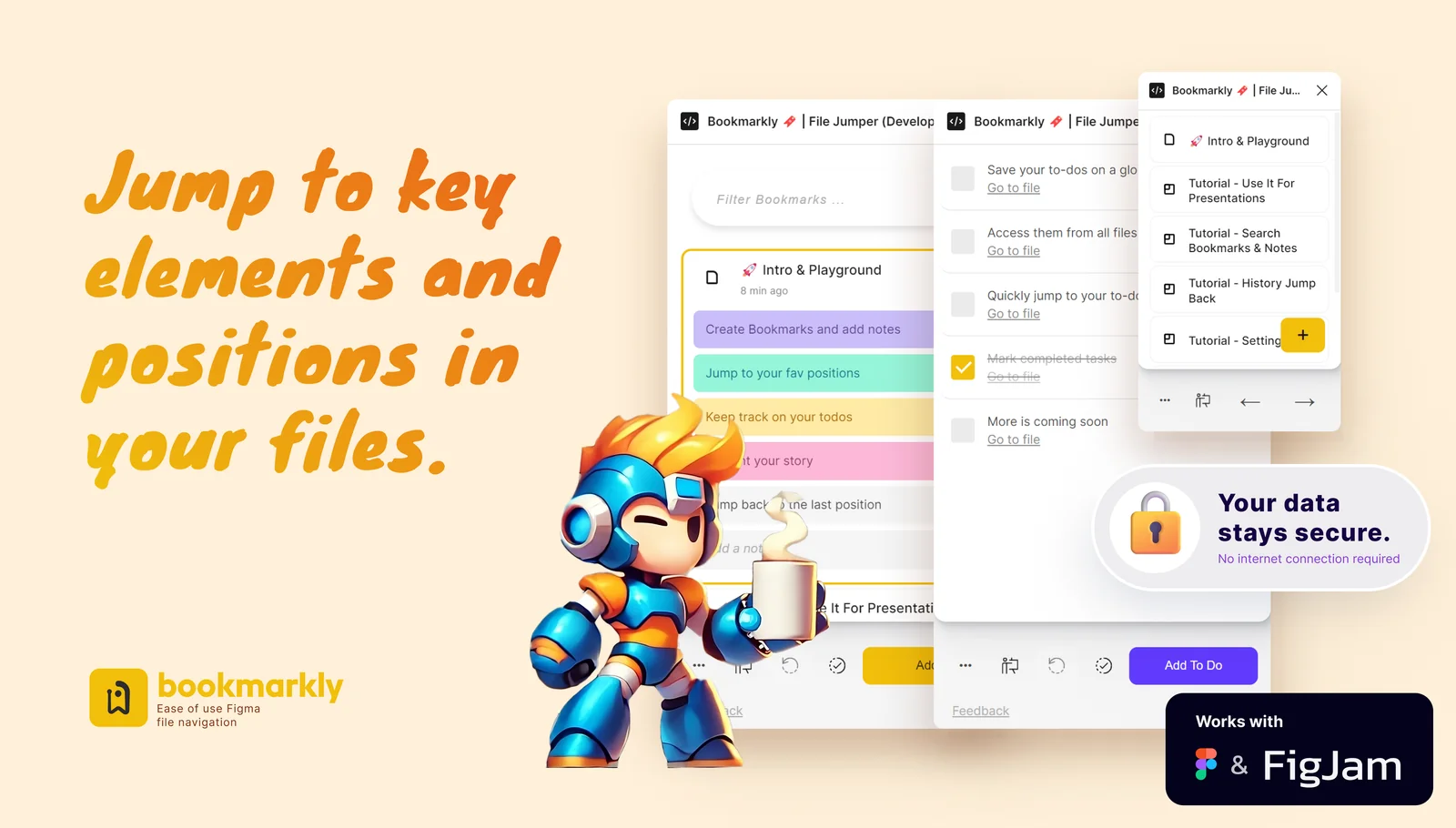
For large files, recurring reviews and the work you pick up tomorrow.
A large file can hold a whole product. Save the flow you are reviewing, the screen you are fixing or the area you need for handoff. Give it a useful name, then return from your bookmark list.
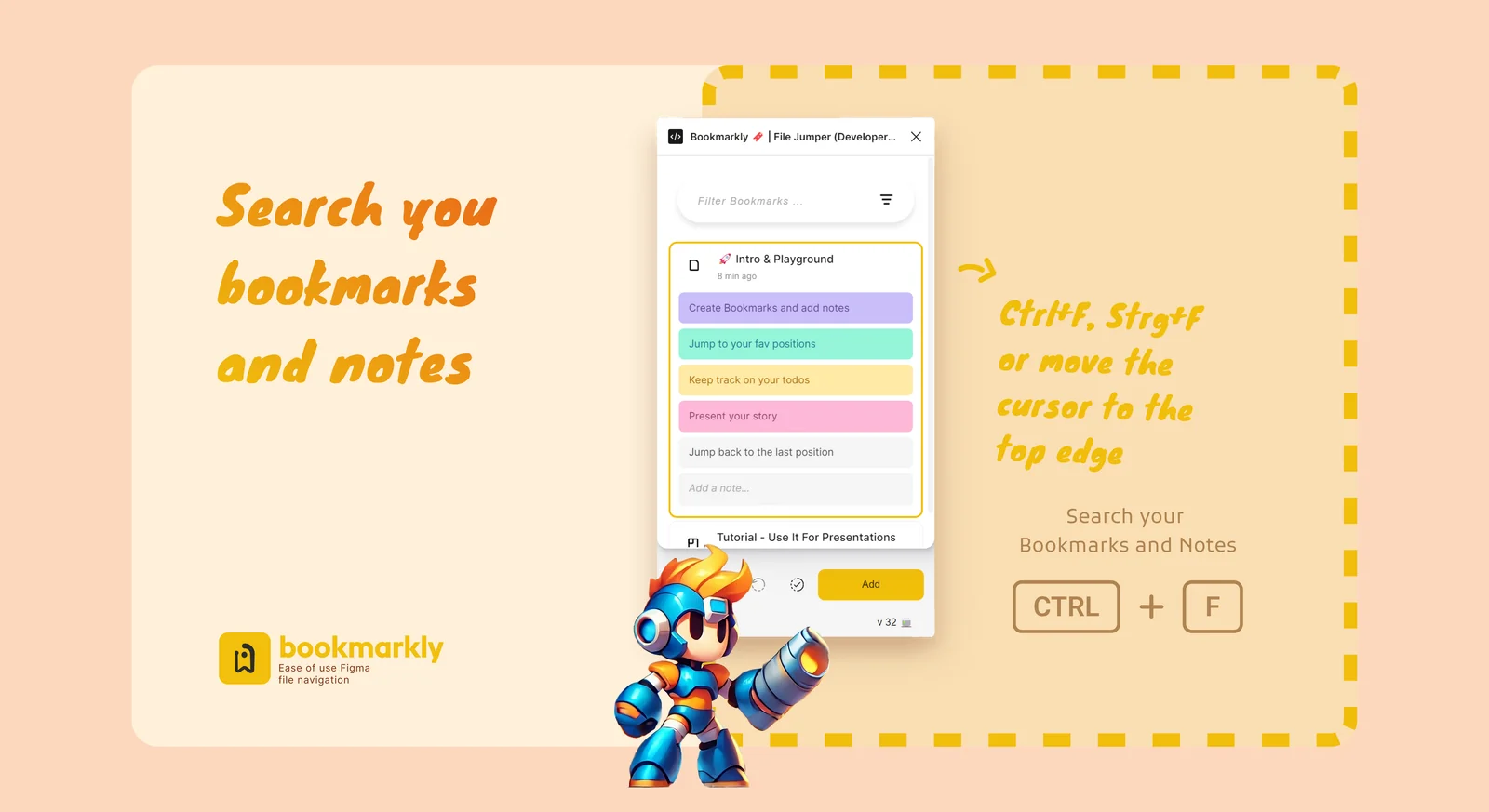
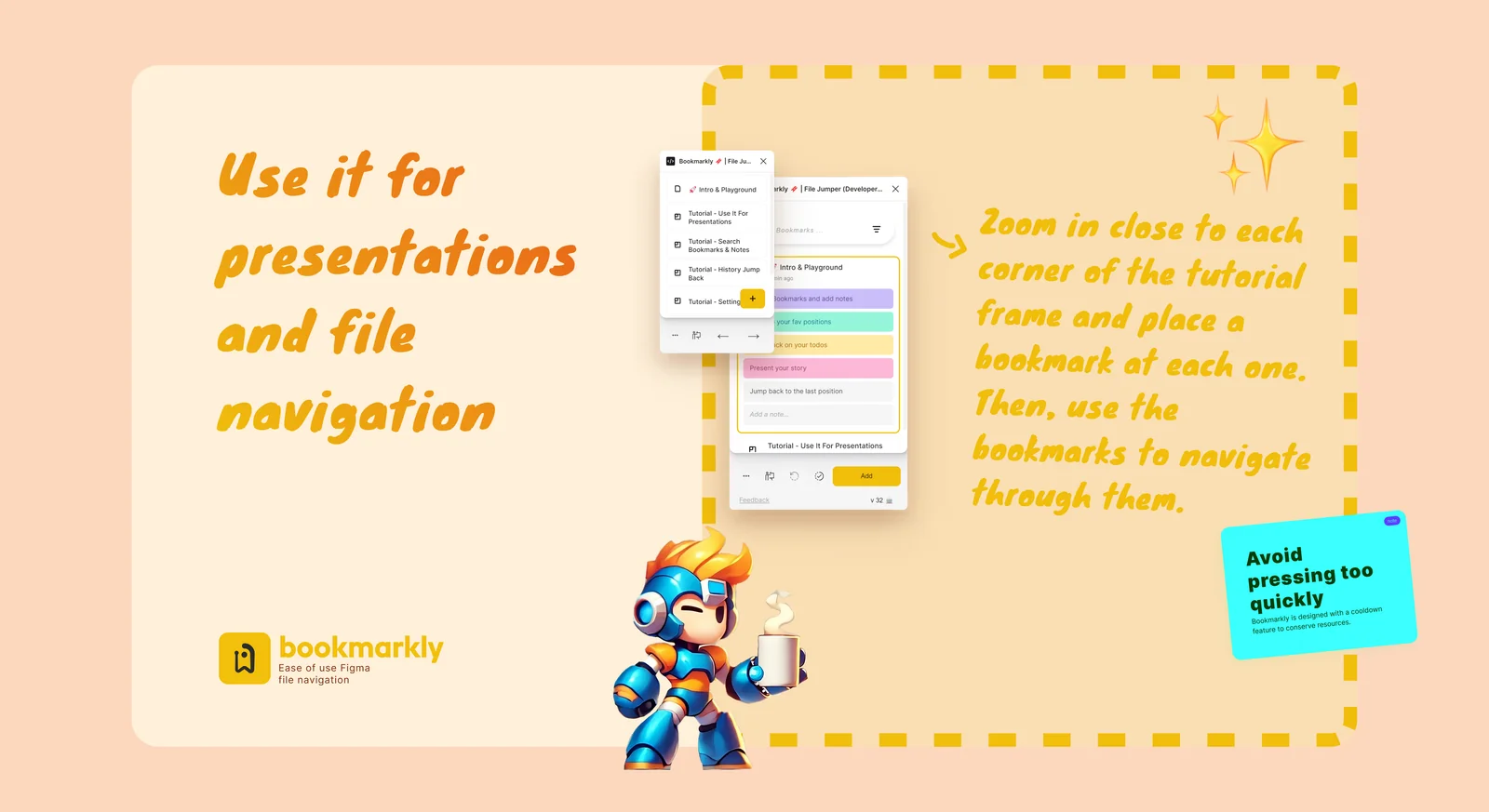
Save the screens and details you want to discuss. Keep the bookmarks in an order that follows the story, then revisit them during a review or handoff. Your next session starts with the same useful places already marked.
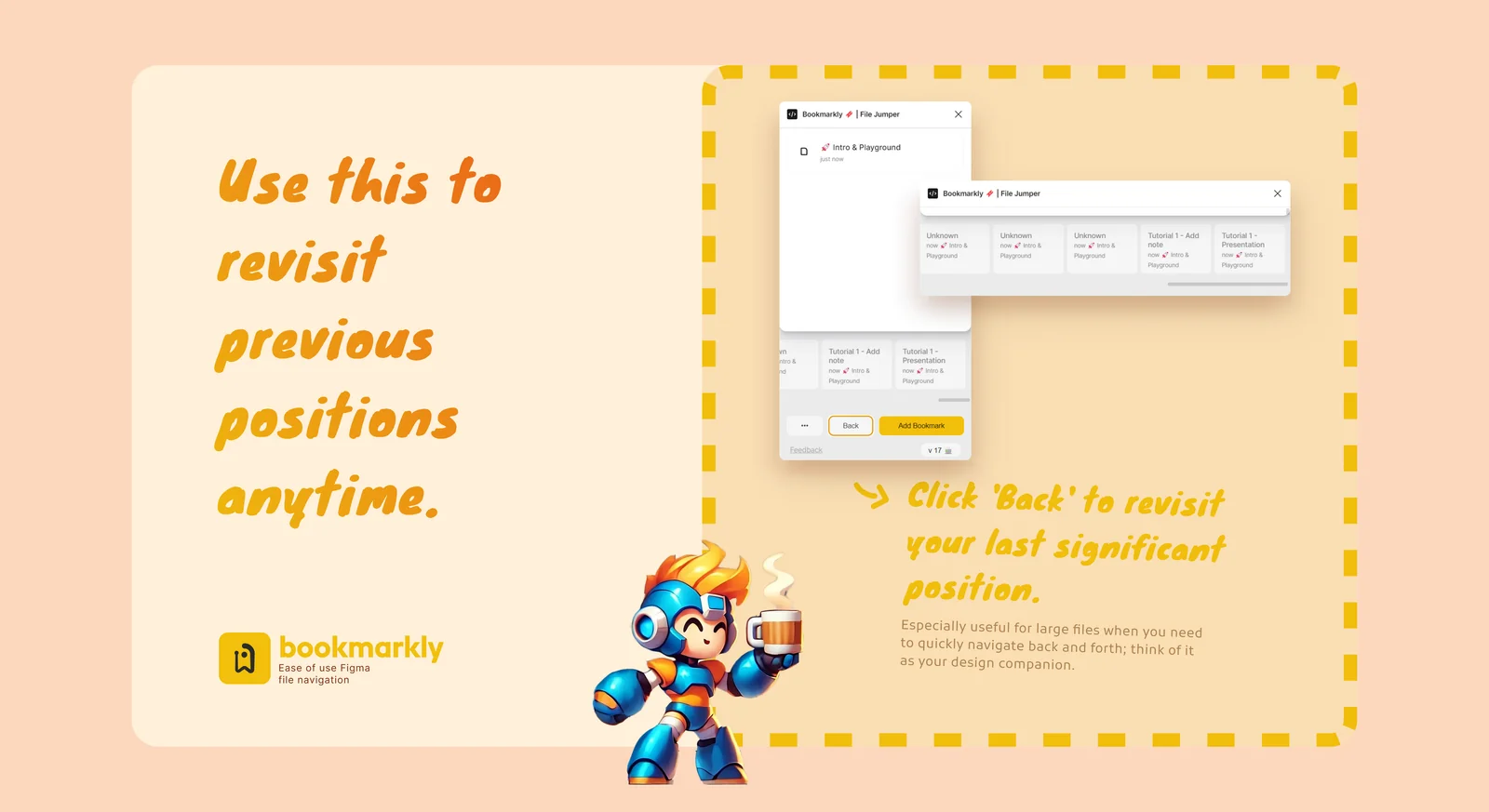
Use navigation history to revisit previous positions, and keep follow-up work in the todo list. File search and recent files help you return to related work. Add the current file key to enable cross-file navigation and linked todos.
A first run / Three steps
Run Bookmarkly from Figma. Start with a file you can edit and a place you want to revisit.
Use the current view or select the design elements you need. Create a bookmark and give it a name you will recognize.
Move elsewhere, then choose your bookmark. Add more review stops, a follow-up task or the file key for cross-file navigation.
"This is the best plugin for navigating and bookmarking frames in Figma. … I’m really surprised that a free plugin can have such great quality and support."
"Fantastic plugin mate. Keep them coming."
Try it in your own workflow
Open Bookmarkly in Figma and try the free tools in a working file. Some actions have usage limits or require an upgrade. The plugin shows the current options and terms.
A few practical details about working with Bookmarkly.
More tools from RAIKEN.io


Create sticky notes on the Figma canvas, organize feedback in a searchable list, and jump back to the design that needs attention.
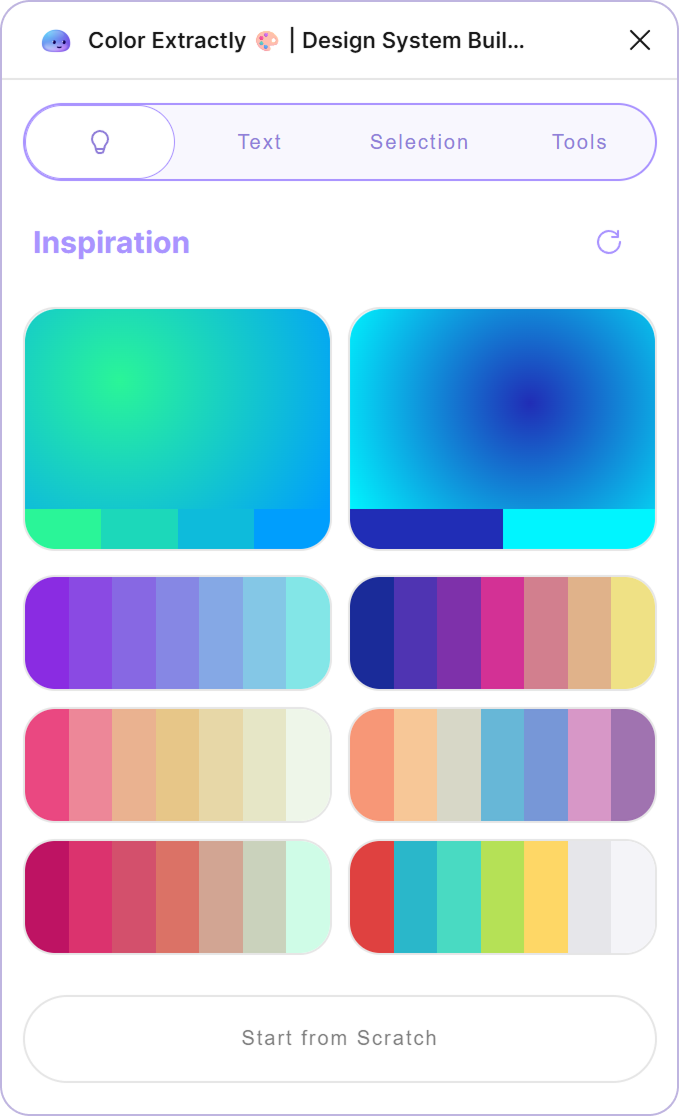
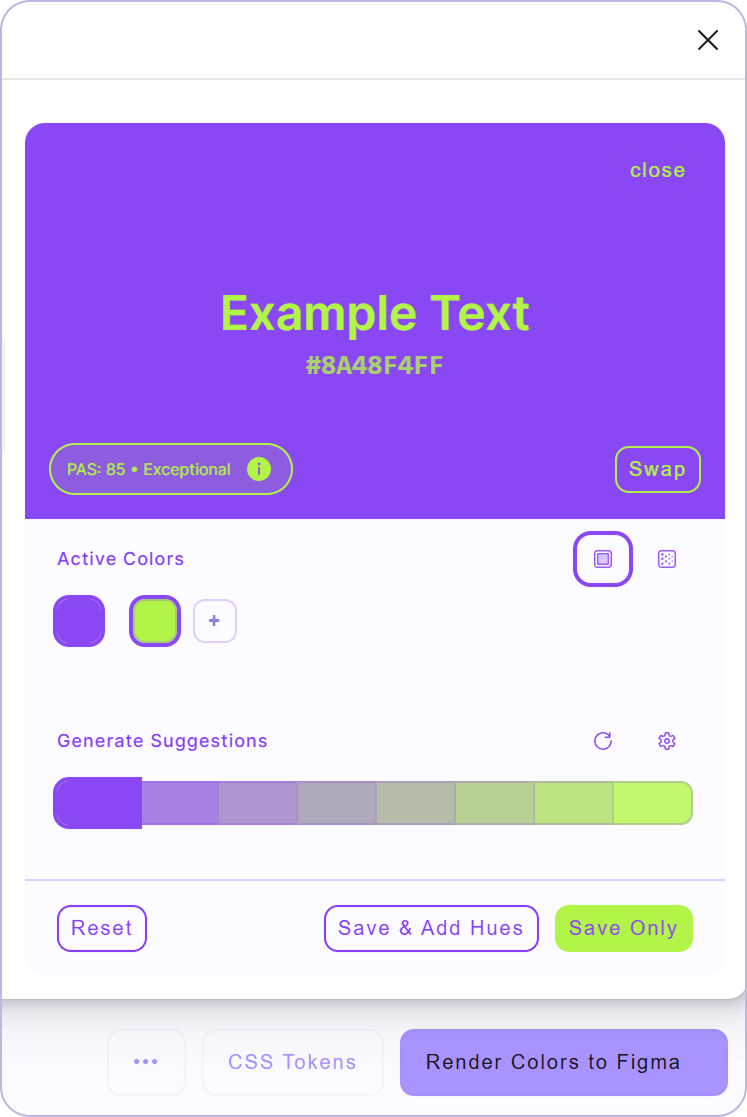

Extract colors from CSS, code snippets or Figma selections. Review color names, create variables and styles, and export values for development.


Fill and edit text and images in Figma, reuse content templates, and create repeated content with Smart Overflow. AI assistance is optional.