Local AI Setup (LM Studio, Ollama), CORS & Troubleshooting
Run open-weights vision and text models on your own hardware via LM Studio or Ollama, so AI requests go to your own machine instead of a cloud AI provider.
Goal
Configure a local multimodal AI server, resolve connection and CORS issues, and keep AI requests on your machine.
Before you start
- A computer capable of running local LLMs (Apple Silicon Mac or PC with dedicated GPU recommended).
- LM Studio or Ollama installed.
Steps
- Set up LM Studio (recommended) Download LM Studio from lmstudio.ai. Download a vision model (e.g. Qwen2.5-VL-7B-Instruct). Start the local server on Developer tab, enable 'CORS', and note base URL http://localhost:1234/v1.
- Set up Ollama (alternative) Run 'ollama serve' with OLLAMA_ORIGINS=* set in your environment. Pull your desired model (e.g. 'ollama pull llama3.2-vision') and use base URL http://localhost:11434/v1.
-
Configure Contently API settings In Contently, open AI Settings → API Key tab and choose 'Local'. Expand Advanced options, set the Base URL and the Model, then click 'Test & Detect Capabilities'. Use localhost in the URL, not 127.0.0.1. Click 'Save API Settings' when the test passes.
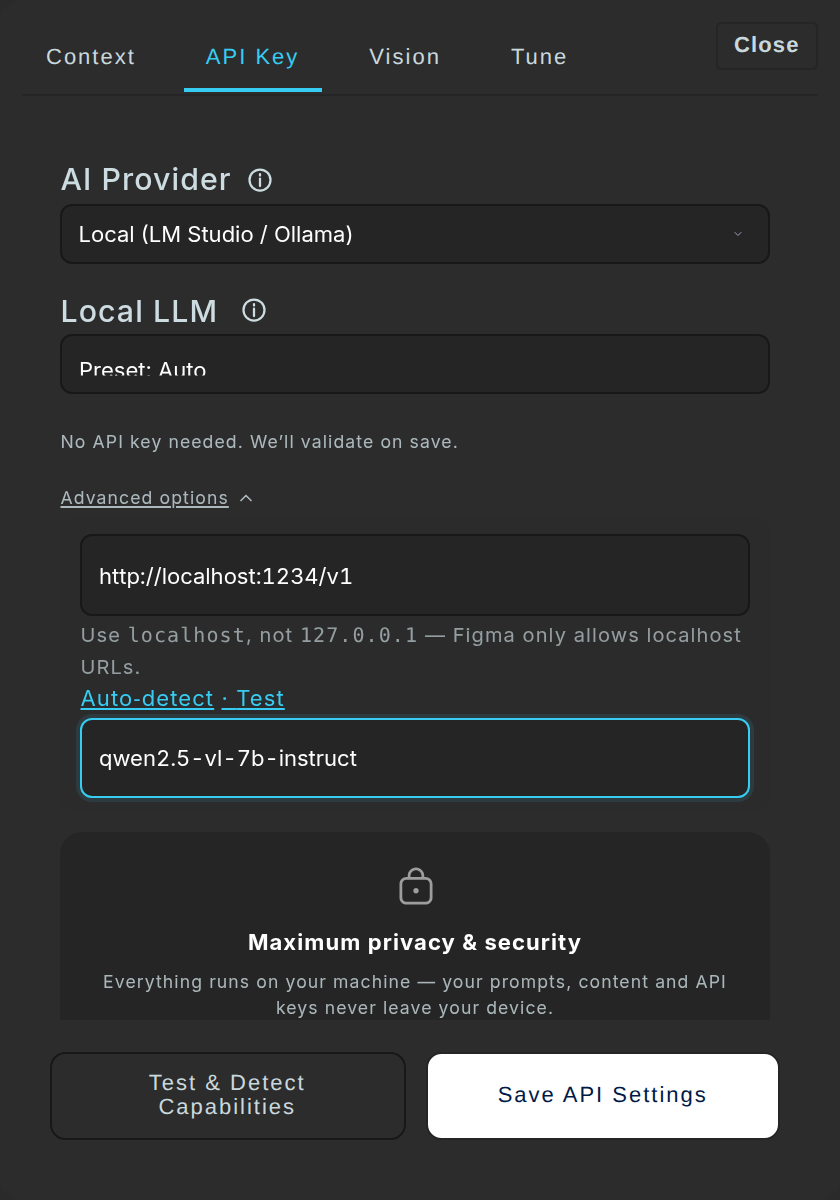
AI Settings → API Key → Local: Base URL and Model under Advanced options. 
An example capability report for a local vision model.
Tips
- Qwen2.5-VL-7B-Instruct offers the best balance of vision accuracy and RAM efficiency for local UI design reviews.
- Lock your configuration to localhost if your organization enforces strict data residency boundaries.
Result
Contently connects directly to your local endpoint; design analysis and copy generation run on your device with no external API charges.
If something goes wrong
- Browser/Figma displays CORS error when talking to localhost. In LM Studio, check Developer → Settings → Enable CORS. In Ollama, export OLLAMA_ORIGINS="*" before running ollama serve.
- Connection refused on localhost. Verify that your local server process is active and check whether port 1234 (LM Studio) or 11434 (Ollama) is listening.
Common questions
I see 'No AI provider available'. What now?
Open AI Settings → API Key tab. Choose a provider (OpenAI, Groq, Gemini, or Local) and enter your credentials. For Local (LM Studio / Ollama), no API key is needed: expand Advanced options, enter the Base URL (e.g. http://localhost:1234/v1) and the Model, and click 'Save API Settings'.
Which local vision model do you recommend?
For most designer workstations: Qwen2.5-VL-7B-Instruct. It provides sharp layout and color perception, handles design screenshots reliably, and runs smoothly on consumer hardware with 4-bit or 8-bit quantization.
How do I set up LM Studio? (recommended)
1. Install LM Studio from lmstudio.ai. 2. Search and load a model (e.g. Qwen2.5-VL). 3. Switch to the Developer tab and start the server. 4. Enable 'Enable CORS' in Developer Settings. 5. In Contently, point Base URL to http://localhost:1234/v1.
How do I set up Ollama?
1. Install from ollama.com. 2. Set environment variable OLLAMA_ORIGINS=* to permit Figma iframe connections. 3. Run 'ollama serve'. 4. Pull a model (e.g. 'ollama pull llama3.2-vision'). 5. In Contently, set Base URL to http://localhost:11434/v1.
Why do I get a CORS error?
Figma plugins run in sandboxed iframes. If your local server rejects cross-origin requests, a CORS error appears. In LM Studio, toggle 'Enable CORS' in Developer Settings. In Ollama, set OLLAMA_ORIGINS=* and restart.
Getting a 'connection refused' error?
Verify the server process is running and that no firewall is blocking ports 1234 or 11434. Figma only allows localhost, so use http://localhost:… and not 127.0.0.1 or another machine's address. In AI Settings → API Key → Advanced options, click 'Auto-detect' then 'Test' to check connectivity.
No models detected?
In LM Studio, ensure a model is actively loaded in memory before starting the server. In Ollama, verify that you have pulled at least one model ('ollama list'). You can also type the model identifier manually into the Model field in Contently.
Do AI requests leave my machine with a local model?
No. With a local provider Contently sends AI requests only to your local server on localhost, so prompts, copy and screenshots are not sent to a cloud AI provider. The plugin's own Local card says the same: your prompts, content and API keys never leave your device. Contently still contacts raiken.io for license checks and, if you allow it, usage tracking (Menu → System Settings → Privacy Settings).