Connect Gmail, iCloud Mail or another IMAP mailbox
Type your address and password, let PowerMail find the servers, test the connection and name the account. Gmail and iCloud need an app password, and the wizard links to it.
Goal
Add a Gmail, iCloud or other IMAP mailbox to PowerMail's unified inbox.
Before you start
- PowerMail installed.
- Your email address and its password. Gmail and iCloud need an app password instead, which Google offers only with 2-Step Verification on and Apple only with two-factor authentication on.
- For other providers, their incoming (IMAP) and outgoing (SMTP) server names, in case PowerMail can't find them by itself.
Steps
-
Open Add IMAP account Click Add account at the bottom of the left pane, or open Settings > Accounts and click Add account. Choose Google Gmail, Apple iCloud Mail or Other provider (IMAP). All three open the same wizard, Add IMAP account, which recognises the provider from the address you type.
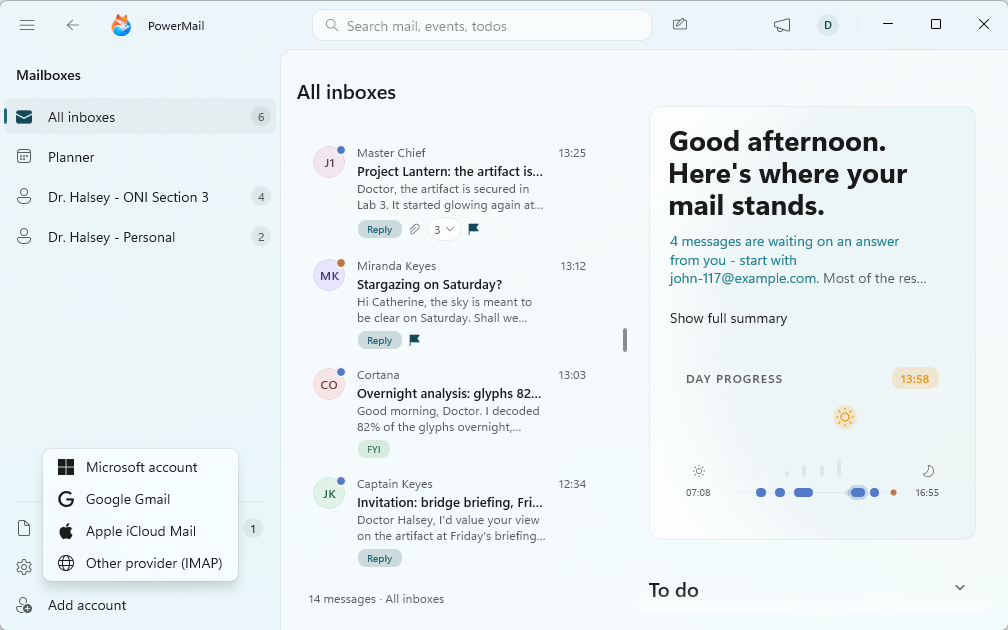
Choose Google Gmail, Apple iCloud Mail or Other provider (IMAP). - Get an app password for Gmail or iCloud Type a gmail.com, googlemail.com, icloud.com, me.com or mac.com address in Email address. A box appears, Gmail needs an app password or iCloud needs an app password, and the password field becomes App-specific password. Click Create an app password to open Google's or Apple's page in your browser, create one there and copy it. Turn on 2-Step Verification (Google) or two-factor authentication (Apple) first; until then the page has no app passwords.
-
Enter the address and password Fill in Email address and Password (App-specific password for Gmail and iCloud) and click Next. Leave Server settings (optional) closed: PowerMail finds the servers from your address. Open it only for a provider it can't find, and enter Server, Port and Security for incoming mail, and Outgoing server (SMTP) with its own Port and Security.
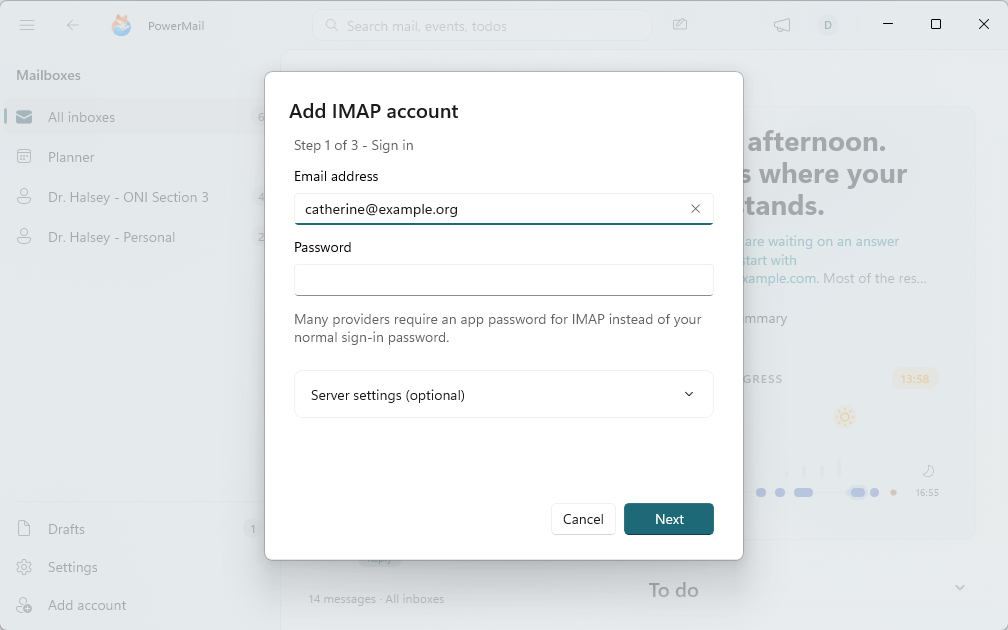
Enter the address and the app password, then click Next. The address is an example. - Test the connection Step 2 of 3 - Test connection checks Incoming mail (IMAP) and Outgoing mail (SMTP) one after the other. When the title says Connection works, click Next. If it says Connection failed, read the message below it, then click Back to correct your entries or Retry to test again.
- Name it, pick a color and save Step 3 of 3 - Name & color: Account name starts as your address; change it to anything, for example Personal mail. Pick a Color; it marks this account's messages in the unified inbox. Click Save. Mail starts syncing right after you save.
Tips
- Paste the app password exactly as Google or Apple shows it. PowerMail removes the spaces or dashes between the groups for you.
- To change the password or a server later, open Settings > Accounts, expand the account and click Edit on the Server and password row. Leave the password blank there to keep the current one.
- Hover Google Gmail or Apple iCloud Mail in the Add account menu: the tooltip reminds you that they need an app password.
Result
The mailbox appears in the left pane and its mail flows into the unified inbox, marked with the color you picked.
If something goes wrong
- The test says the server rejected the sign-in for your address. The server didn't accept the password. For Gmail and iCloud, use an app password, never your normal password. Other providers may require an app password for IMAP too; check their help pages.
- Couldn't find an IMAP server for your address automatically. Click Back, open Server settings (optional) and enter your provider's incoming server under Server and its outgoing server under Outgoing server (SMTP). Your provider's help pages list both.
- Connection works, but the outgoing (SMTP) server couldn't be confirmed yet. You can still save. PowerMail checks the outgoing server the first time you send, or you can set it under Server settings.
- Clicking Next opens Server settings instead of testing. PowerMail can't guess the servers from what you typed in Email address. Enter the Server yourself, or type the full address.
- Your address is already connected - edit or remove it under Settings > Accounts instead. That mailbox is already in PowerMail. To change its password or servers, open it in Settings > Accounts and click Edit.
- The connection fails, but these settings worked before. When your other accounts sync normally, the message says the mail server itself may be down. If you entered the server yourself, Save anyway - PowerMail will keep retrying in the background keeps the account and keeps trying.
Common questions
Why don't Gmail and iCloud take my normal password?
Google and Apple don't accept your normal account password from a mail app that connects over IMAP. They want an app password, which you create in your Google or Apple account and use only for PowerMail.
Do Gmail and iCloud accounts bring their calendar?
Not through IMAP, which carries mail only. For Gmail, connect Google Calendar in Settings > Accounts. iCloud and other IMAP mailboxes have no calendar in PowerMail.
Which providers does Other provider (IMAP) work with?
Any mailbox that offers IMAP for incoming and SMTP for outgoing mail. PowerMail tries to find the servers from your address; if it can't, you enter them under Server settings (optional).
How do I remove an IMAP account?
Open Settings > Accounts, expand the account and click Remove on the Remove this account row.