Work through every inbox in one list
Read all your accounts in one list, then archive, delete, move, pin, flag and tag mail with a click or a key. Turn on AI Priority and the beta triage page when you want more help.
Goal
Get through new mail from every account quickly, and keep what matters at the top.
Before you start
- PowerMail installed, with at least one mail account connected.
- For AI Priority: AI set up in PowerMail (see the AI setup guide).
Steps
-
Open All inboxes In the left pane, under Mailboxes, select All inboxes. You see new mail from every connected account in one list, newest first. Select an account instead to see only its inbox, with its folders below it. When the list mixes accounts, the dot on an unread mail takes that account's colour.

All inboxes: every account in one list, newest first. Demo data in an invented mailbox. -
Read and act on a mail Click a mail to open it in the reading pane. The toolbar above it has Reply (its arrow holds Reply all and Forward), Tag, Mark as read or Mark as unread, Archive, Spam and Delete. Close (the X on the right) closes the reading pane. Right-click a mail in the list for more: Open in new window, Pin to side, Flag for follow-up, Tag, Pin, Add note…, Archive, Move to, Move to Junk, Delete and Related settings.
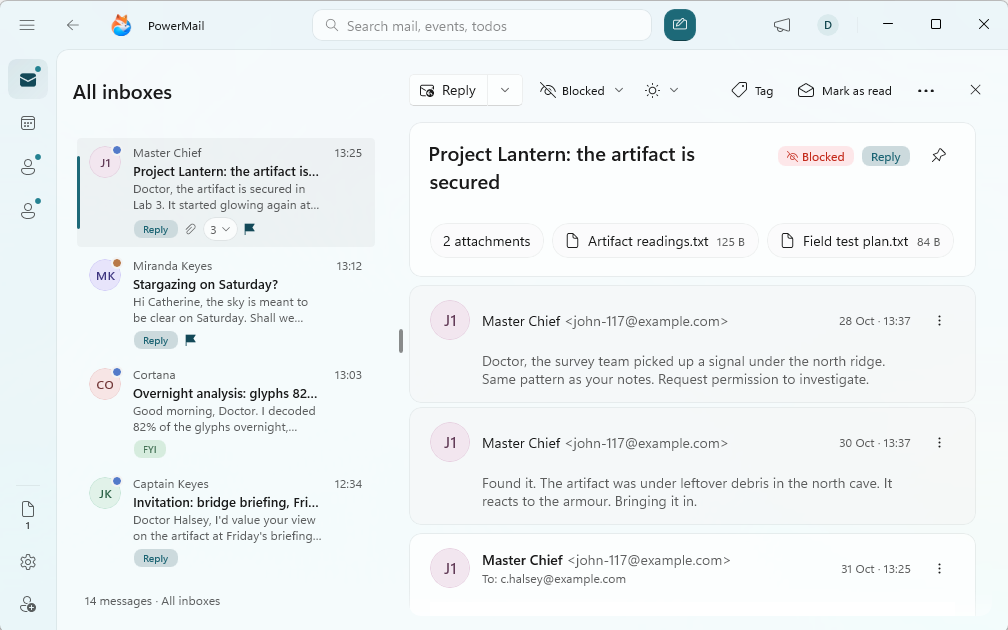
Click a mail to read it; the toolbar acts on it. Demo data in an invented mailbox. - Clear mail from the keyboard With a mail selected in the list, press Delete to delete it or Backspace to archive it. The next mail opens right away, so you can keep going. Each move shows a message with Undo. Ctrl+Shift+P pins or unpins the selected mail. With a mail open, Ctrl+R replies, Ctrl+Shift+R replies to all and Ctrl+Shift+F forwards.
-
Move, pin, flag and note Move to lists the folders you used last first, then the account's folders, and Choose folder… when there are more. You can also drag a mail onto a folder in the left pane. Pin keeps a conversation in the Pinned card at the top of the list until you unpin it. Pin to side keeps a mail open at the side of the window. Flag for follow-up marks a mail to come back to, and Remove flag clears it. Add note… puts your own note on a mail.

Right-click a mail for every action, with its keyboard shortcut. - Tag a sender or one mail Right-click a mail and open Tag, or select Tag in the reading pane. A tag you pick here applies to the sender, so their next mail gets it too. Built-in tags are Reply, Newsletter, Receipt, Security, FYI and Suspicious, plus any you make with New tag…. To tag just this one mail, open Only this message. No tag removes the sender's tag.
- Act on several mails at once Hold Ctrl or Shift and click mails to select them, or point at the list header and select Select messages. An action bar appears with the count and the same actions. Press Esc to clear the selection. Deleting more than 25 mails at once asks first, and Move to Junk always asks first, because it also teaches your mail provider's spam filter, on every device.
- Filter and sort the list Point at the list header and select Filter and sort. Under Show only, tick Unread, Flagged or With attachments, or pick tags. Sort by offers Newest first, Oldest first, Unread first, Sender (A-Z) and Subject (A-Z). Show everything clears the filters. The Refresh options button in the same header refreshes mail and has Mark all as read.
- Optional: turn on AI Priority Open Settings > Mail and turn on AI Priority list. It's off by default and needs AI set up first. A card called AI Priority then sits at the top of your list with the mail the assistant thinks matters most. Click a row to open it, click the card's header to fold it, or select Rescan with AI. Right-click a row for the usual mail actions plus Good call, Not a priority for me, Remove from this list and Clear the whole list.
- Optional: try the triage page (Labs) Open Settings > Labs and turn on Magazine layout, then hide the daily digest. Like every Labs feature, it stays off until you turn it on. In a large enough window, your mail gets a triage band on top: TODAY counts today's mail, what's unread and what needs you. NEEDS YOU shows one card at a time: Reply or Open, Skip to see the next, Plan to add it to your todos, or Done to archive it. Tag chips filter the list, a switch shows it as a List or a Grid, and the sweep button runs Inbox Zero, Clean up, Delete newsletters or Mark read. In the column on the right, BUNDLES groups cleanup by destination, with a Move button and Review to see and untick mails first, and NEXT UP shows your next calendar event.
Tips
- Delete and Backspace move on to the next mail, so you can triage a whole inbox without the mouse.
- Related settings in the right-click menu jumps straight to the Notifications, Mail or Tags & rules settings for that kind of mail.
- NEEDS YOU never deletes: Done archives the mail, and the message after it has Undo.
Result
Mail from every account is in one list, the mail you've dealt with is archived, moved or deleted, and what still matters is pinned, flagged or tagged.
If something goes wrong
- A harmless mail is marked 'Looks like a scam'. The mark is advice only and can be wrong, especially from the AI. Nothing is moved without you. Open the mail, select Message security in the reading pane's toolbar and choose Not a scam. That clears the flag and turns its links back on. Until then, Reply first shows why it was flagged, with Reply anyway below the reasons.
- The list looks empty, or mail seems to be missing. A filter may be on. Point at the list header, select Filter and sort, then Show everything.
- I archived or deleted the wrong mail. Select Undo in the message that appears after the move. Later on, deleted mail is in the account's Deleted Items folder and archived mail in its Archive folder.
- Move to says 'Can't move between accounts'. Your selection holds mail from more than one account. Move each account's mail separately, from that account's inbox or from All inboxes.
- The AI Priority list switch is greyed out. AI is off for it. Select the 'AI is off for this' chip under the switch to jump to the setting that turned it off, in Settings > AI assistant. AI also has to be set up first.
- I turned on Magazine layout but don't see NEEDS YOU or BUNDLES. The triage band shows only while the daily digest is hidden and the window is big enough. Hide the digest, make the window larger, or unpin the digest if you pinned it to the side.
Common questions
Does archiving delete my mail?
No. Archive moves the mail to the account's Archive folder. Delete moves it to Deleted Items, where you can get it back.
What's the difference between Pin and Pin to side?
Pin keeps a conversation in the Pinned card at the top of your list. Pin to side keeps a mail open in a panel at the side of the window while you work.
Can I set a priority on a mail myself?
Use Flag for follow-up or Pin for that. The AI Priority list is the assistant's own ranking, and you can tell it Good call or Not a priority for me.
Does a tag change anything in my mail account?
Tags live in PowerMail. A tag you pick for a sender is a rule for their future mail; use Only this message to tag a single mail.