Find any mail with search, and catch up with the daily digest
Search mail, events, todos and settings from one box with Ctrl+F, narrow the results and act on them. Show the daily digest when you want one view of what needs doing and what can go.
Goal
Find a mail in seconds, and see at a glance what to answer, what to plan and what to clean up.
Before you start
- PowerMail installed, with at least one mail account connected.
- For the digest's written summary and reply proposals: AI set up in PowerMail (see the AI setup guide).
Steps
- Open search Press Ctrl+F, or click Search mail, events, todos in the title bar. Type a name, an address or a few words. Suggestions appear as you type, from the mail already on your PC. Use ↑ and ↓ to move, Enter to open and Esc to close. With an empty box, you see your Recent searches and Clear recent searches.
-
Pick a scope The chips under the box narrow what you search: All, Mails, Calendar, Todos or Settings. The Calendar chip's arrow offers All calendar entries, Events only or Todos only. While search is open, Ctrl+1 to 5 picks the chips in that order.
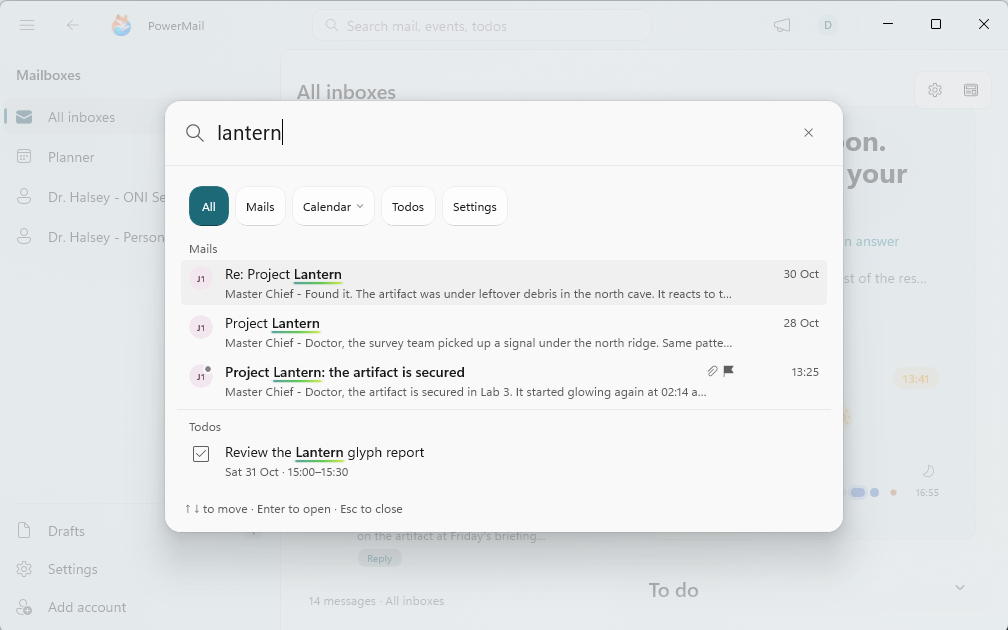
Suggestions appear as you type; the chips narrow the scope. Demo data in an invented mailbox. - Open all results Press Enter, or select See all results at the bottom of the suggestions. The results page also asks your mail servers, so older mail can show up too. If nothing turned up on your PC, select Search everywhere for your words instead.
- Narrow the results On the results page, filter by account, by folder (type in Filter folders to find one), by date (Any time, Today, Past 7 days, Past 30 days, This year, Last year or Custom range), by tag and with Has attachment. Sort by Relevance, Newest first or Oldest first. Load more brings in the next batch. Back returns to where you were.
- Act on what you found Click a mail to open it beside the results. A result works like a mail in your inbox: right-click it for Archive, Move to, Move to Junk, Delete and the other mail actions, or press Delete or Backspace, and the next result opens. To clear many at once, Ctrl-click or Shift-click results, or use Select all results, then pick an action in the bar that appears.
- Show or hide the daily digest Point at the list header and select the digest button: Show daily digest brings it back beside your mail, Hide daily digest gives the list the room. In a narrow window, select Daily digest instead. Drag the same button to the side of the window to pin the digest there, or onto the page to open it in its own window.
-
Read the digest The digest gathers your mail into sections: Catch up (unfinished from earlier this week), To do, Cleanup, Needs your attention and Earlier digests. Point at the digest and select Daily digest sections to choose which ones show. The top card's menu, Choose what this card shows, switches its Message, Day progress chart and Background glow on or off. When nothing is waiting, it says Nothing needs you right now.
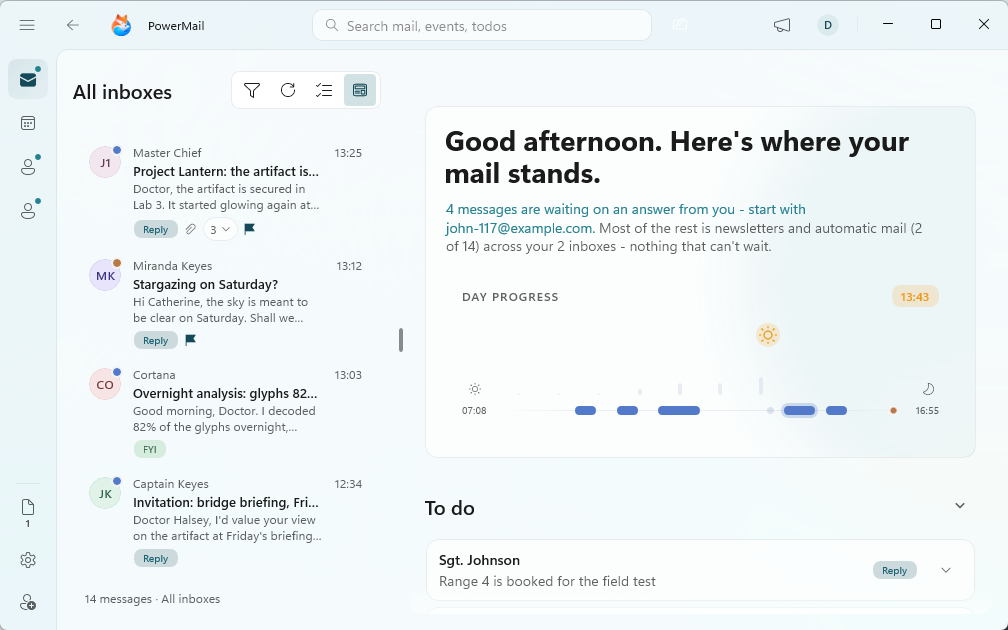
The digest sums up the day and gathers what needs you. Demo data in an invented mailbox. - Act on a To do card A card can propose a reply, a calendar block or an invoice filing. Read what it proposes: nothing runs until you click its button, Send reply or Do it. Remove the reply or the block if you don't want it, or select Open message to handle it yourself. Good suggestion and Bad suggestion tell the assistant how it did. In Catch up, Move to today brings an item into today, and Act on all applies an action to every item.
- Clean up in one go Cleanup groups mail by sender, with the folder each group would move to. Untick anything you want to keep, change a group's destination with its menu, or select Unsubscribe beside a sender. Turn on Inbox Zero to propose more: it also archives FYIs, receipts and opened alerts. Then select the button below, for example Clean up 21 messages. All moves are recoverable.
Tips
- Search also finds settings: pick the Settings chip, type a word like notifications and open the result to jump straight to that setting.
- A question typed as a whole sentence offers Ask the assistant, which hands it to the AI when AI is on.
- The Cleanup button names exactly how many mails it moves, so you know before you click.
Result
You found the mail you were after and dealt with it from the results, and the digest showed you what to answer, plan and clean up.
If something goes wrong
- Search finds nothing, but I know the mail exists. Select Search everywhere for your words, so PowerMail asks your mail servers too. On the results page, check the account, folder, date and tag filters, and try fewer words.
- The results page says 'Couldn't search' a part right now. That part didn't answer in time, so results may be incomplete. Check your connection and search again.
- I can't find the digest. It's hidden. Point at the list header and select Show daily digest, or in a narrow window select Daily digest.
- To do cards have no reply proposals, or the digest has no written summary. Those parts come from the AI. Set up AI first (see the AI setup guide), and check that Settings > AI assistant is on.
- A digest entry says 'Looks like a scam' about a harmless mail. The mark is advice and can be wrong. Nothing is moved without you. Select Not a scam where the digest offers it, or open the mail, select Message security in the reading pane's toolbar and choose Not a scam.
Common questions
Does search look in all my accounts?
Yes, unless you pick one account with the account filter on the results page.
Does the digest move or answer mail on its own?
No. It proposes. Replies, calendar blocks, filings and cleanups run only when you click their button, and cleanup moves can be undone.
Can I keep the digest open while I read mail?
Yes. Drag the digest button in the list header to the side of the window to pin it there, or onto the page to open it in its own window.