Plan your day: calendar, todos and the focus timer
See your calendar and todos side by side in the Planner, drag todos onto free time, and track the time you spend with the focus timer.
Goal
Plan events and todos in the Planner and focus on one task at a time with the timer.
Before you start
- A Microsoft account, or a Gmail account with Google Calendar connected. IMAP accounts (iCloud and other providers) bring mail only, no calendar.
- PowerMail open with at least one of those accounts signed in.
Steps
- Check which calendars you'll see Microsoft accounts bring their calendars with them. For a Gmail account, connect Google Calendar first (see the Google Calendar guide). Shared and secondary calendars, and calendars you subscribe to by link (iCal or webcal), are added under Settings > Calendars. Those extra calendars are view-only: their busy times count when free time is worked out, but PowerMail never changes them. Your events are written to each account's own default calendar.
-
Open the Planner Click Planner in the left pane. Switch between Day, Week, Month and Agenda at the top (Agenda is your schedule as a list, with no calendar grid). The date button opens a date picker, Ctrl+T jumps to today, and the arrows beside it go to earlier or later days.
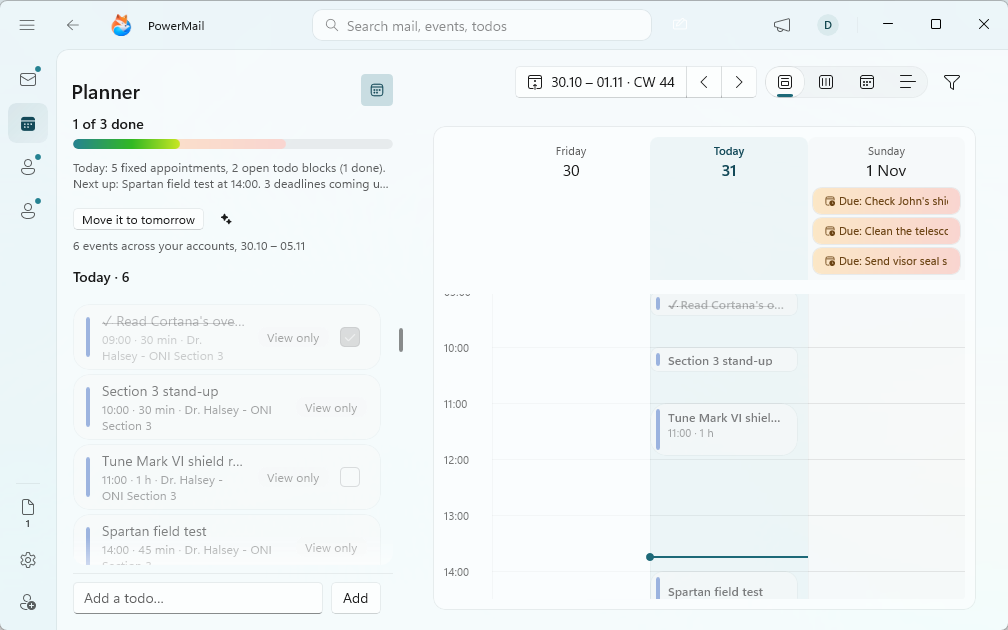
The Planner: today's list beside the calendar, with due todos on Sunday. Demo data in an invented mailbox. - Collect todos in the list The list beside the calendar has three sections: Today, Open todos and Backlog. The Backlog holds things you want to do but haven't scheduled yet; type into Add a todo… and click Add. Open todos are scheduled todos that are still open.
- Create a block on the calendar In the Day or Week view, drag across empty time (on a touch screen, press and hold first). The details panel opens with a new block: give it a title in What is this block for?, then check When (Starts and For), and add Repeats, Notes, a Tag, a Due date, High importance or steps if you need them. A new block starts as a todo; switch off Is To-do for a plain event. Click Save to put it on your calendar, or Discard to drop the draft.
- Drag todos where they fit Drag a todo from Backlog or Open todos onto the calendar to schedule it, or drop it on Today. Drag a scheduled block down onto Open todos to unschedule it. In the Week view you can drag a todo block to move it and drag its edge to change its length. Only todo blocks move by dragging; for a meeting, open it and change it in the details panel.
- Use the right-click menu Right-click an item (or press and hold on touch) for the choices that fit it: Open in panel, Open in new window, Start pop-out timer, Mark done, Move to today, Move to backlog, Tag and Delete. A repeating item offers Delete this occurrence, Delete from here on… and Delete series…; a meeting you organize offers Cancel meeting…. After you delete a todo, the notice offers Undo.
- Start the focus timer Open a todo and click the Track time button in its details. Choose Countdown to my goal (25 minutes unless you changed it), Just track (stopwatch), or Add time by hand…. Open timer window opens a compact always-on-top timer. Right-click a todo and choose Start pop-out timer, or use Start focus timer from PowerMail's taskbar jump list or tray menu.
- Work with the timer The goal is a marker, not a stop: when you reach it the timer keeps counting as overtime past your goal. Break logs this focus run and suggests a short rest, Focus ends the break and starts a fresh block, and Stop & log ends the session and logs the time. Right-click the timer for Pause, Resume, the face options and Window size.
- Tune the timer Open Settings > Calendars > Focus timer. Set Goal for a new session (in minutes), Start with a countdown, Notify me under Reaching your goal, Pause when I step away with Count as away after, and the Timer face options Show the clock, Show the ring and Show time logged.
Tips
- Which account new blocks go to is set in New blocks go to, under the Planner's Filter button.
- Todos only in the Planner's Filter hides everything except your todos.
- Find a slot in a todo's details lets the assistant pick a free gap once AI is set up.
- The Planner list can pop out into its own small window from the button in the list header.
Result
Your events and todos sit together in the Planner, todos land in free time by drag and drop, and the time you focus is logged against the task.
If something goes wrong
- The Planner shows no events for an account. IMAP accounts have no calendar in PowerMail. Add a Microsoft account, or for Gmail connect Google Calendar under Settings > Accounts.
- A meeting won't move when you drag it. Dragging moves and resizes todo blocks only. Open the meeting and change its time in the details panel instead.
- You can't change events from a shared or subscribed calendar. Calendars added under Settings > Calendars are view-only. Change those events where the calendar comes from.
- A notice says some calendars could not be read and free time is unconfirmed. Events from that account are missing for now, so empty slots may not really be free. Check the account under Settings > Accounts and wait for the next sync.
- Faint dashed outlines appear in the week view. Those are tracking ghosts: the time the timer really ran on a todo. Click one to open its todo. Turn them off with Tracking ghosts under the Planner's Filter or in Settings > Calendars. To correct one, switch on Editable ghosts first.
Common questions
Which calendar do my new events go to?
Each account's own default calendar. Pick the account in New blocks go to under the Planner's Filter, or change Account in a block's details.
What's the difference between Backlog and Open todos?
Backlog items have no time yet. Open todos are scheduled on the calendar and not done. Drag between them to schedule or unschedule a todo.
Does the focus timer stop me at the goal?
No. The goal is a marker. The timer keeps counting past it until you take a break or stop and log.
What happens if I step away from the PC?
With Pause when I step away on, the idle gap is taken off the session after the minutes set in Count as away after. The notification lets you put it back.