Style a QR code and add a center logo
Choose square, rounded or dot modules, set your colors and error correction, and put your logo in the middle.
Goal
Make a QR code match your brand while it stays scannable.
Before you start
- A QR code in the Generate tab (see Create a QR code).
Steps
- Open the Style tab Click Style at the top of the plugin. If the window is narrower than 720 px, QRLY widens it so the preview and the settings fit side by side; going back to Generate restores your size.
-
Pick a module shape Under Module Shape, choose Square, Rounded or Dots (the default). Rounded adds a Corner Radius slider (0 to 50%), Dots adds a Dot Spacing slider (0 to 40%, 10% by default). With Rounded or Dots, the three corner squares are drawn with rounded corners too.
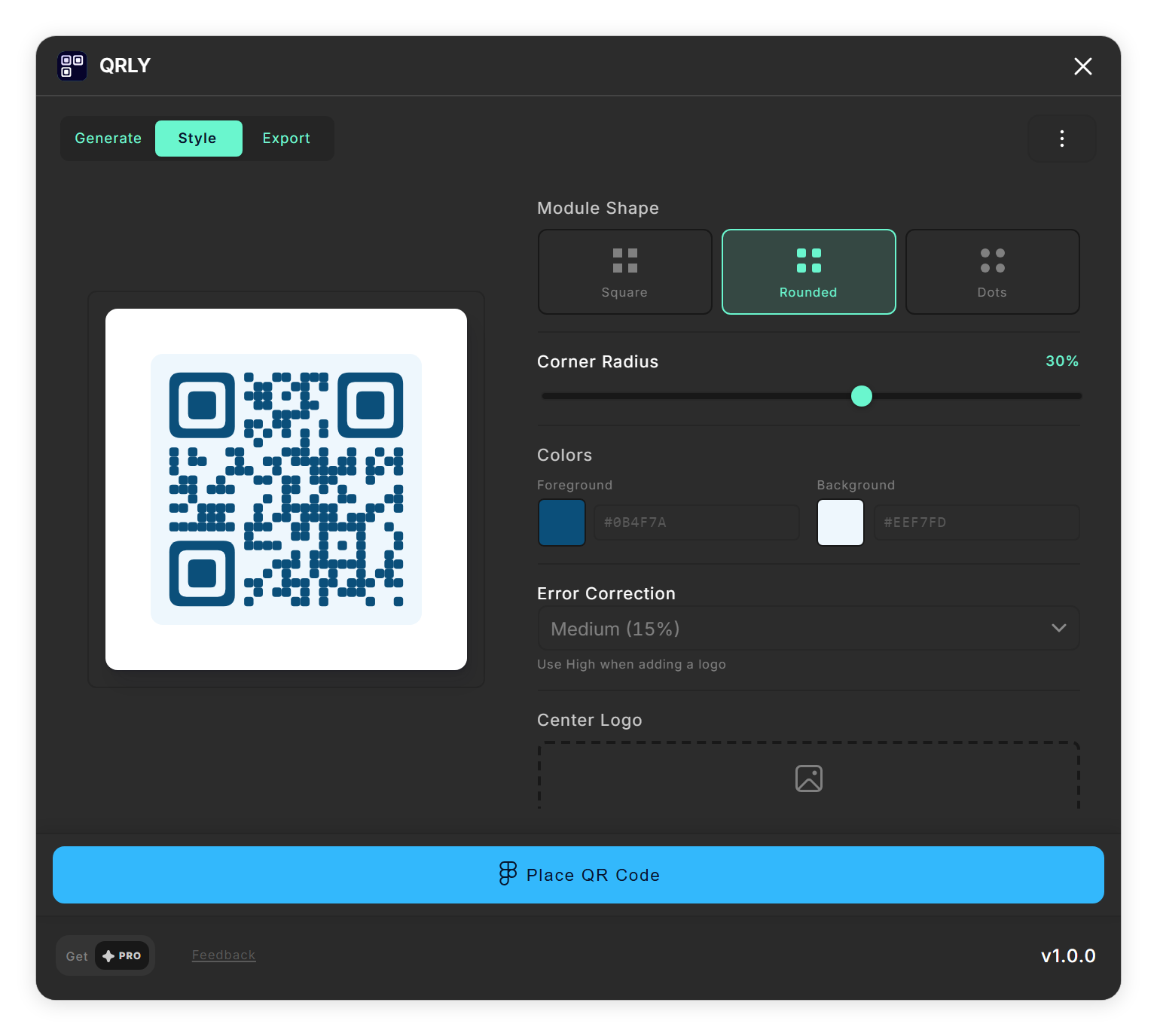
Rounded modules with the Corner Radius slider, in your own colors. - Set the colors Under Colors, set Foreground (black by default) and Background (white by default) with the color picker, or type a six-digit hex value such as #1A1A1A.
- Choose error correction Under Error Correction, pick Low (7%), Medium (15%, the default), Quartile (25%) or High (30%). A higher level lets more of the code be covered and still read, at the cost of a denser pattern.
-
Add a center logo Under Center Logo, click Click to add logo and choose a PNG, JPG or SVG file. QRLY clears the modules behind the logo, and an SVG logo takes on the foreground color. Use the Logo Size slider to choose 3×3, 5×5 (the default) or 7×7 modules, and the × button to remove the logo.

Colors, High error correction and a center logo at 5×5. - Set the export options Under Export Options, turn on Transparent background to drop the background, or No quiet zone (margin) to remove the empty border of two modules around the code. Both apply when you place and when you export.
Tips
- Set Error Correction to High before you add a logo. QRLY recommends it, but it does not change the level for you.
- Start with the smallest logo size that still reads, and test the code with a phone before you hand it off.
Result
A styled QR code, shown in the preview on every tab, ready to place on the canvas or export.
If something goes wrong
- The Corner Radius or Dot Spacing slider is missing. Each belongs to one shape: Corner Radius appears with Rounded, Dot Spacing with Dots. Square has neither.
- My SVG logo turned a single color. QRLY recolors the fills and strokes of an SVG logo to the foreground color so it matches the code. To keep a logo's own colors, use a PNG or JPG instead.
Common questions
Which logo files can I use?
PNG, JPG and SVG. An SVG logo is recolored to the foreground color; a PNG or JPG keeps its own colors.
How big is the logo?
Its size is measured in QR modules: 3×3, 5×5 or 7×7, set with the Logo Size slider. The modules under the logo are left out, so the logo never sits on top of the pattern.
What is error correction?
Extra data that lets a scanner read a QR code even when part of it is covered or damaged. QRLY offers Low (7%), Medium (15%), Quartile (25%) and High (30%); the percentage is roughly how much of the code can be lost.
What is the quiet zone?
The empty border around a QR code that helps a scanner find it. QRLY keeps a border two modules wide unless you turn on No quiet zone (margin).