Review a canvas export before you merge it
Select a 📌 Bookmarkly Data frame, then merge everything in one click or pick the bookmarks and notes you want.
Goal
Bring a teammate's bookmarks into your list without doubling the ones you already have.
Before you start
- A 📌 Bookmarkly Data frame in the file, made with Export to canvas element.
Steps
-
Select the frame With Bookmarkly open, select the 📌 Bookmarkly Data frame, or select it first and then open Bookmarkly. A message says how many bookmarks it holds and when they were exported, for example '12 bookmark(s) found on canvas'.
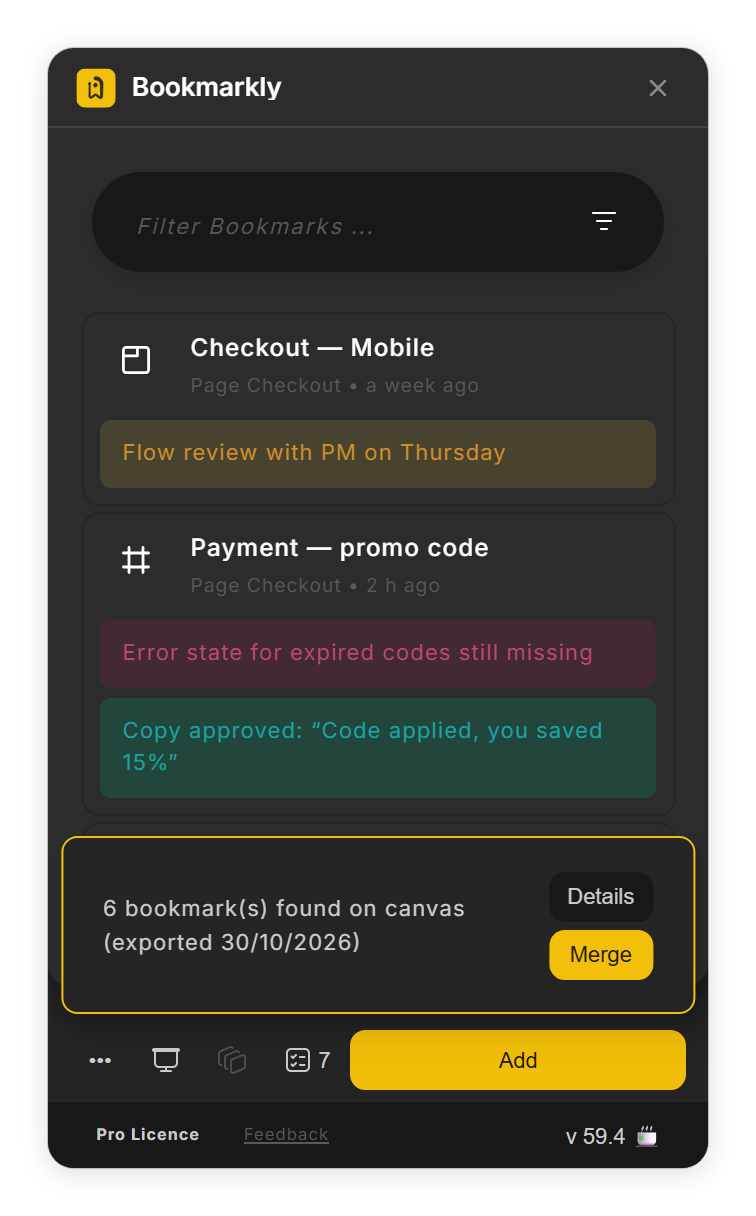
Bookmarkly finds the export frame you selected (step 1). - Merge everything in one click Click Merge to add every bookmark you do not have yet. Bookmarks you already have stay as they are.
-
Or review first Click Details. The Merge Bookmarks view marks each bookmark New or Duplicate (one you already have at the same spot); new ones are ticked, duplicates are not. Auto Merge ticks every bookmark and keeps your own notes on duplicates; Keep new only, Keep all and Discard all change the ticks in one go, and Show changes only hides duplicates whose notes match yours.
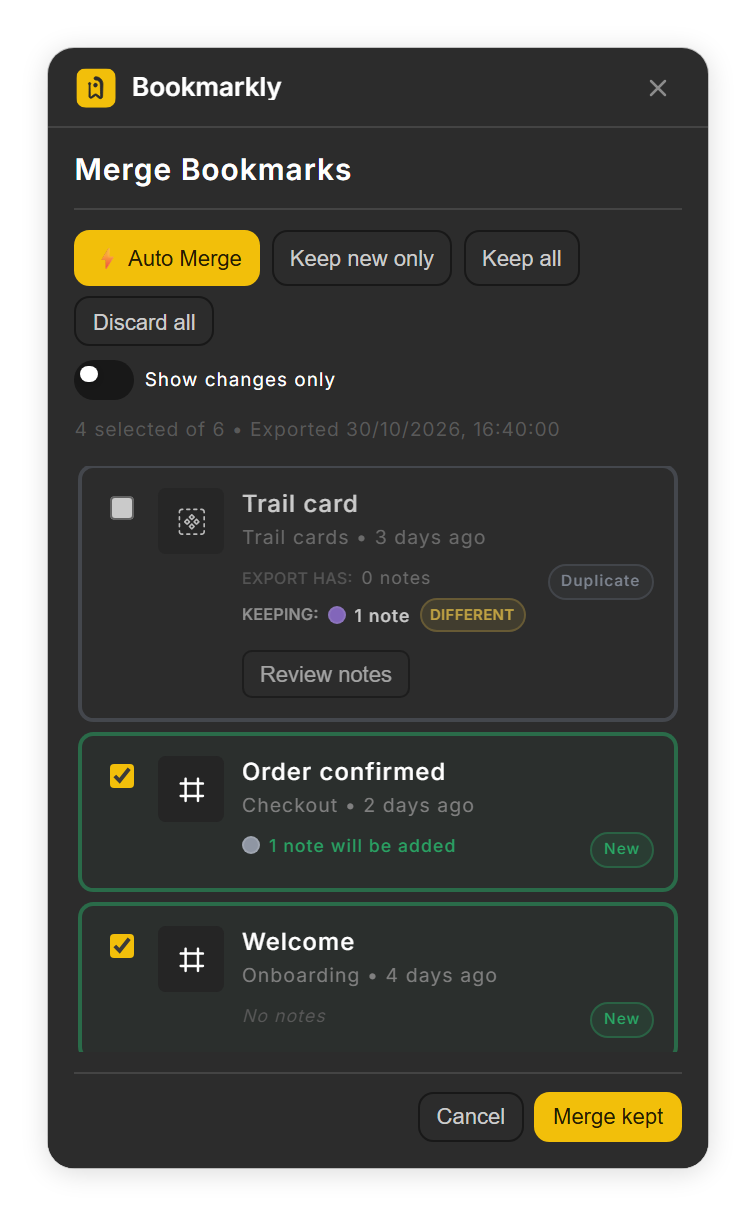
New bookmarks are ticked; duplicates wait for your review (step 3). -
Compare notes A duplicate with other notes shows Different and a Review notes button. In Review Notes, choose Keep Current or Use New where only a note's color differs, tick notes under Add from Export to take them over, and untick notes under Keep from Current to drop them. Click Apply Selection.
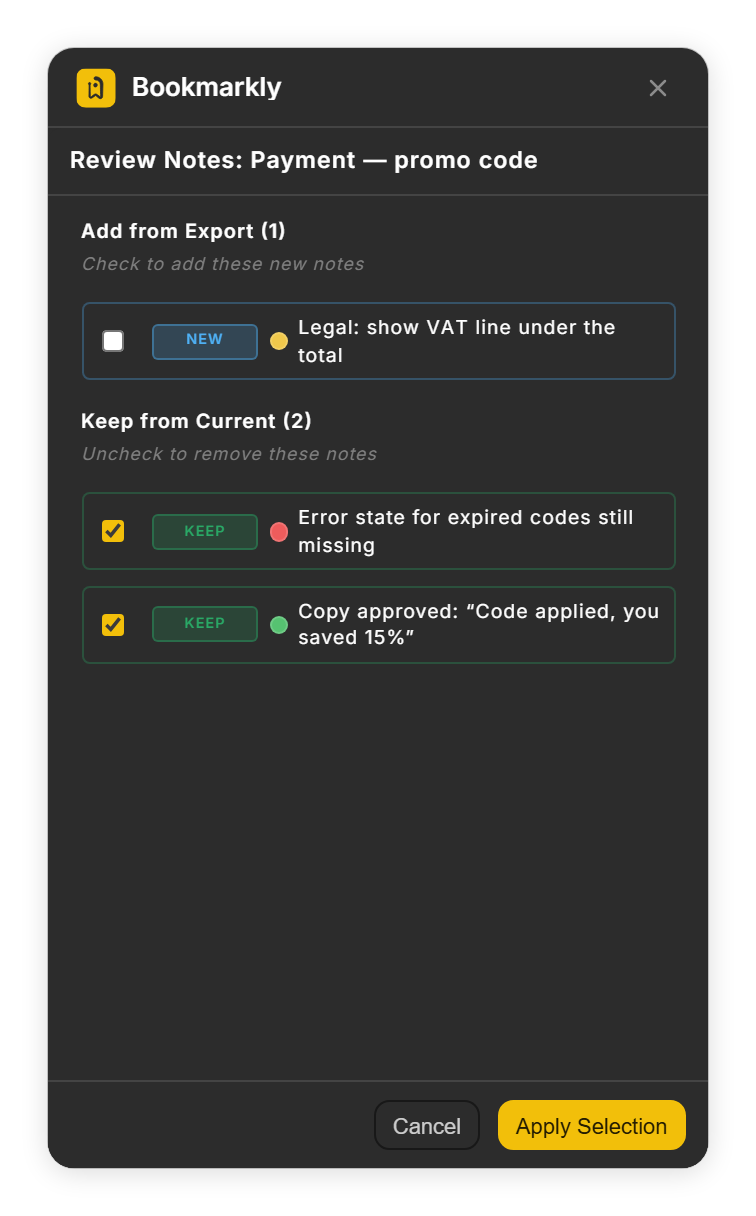
Review Notes: pick the notes to keep (step 4). - Merge Click Merge kept. New bookmarks join your list, and duplicates change only where you reviewed their notes. Figma reports what changed, for example 'Merged 3 new bookmark(s) from canvas element', or says 'No changes made'.
Tips
- ⚡ Auto Merge ticks every bookmark and keeps your own notes on duplicates. Look over the list before you click Merge kept.
Result
Your list gains the bookmarks and notes you chose, with no doubles.
If something goes wrong
-
No message appears when I select the frame.
The message shows only for a 📌 Bookmarkly Data frame that holds at least one bookmark. With the frame selected, you can also choose Open Menu (•••) → Export & Import → Import from canvas element.
-
Merge kept is greyed out.
No bookmark is ticked. Tick at least one, or click Keep new only.
-
A ticked duplicate did not change.
Duplicates change only through Review notes. Open Review notes, pick the notes, click Apply Selection and then Merge kept.
Common questions
When is a bookmark a duplicate?
When you already have a bookmark for the same layer, page and view position. Names and notes do not count.
Does merging remove the frame?
No. The 📌 Bookmarkly Data frame stays on the canvas; delete it yourself when you no longer need it.