Add notes to a bookmark
Write short notes under a bookmark, color-code them and find them again with search.
Goal
Keep reminders, links and review comments right next to the place in the file they are about.
Before you start
- At least one bookmark in the Bookmarkly list.
Steps
-
Pick the bookmark Click the bookmark in the list. Bookmarkly jumps to it, highlights it and shows an 'Add a note...' field under it, ready to type.
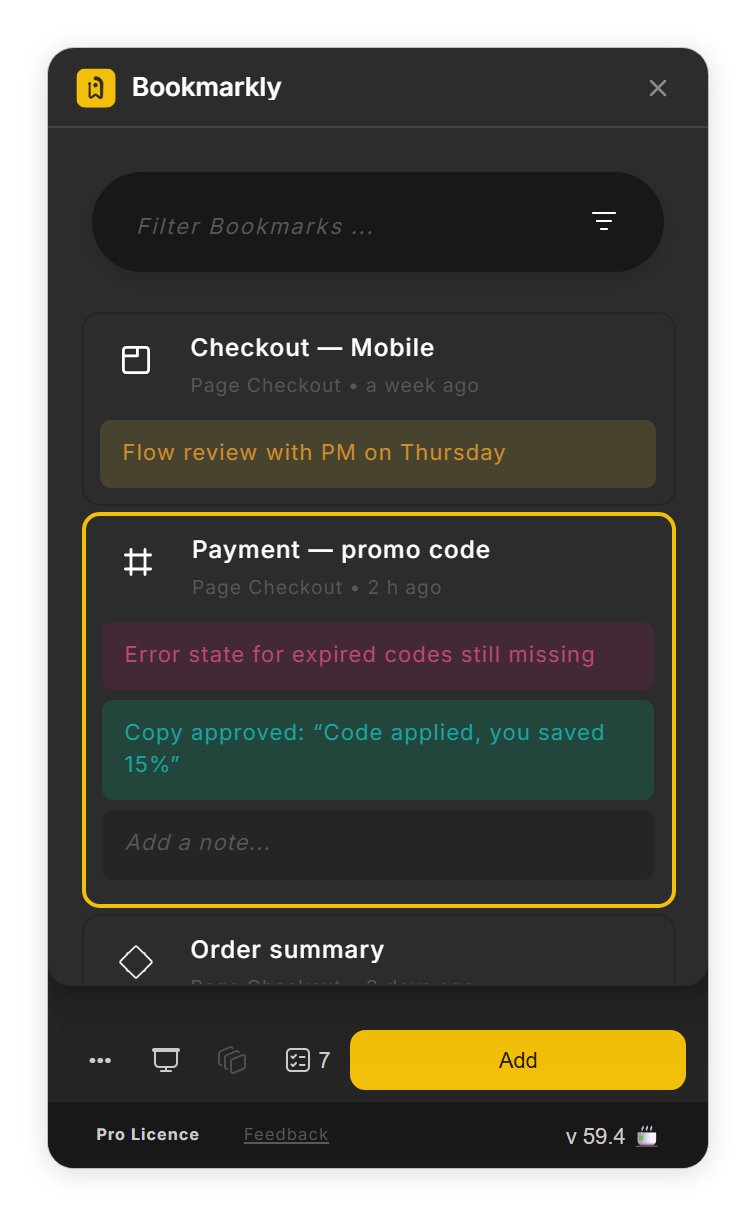
The highlighted bookmark with its Add a note... field (step 1). - Write the note Type your note. It is saved when you click outside it or press Tab, and a new empty field appears for the next one. Press Esc to throw away what you just typed.
-
Color-code it Hover over a saved note and point at the small color dot on its right, then pick yellow, green, purple, red or the plain default. The color is saved straight away.
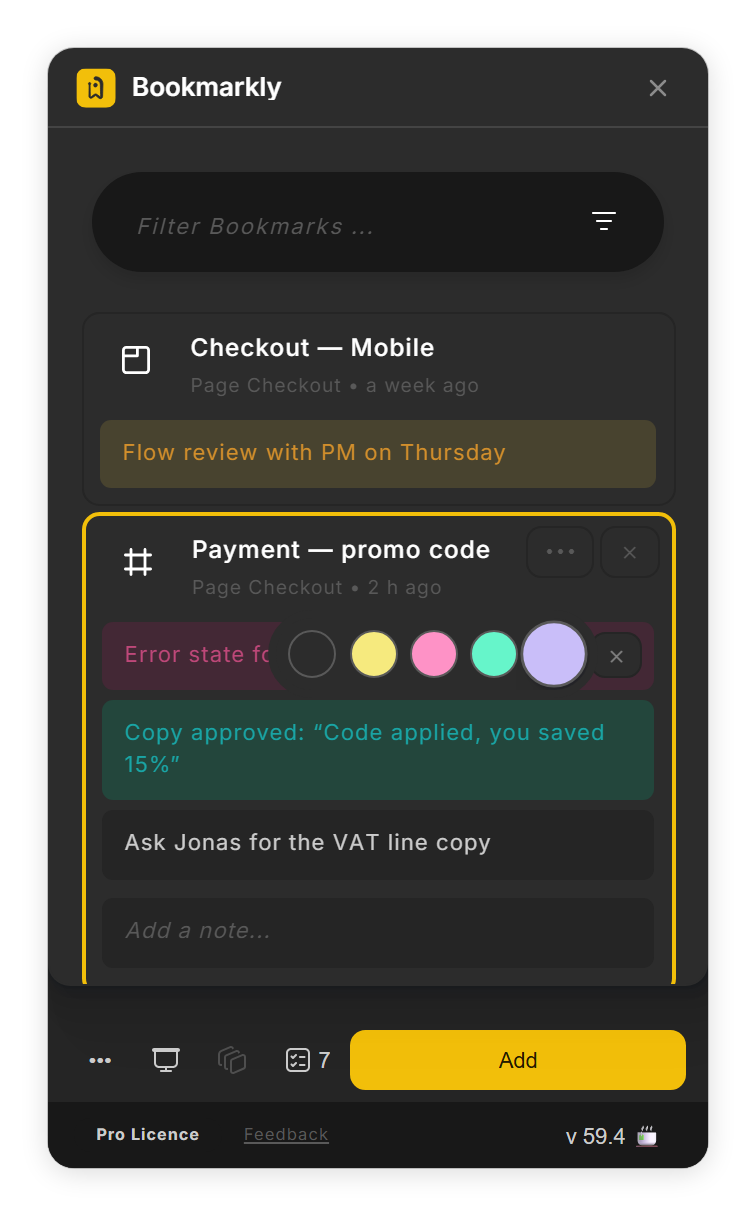
Point at a note’s colour dot to pick a colour (step 3). - Change or remove a note Click a note's text, change it and click outside. To delete a note, hover over it and click ✕, or clear all of its text.
- Find it again Press Ctrl+F (Cmd+F on a Mac) and type in the search field: the list keeps the bookmarks whose name or notes contain your text.
Tips
- Web addresses in a note turn into links you can click.
- Press Tab to move from one note to the next one on the same bookmark.
Result
Your notes sit under the bookmark, color-coded, and travel with it when you export and import your bookmarks.
If something goes wrong
-
My notes disappeared after I renamed the bookmark.
In this version, saving a new name through the bookmark's ••• menu → Edit also clears its notes. Name a bookmark before you add notes to it. If you exported the bookmarks to a canvas element earlier, select that frame, click Details and use Review notes to take the notes back.
-
There is no 'Add a note...' field.
Click the bookmark first: the field shows on the highlighted bookmark only. Presentation Mode hides notes; click the Presentation Mode button again to leave it.
-
The color I picked for a new note is gone.
The empty note field does not keep a color. Save the note first (click outside it), then pick its color.
-
A note I typed twice shows up only once.
A bookmark keeps each note text once. Change the wording to add a second note.
Common questions
Who can see my notes?
Notes are stored with the bookmark on your device. Teammates see them only when you share your bookmarks through Export & Import.
Do notes show in Presentation Mode?
No. Presentation Mode hides notes and captions, so only the bookmark names show.