Extract colors from a selection or an image
Read the fills, text and stroke colors of the layers you select, or sample the palette of any image with movable dots.
Goal
Turn a finished screen or a mood picture into a color list you can clean up, name and export.
Before you start
- Color Extractly open in Figma.
- Layers on the canvas to read, or an image file or an image on your clipboard.
Steps
-
Open the Colors start screen Click Design Token in the sidebar, then Colors (the palette icon) next to it. The start screen asks How to Start Your Journey? and shows the sources as icons; hover an icon to see its name.
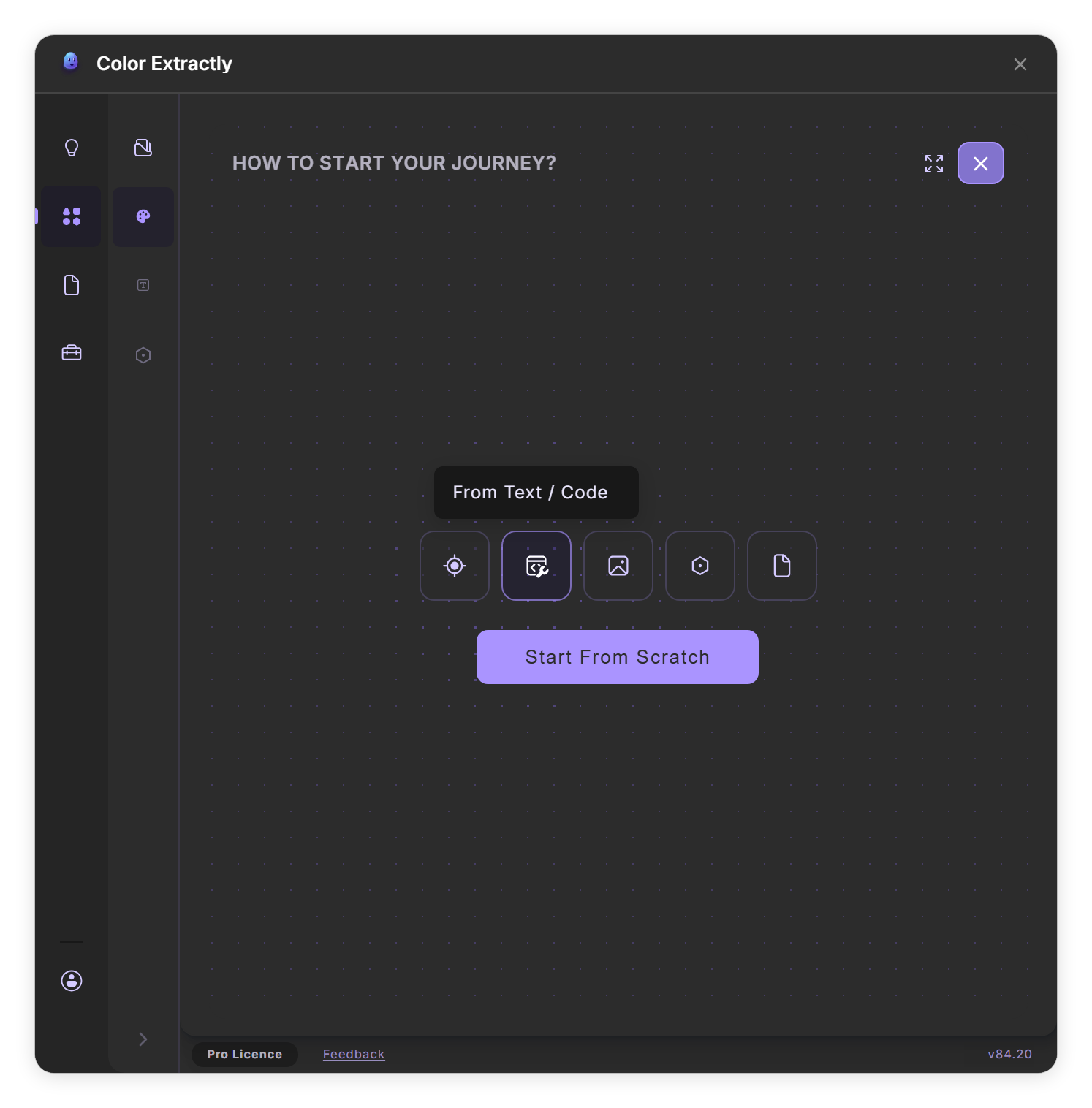
The Colors start screen: hover an icon to see which source it is (step 1). -
From a selection: choose what to read Select the layers in Figma, then click the From Selection icon. Switch on Fill, Text and Stroke as you need them; only Fill is on at first. Selected Elements lists what you selected.
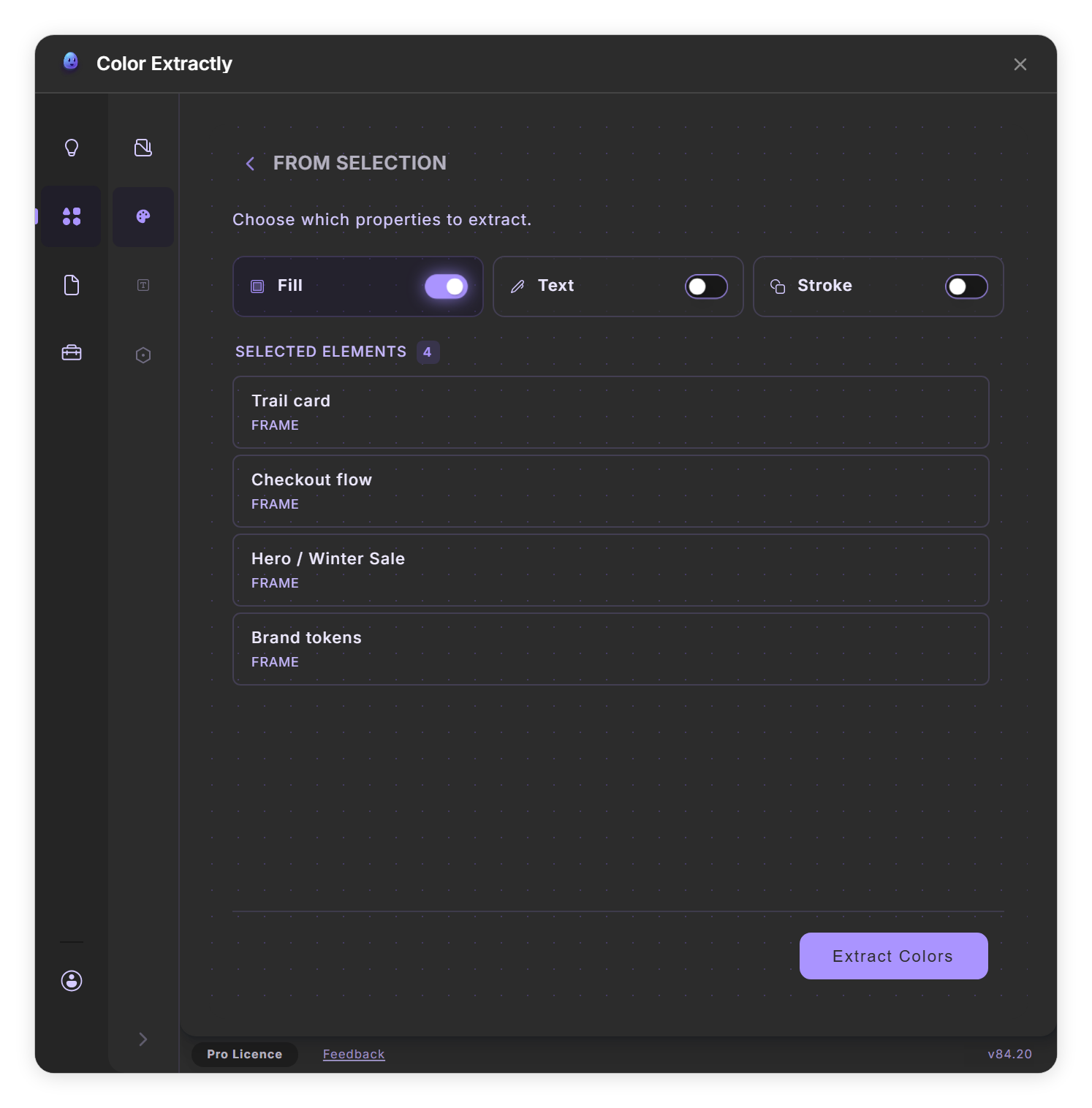
From Selection with four frames selected (step 2). - Extract from the selection Click Extract Colors. Color Extractly reads solid colors and gradients from each selected layer and every layer inside it. A layer you selected directly that has an image fill also adds up to 6 colors from that image.
- From an image: add the picture Click the From Image icon. Drop an image on Drop an image here, click Browse image, or paste an image from your clipboard.
-
Place the sampling dots Color Extractly puts 5 dots on the image's most dominant colors and shows their colors in a bar under the image. Drag a dot to sample another spot, click an empty spot to add a dot, and double-click a dot to remove it. Scroll to move the image, and hold Ctrl (Cmd on a Mac) while scrolling to zoom. Drag a color in the bar to change the order.
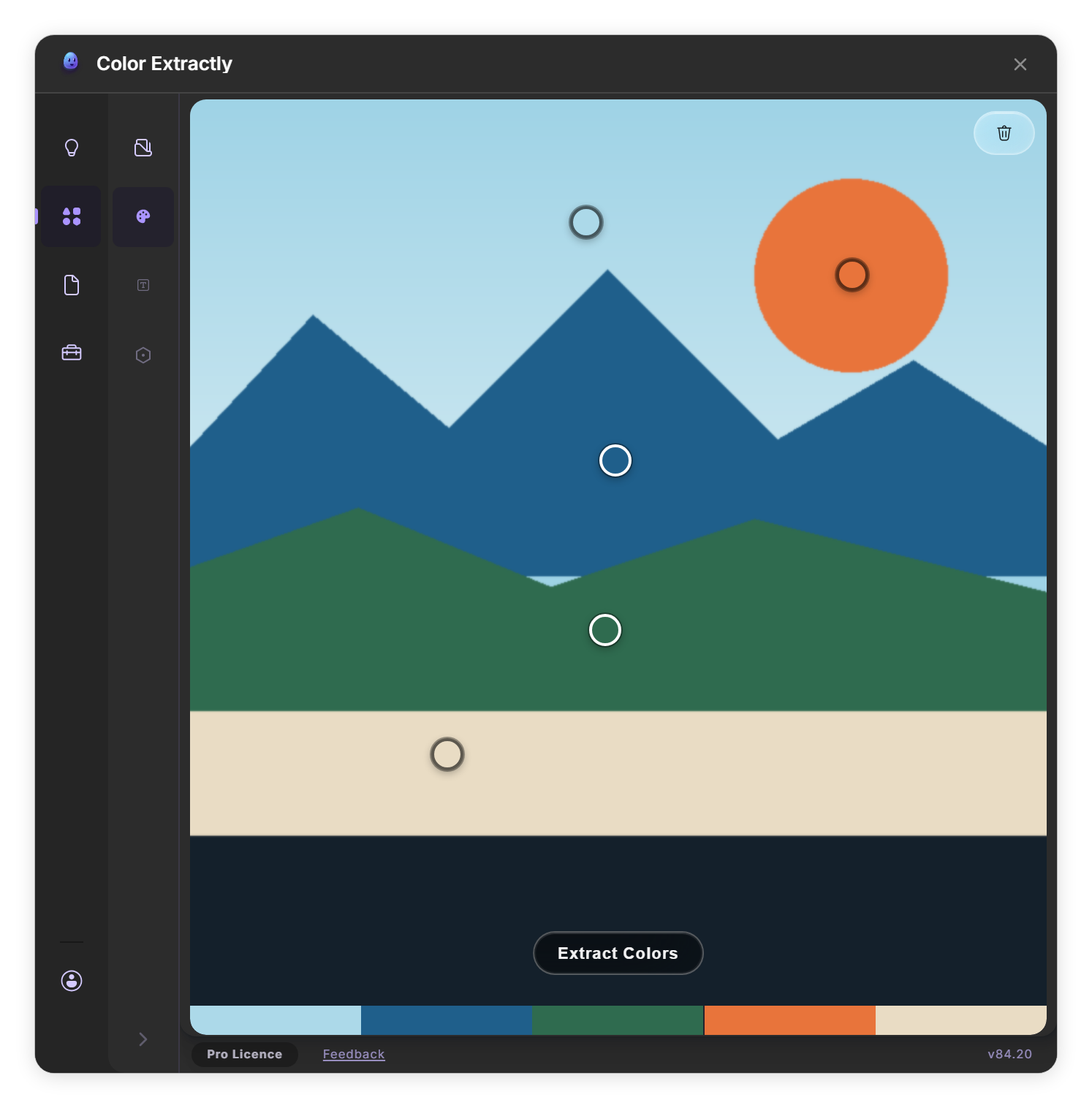
Sampling dots on an image and their colors in the bar (step 5). - Extract from the image Click Extract Colors. Each dot becomes one color, named --color-1, --color-2 and so on in the order of the bar.
Tips
- Place a dot on every color you want to keep before you extract: the image gives exactly one color per dot.
- In Figma's Quick Actions, 🎯 Extract colors from Selection & Images opens Color Extractly and extracts from the selection straight away.
Result
The colors are in the color list, ready for Magic Clean, Rename and export.
If something goes wrong
-
'No colors found. Tip: Select elements with fills, strokes, or text colors.'
The selected layers have no visible color in the properties you switched on. Switch on Text or Stroke, or select other layers.
-
'Tip: To extract image palette, select the image-filled layer directly.'
Image palettes are read only from a layer you selected yourself, not from images inside a frame you selected. Select the image layer and extract again.
-
Pasting an image does nothing.
A paste into a text field stays in that field. Click an empty part of the plugin first, then paste.
-
You want a different image.
Click Remove on the image to drop it and add another. Esc removes it and returns to the start screen.
Common questions
What happens if nothing is selected?
From Selection then reads every layer on the current page.
Are gradients extracted?
Yes. Linear, radial, angular and diamond gradient fills are listed as gradients, next to the solid colors.