Import a token file or this file's styles and variables
Load the colors of a JSON, CSS, SCSS or LESS token file, or of the color styles and variables already in your Figma file, into the color list.
Goal
Start from colors you already have, in code or in Figma, instead of extracting them again.
Before you start
- Color Extractly open in Figma.
- A token file, or local color styles or color variables in the Figma file.
Steps
- Open the Colors start screen Click Design Token in the sidebar, then Colors (the palette icon) next to it. Hover the icons to see their names.
-
Import a token file Click the Import Token File icon. Drop the file on Drop a token file here, or click Browse file. Color Extractly accepts .json, .tokens, .css, .scss, .less and .txt files and recognises JSON (DTCG), other JSON, CSS custom properties, and SCSS and LESS variables. The color tokens open in the color list straight away.
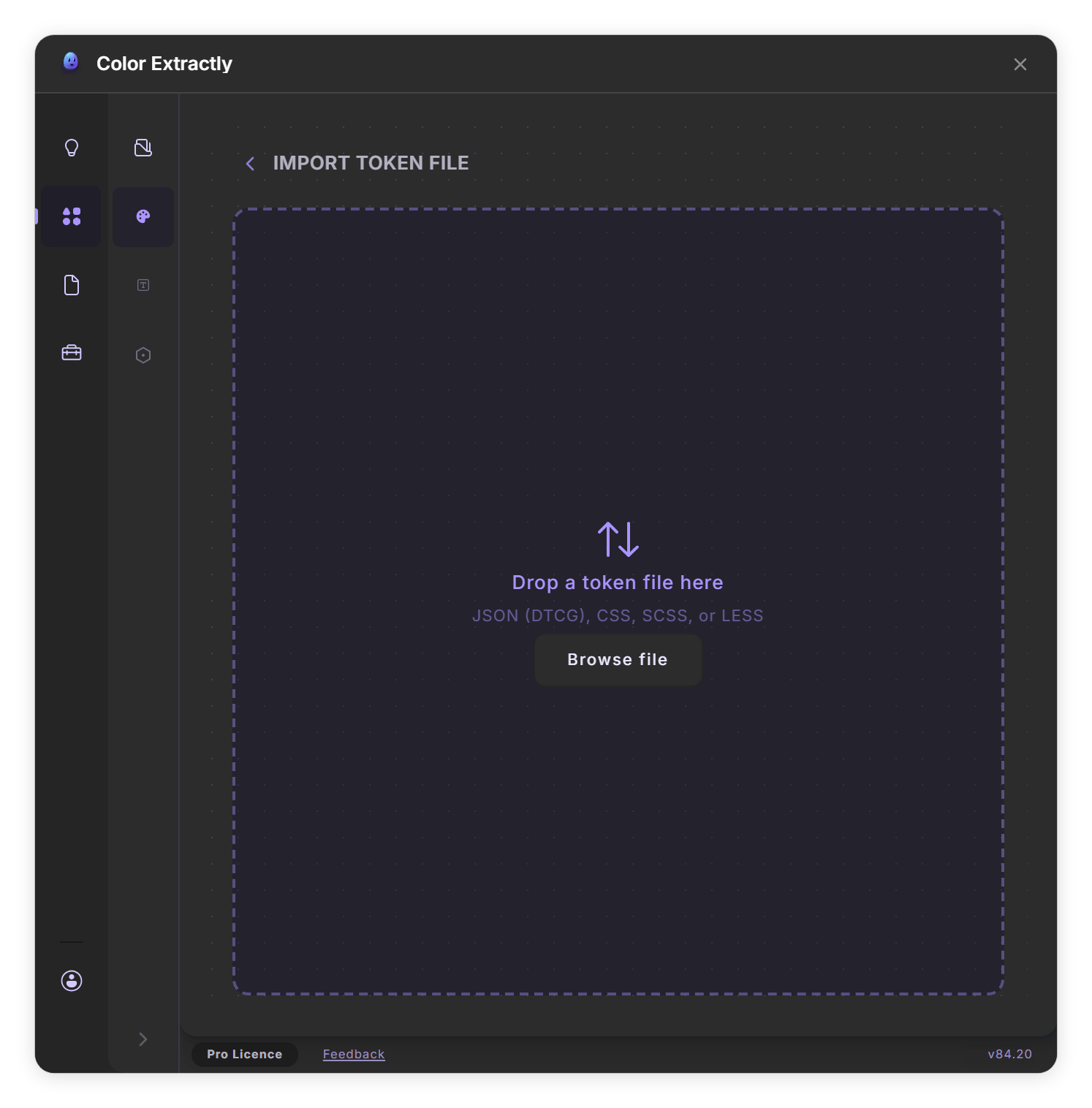
The Import Token File drop zone (step 2). -
Turn the file into Figma variables Open the ••• menu below the list and choose Import to Variables. The collection is named after the file: brand_tokens.json becomes Brand Tokens. A variable that already exists in that collection under the same name is updated, the others are created, and a message reports how many.
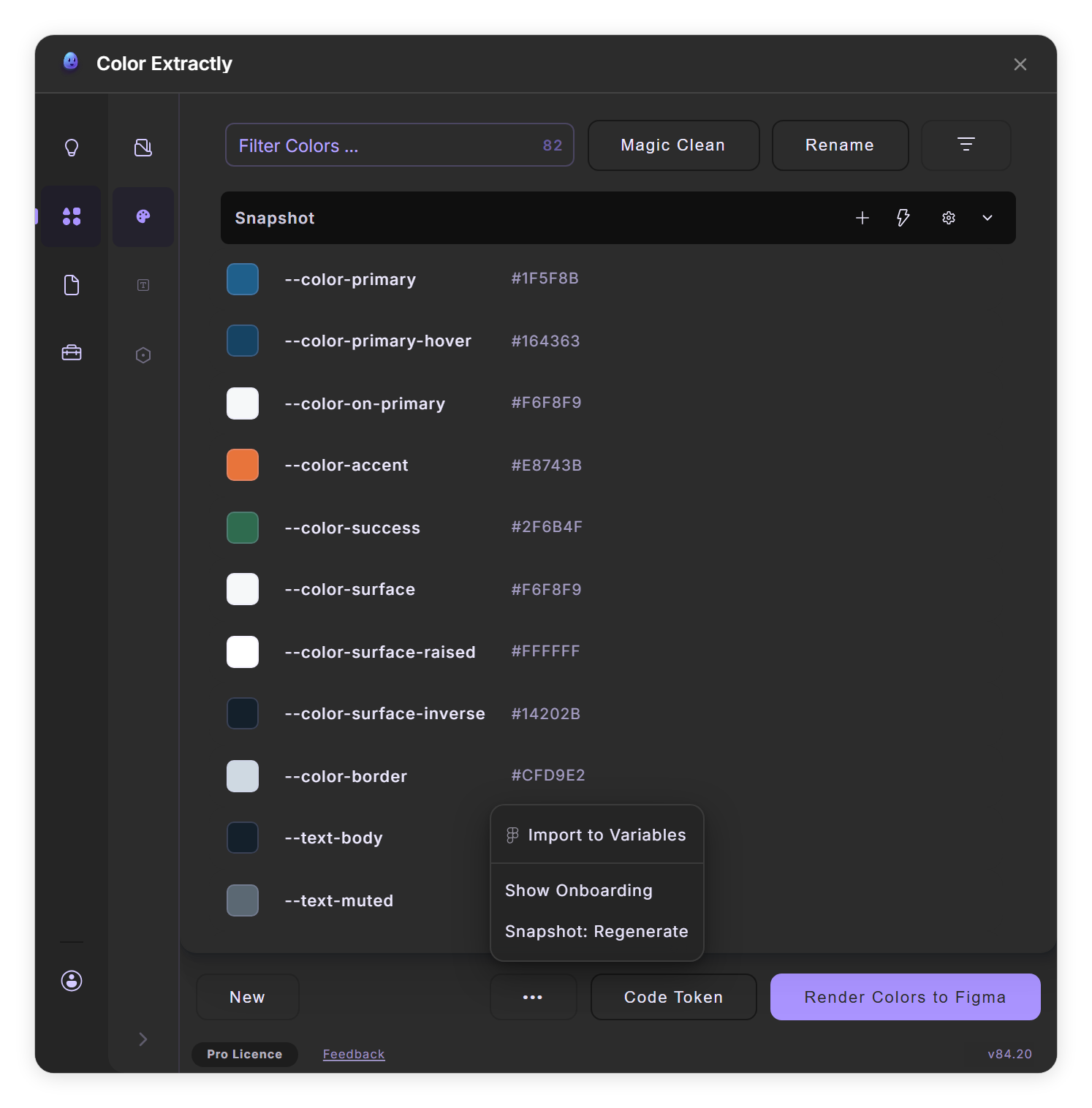
Import to Variables in the ••• menu (step 3). - Or read this file's styles and variables Click the Figma Variables & Styles icon. Color Styles and Color Variables are both on; switch off the one you do not need.
-
Choose collections Under Collections, switch off the collections to leave out. If a collection has groups, click the arrow next to it to leave out single groups.
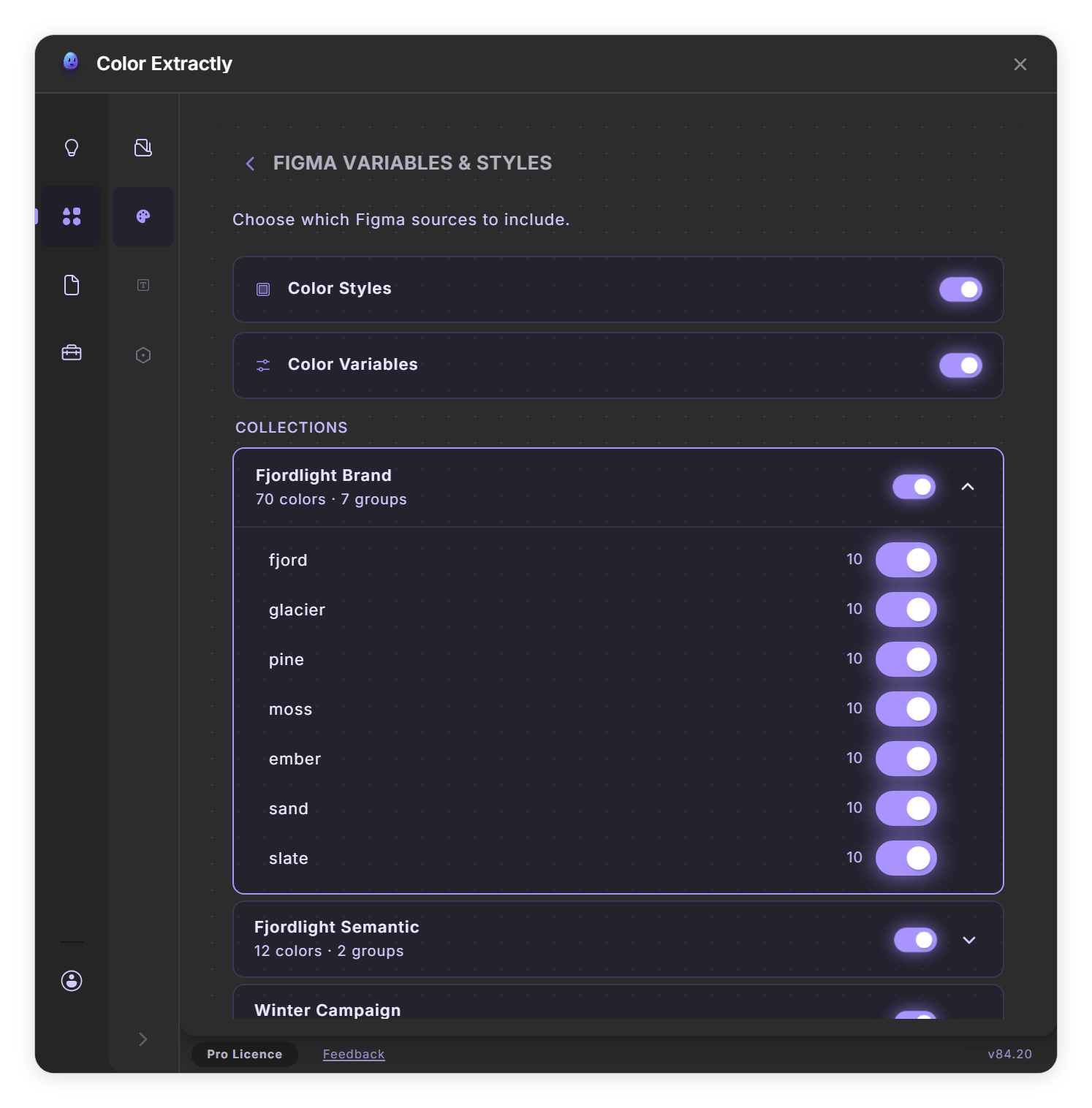
Collections and their groups, each with its own switch (step 5). - Extract Click Extract Colors. The solid color styles and the color variables you kept appear in the color list.
Tips
- Clean up and rename the imported colors before Import to Variables, so the variables carry the names you want.
Result
Your existing colors are in the color list, ready to clean up, rename, export or turn into variables.
If something goes wrong
-
'Please enable at least one Figma source (Styles or Variables).'
Switch on Color Styles, Color Variables or both.
-
'No colors found in the selected sources.'
The file has no local solid color styles or color variables in the collections you kept. Switch the collections back on, or check that the colors are local to this file and not in a library.
-
'Failed to parse token file.'
Check that the file is valid JSON, or CSS, SCSS or LESS with variable definitions, then import it again.
Common questions
Are numbers, strings and booleans in a token file imported too?
No. Import Token File puts only the color tokens into the color list.
Are gradient styles read from Figma Variables & Styles?
No. It reads solid color styles and color variables. Render the gradient styles with Render Sheets → Color Styles if you need to see them.