Link a design's colors to matching variables and styles
Replace hard-coded fills and strokes in a selection with the closest color variable or style, local or from a library.
Goal
Make an existing screen use your color variables and styles instead of loose hex values.
Before you start
- Color Extractly open in Figma.
- Color variables or color styles in this file, or color variables in a library this file can use.
- Edit access to the Figma file.
Steps
- Select the layers Select the frames or layers to fix. Color Extractly looks at the fills and strokes of every selected layer and every layer inside it.
-
Open Tools Click Tools in the sidebar. The color tools are under Matching & Swap.

The color matchers under Matching & Swap (step 2). -
Set how close a match must be Hover Match Selection to Local Colors (or Match Selection to Library Colors) until its slider shows. Drag sideways across the button, or scroll sideways over it (Shift + scroll), to set a value from 60 to 100% similar. It starts at 95% similar; 100% accepts only exact matches.
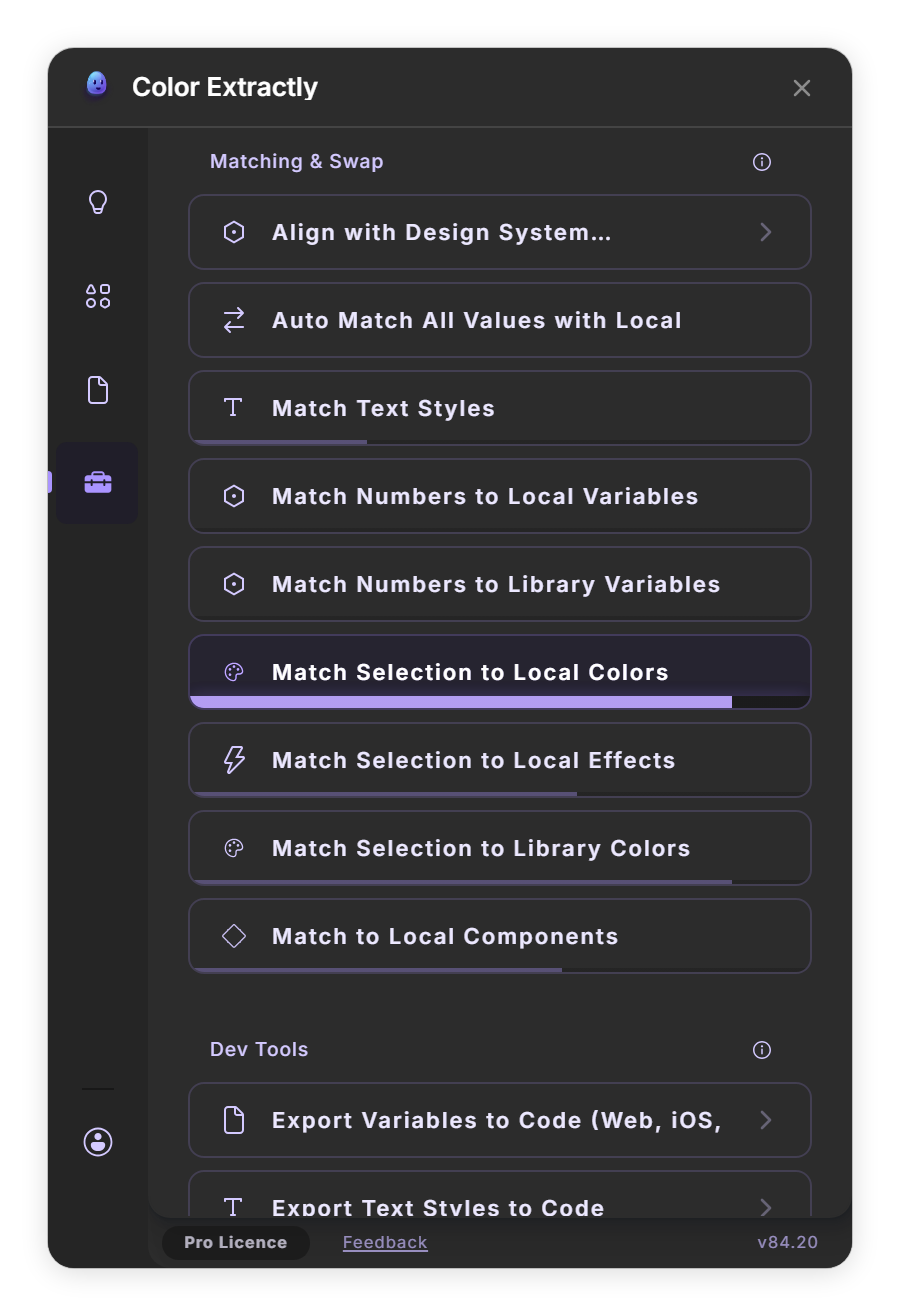
Hover a matcher until its similarity slider shows (step 3). - Match to local colors Click Match Selection to Local Colors. Each solid fill and stroke is linked to the closest local color variable within that similarity; when no variable is close enough, to the closest local color style. Gradient color stops are linked to variables too. Colors already linked to a local variable or style are left as they are.
- Or match to a library Click Match Selection to Library Colors to link the colors to color variables from the libraries this file can use. The first run in a session takes longer, because it reads every color variable of those libraries.
- Check the result Figma reports ✅ Matched N colors (variables & styles), where N is the number of layers changed, and selects them. Use Figma's undo if a match is wrong, then run it again with a higher similarity.
- Run it from Quick Actions Press Cmd + / (Ctrl + / on Windows) and choose 🎨 Replace colors with matching variables or styles (Selection). It asks for Preferred binding (variables, styles or both; both if you skip it), Source (local, library or all; all if you skip it) and Similarity (0–1), where 0.8, 0.9, 0.95 and 1.0 are suggested and 0.95 is used if you skip it. It runs without opening the plugin window.
Tips
- No variables yet? Extract the screen's colors, clean them up, then use Render Colors to Figma → Add as variable(s), and match afterwards.
- The i button next to Matching & Swap explains how the tools work.
Result
The selected colors are linked to variables or styles, so they follow any later change to them.
If something goes wrong
-
'No elements selected.' or 'Select elements to scan'
Select the layers on the canvas first, then run the tool again.
-
Matched 0 colors.
Lower the similarity, check that the file has color variables or styles (or that a library with color variables is enabled), or note that colors already linked to a local variable or style are skipped.
-
Too many colors were swapped for the wrong token.
Undo in Figma, raise the similarity towards 100% and run the tool again on a smaller selection.
Common questions
Which wins, a variable or a style?
With Match Selection to Local Colors, a matching color variable is used first; a color style only when no variable is close enough.
What does the similarity mean?
How close a color must be to a variable or style to be linked to it, measured on red, green, blue and opacity. 100% means identical.