Auto-Rename Layers: Name a Whole Layout or a Group of Images
Use ✨ Layer rename in a group's menu to name every layer of a layout in a naming style (Design System, Slash Paths, BEM, Code Names) or to name image layers from what they show.
Goal
Replace names like Rectangle 12 and Frame 4 with useful layer names, in one click, so templates and handoffs can rely on them.
Before you start
- A layout or a selection with layers to name.
- An AI provider set up in AI Settings. Naming a whole layout works with an API key or a local model. The image modes (Match Image, Description, Tag Style) need a Gemini or OpenAI key; with Groq or Anthropic selected they run on OpenAI. See the local AI guide.
Steps
-
Open the group menu Select your frames, open the Selection view and click the ⁝ button on a group's header. The menu lists Shuffle, Create Template, ✨ Layer rename and the group's sort and restore actions.
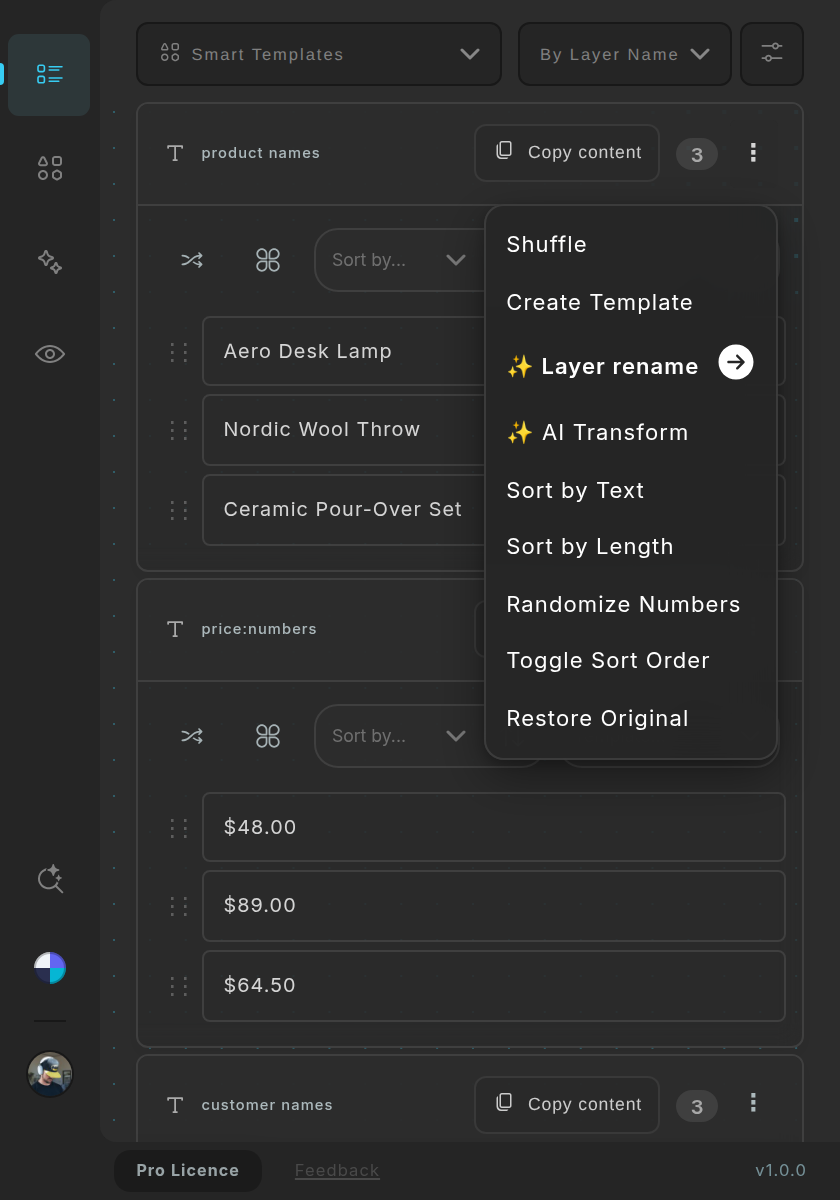
The ⁝ menu on a group header; ✨ Layer rename opens the naming styles. -
Name the whole layout Choose ✨ Layer rename and, under Whole layout, pick a naming style. Design System gives names like Product Card, Card Body Wrapper and Price Label; Slash Paths gives Card, Card/Body and Card/Body/Price; BEM gives card, card__body and card__price-label; Code Names gives ProductCard, CardBody and PriceLabel. The layers of the selected layout are named, wrappers included. Component instances and their insides, hidden layers, layers whose name starts with . or _, and the insides of small icons are left alone.
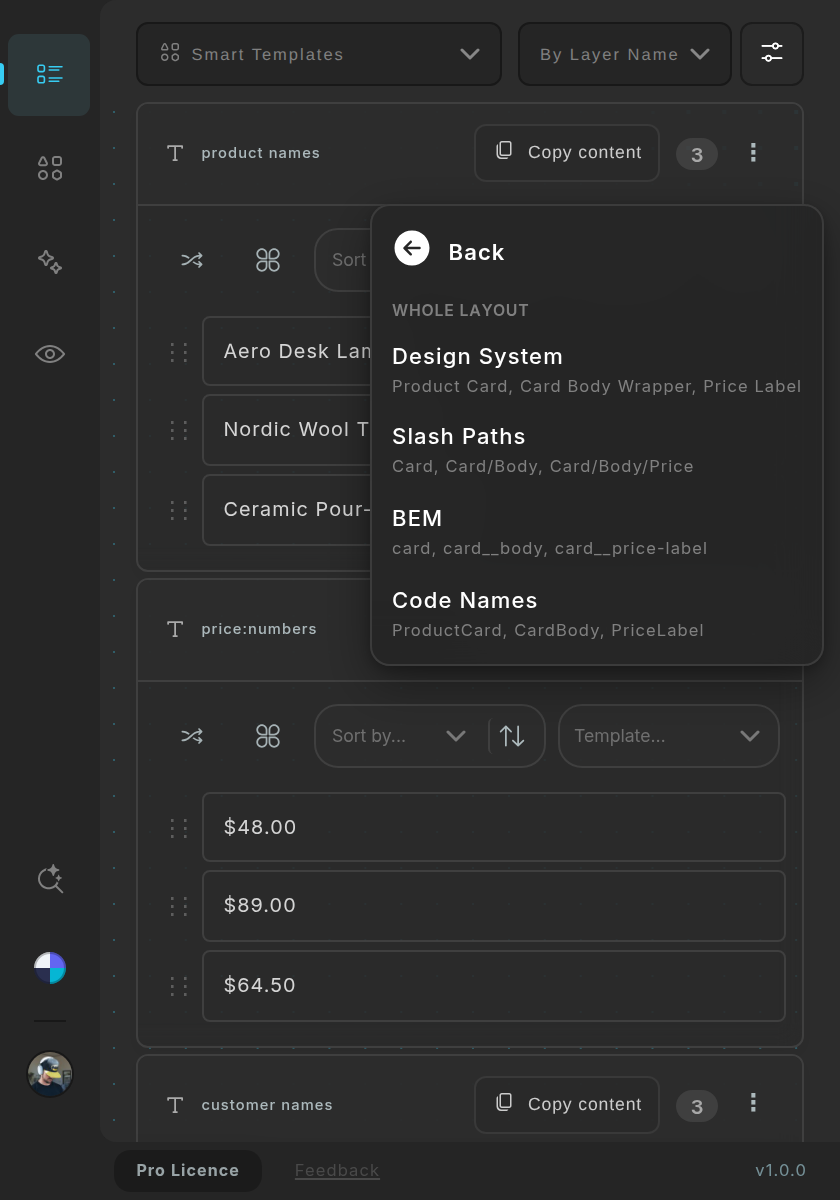
Four naming styles for a whole layout, each shown with sample names. -
Name a group of images On a group of images the submenu has three more modes under This group. Match Image gives each layer a short UI-style name, such as User Avatar or Profile Card. Description writes accessibility alt text of up to 20 words (for example 'Puppy running through tall grass'). Tag Style writes up to 8 Title Case tags (for example 'Mountain Sunset Hiking Cinematic').
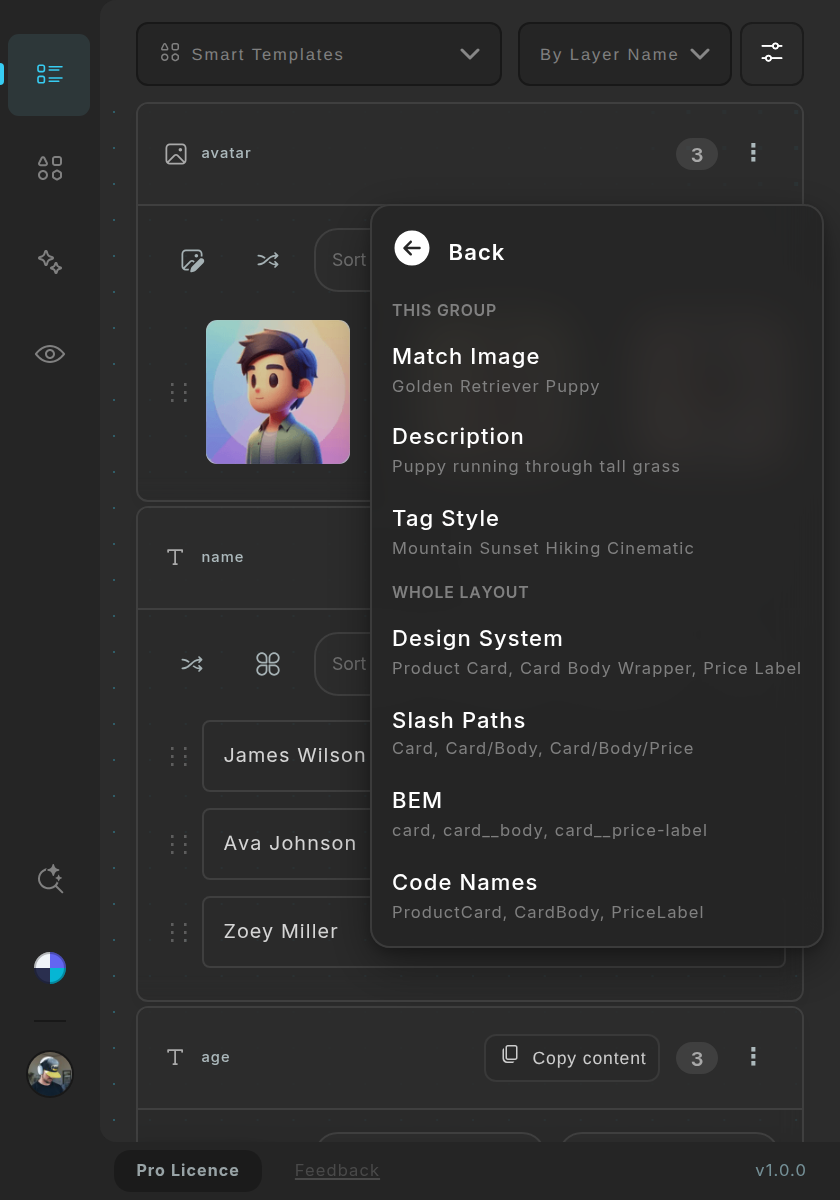
On an image group the menu adds three modes. The sample text under each is only an illustration. - Check the result Contently reads your layout, then shows a message when the names are in place. The new names are plain layer names, so you can still edit any of them by hand.
Tips
- Pick one naming style per project and use it everywhere, so names stay predictable for developers.
- Select the component itself (not an instance of it) when you want its inner layers named.
Result
Your layers carry names in one consistent style, and image layers are named after their content.
If something goes wrong
- A message says there is no API key. Add a key for your AI provider in AI Settings (or switch to a local model), then run Layer rename again.
- Nothing happens on a group. Select the layers first: Layer rename works on the layers of the group you opened the menu on.
- The layers inside a card stay unnamed. Figma does not let a plugin rename layers inside a component instance. Contently offers to name the main component instead; accept it, and every instance picks the names up.
Common questions
Does Layer rename use an AI action?
Yes. It runs on your configured AI provider and counts as an AI action.
Which naming styles exist?
Design System, Slash Paths, BEM and Code Names for a whole layout; Match Image, Description and Tag Style for a group of images.