Copy & Paste Instance Properties: Variants, Text, Colors and Styles
Copy the configuration of component instances in the Selection view and paste it onto other instances, in order, with a choice of what is pasted.
Goal
Make a set of component instances look and behave like another, without changing each property by hand.
Before you start
- Component instances in your design, for example a row of cards.
- The instances to copy from and the instances to paste onto, selected one set after the other.
Steps
- Select the instances to copy from Select the instances on the canvas. The Selection view lists them as an instance group, marked with a diamond icon.
-
Copy their configuration Click Copy instance config on the group header. Contently copies the variant and boolean properties, component swaps, text, colors, images and styles of every instance in the group, in order, and shows 'Copied 3 instance configs'. To copy from one instance only, use the copy button on that instance's row.
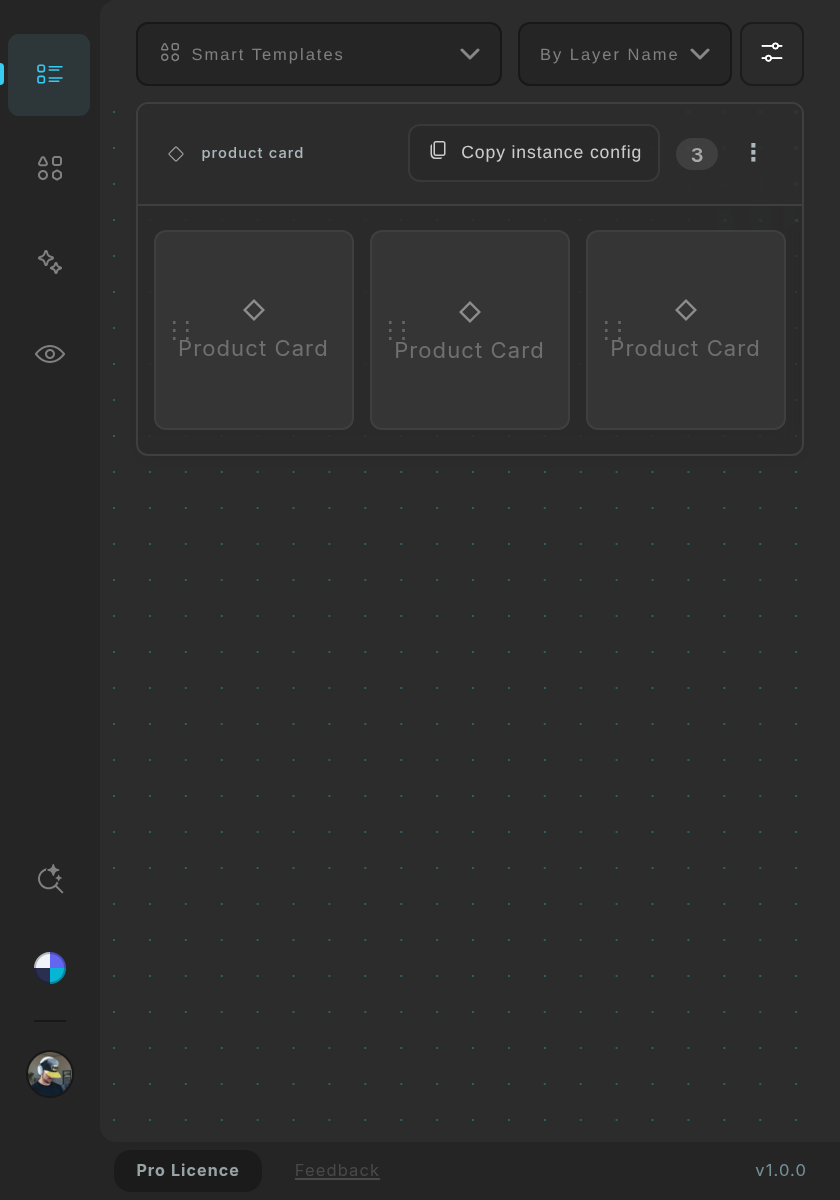
The header of an instance group: Copy instance config. -
Select the instances to paste onto Select the target instances in Figma. The button on their group header now reads Paste instance config, with a filter button and a clear button beside it. The copied configuration stays available while the plugin is open, even when your selection changes.
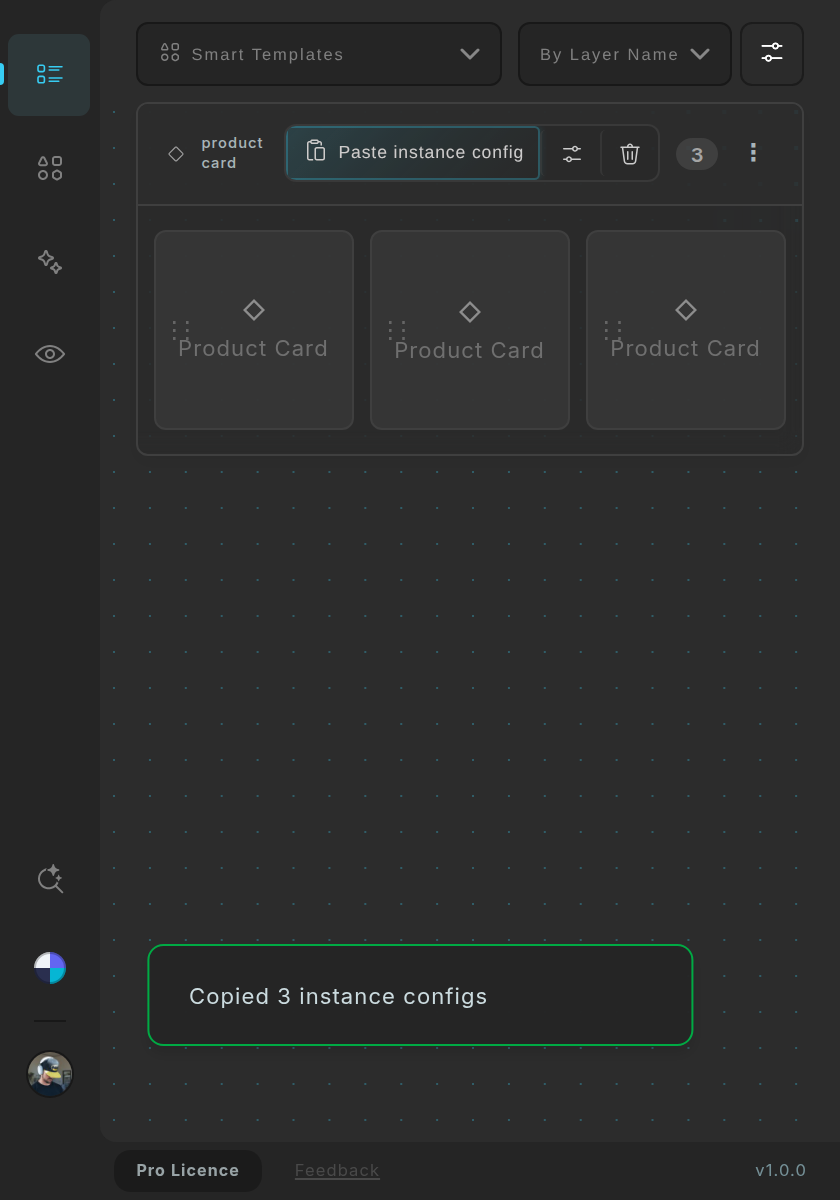
After copying, the button reads Paste instance config. -
Choose what to paste Click the filter button (or right-click Paste instance config) to open Paste Attributes. Text covers text layer characters and text component properties; Colors covers solid and gradient fills, stroke colors and color styles; Images covers image fills on the instance and its nested layers; Styles covers typography, effects, opacity, corner radius, stroke weight and visibility; Instance Config covers variants, booleans and component swaps, root and nested. All are on by default. When the copy holds nested instances, Nested Instances lets you choose which of them to sync, and Reset Paste Attributes turns everything on again.
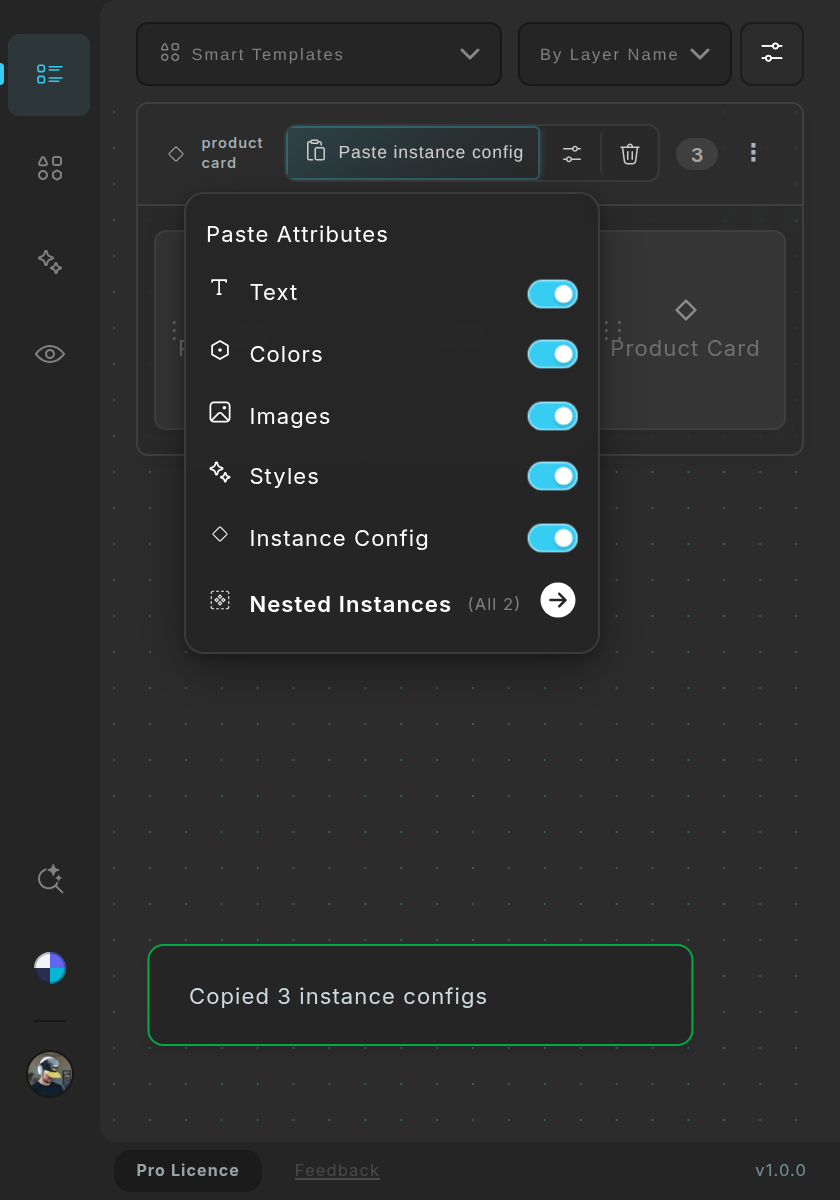
Paste Attributes: choose what is pasted. - Paste Click Paste instance config. The copied configurations are applied to the group's instances in order. With one copied configuration, every instance gets it; with fewer configurations than instances they repeat from the start (for example three configurations across nine instances); with more configurations than instances, only the first ones are used. A message tells you which of these happened.
Tips
- Copy one 'master' instance and paste it onto all the others to give them the same configuration.
- Copy three variants and paste them onto nine instances to repeat the pattern in order.
- Switch off Text when you want to restyle cards without touching their content.
Result
The target instances carry the copied properties, nested swaps, text, colors, images and styles you allowed, in the same order as the source.
If something goes wrong
- A message says 'Nothing copied yet'. Copy the configuration first with Copy instance config, then select the targets.
- A message says 'Enable at least one attribute in paste options'. Every attribute in Paste Attributes is switched off. Turn at least one on, or use Reset Paste Attributes.
- Only some things changed. Open Paste Attributes and check what is switched on. The button's tooltip lists the active attributes when the paste is filtered.
- A message says 'Could not copy instance properties'. The selection holds no component instances, or the copy failed. Select instances, not plain frames, and try again.
Common questions
In which order are the configurations applied?
In the order of the rows in the Selection view, from the first instance to the last.
Does it use AI?
No. It copies and applies properties directly.
Can I paste onto a single instance?
Yes. Each instance row has its own paste button once something is copied; right-click it to filter what is pasted.