Compress Images: Shrink Heavy Images to a Target Size
Set a maximum file size and Contently scales the images in your selection down towards it, one by one or at the source, and shows what each one saved.
Goal
Cut the weight of images in a file before you share, export or hand it over.
Before you start
- A selection that contains image fills, or nothing selected to work on the whole page.
- A copy of the original if you may need it again: Contently has no button to undo a compression.
Steps
- Select the images Select the layers whose images you want smaller; the search goes through their children too. With nothing selected, Contently takes every layer on the current page.
-
Open Compress Images Click the Menu button in the sidebar and choose Compress Images. Move the Max Size slider (0.01 to 2 MB, 1.0 MB to start) or type a size. Images that are already at or under it are skipped.
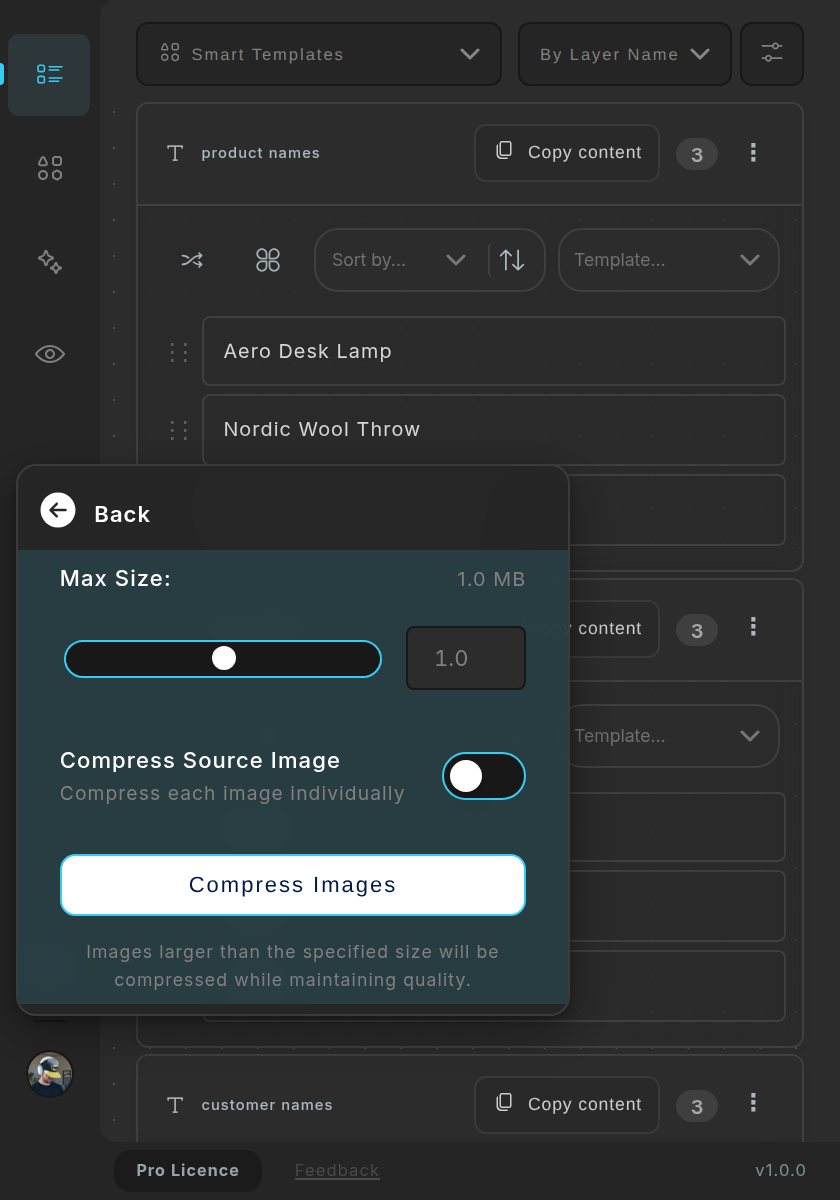
Menu → Compress Images: the target size and the Compress Source Image switch. - Choose how to compress With Compress Source Image off (the default) each selected layer gets a smaller copy of its image; layers that share one original share the new image, and layers you did not select keep the original. With it on, the source image itself is replaced, so every layer that uses it on the current page, and on pages whose name contains 'assets', shows the smaller one.
-
Run it Click Compress Images. A message says 'Compressing image. This may take a few minutes. Please wait.' and a progress window shows Images Processed, Space Saved and Size Reduction, with a card per image: its original and new size and 'Reduced by N%', or 'Skipped compression', or 'Failed to process image' with the reason. Click Done when it finishes.
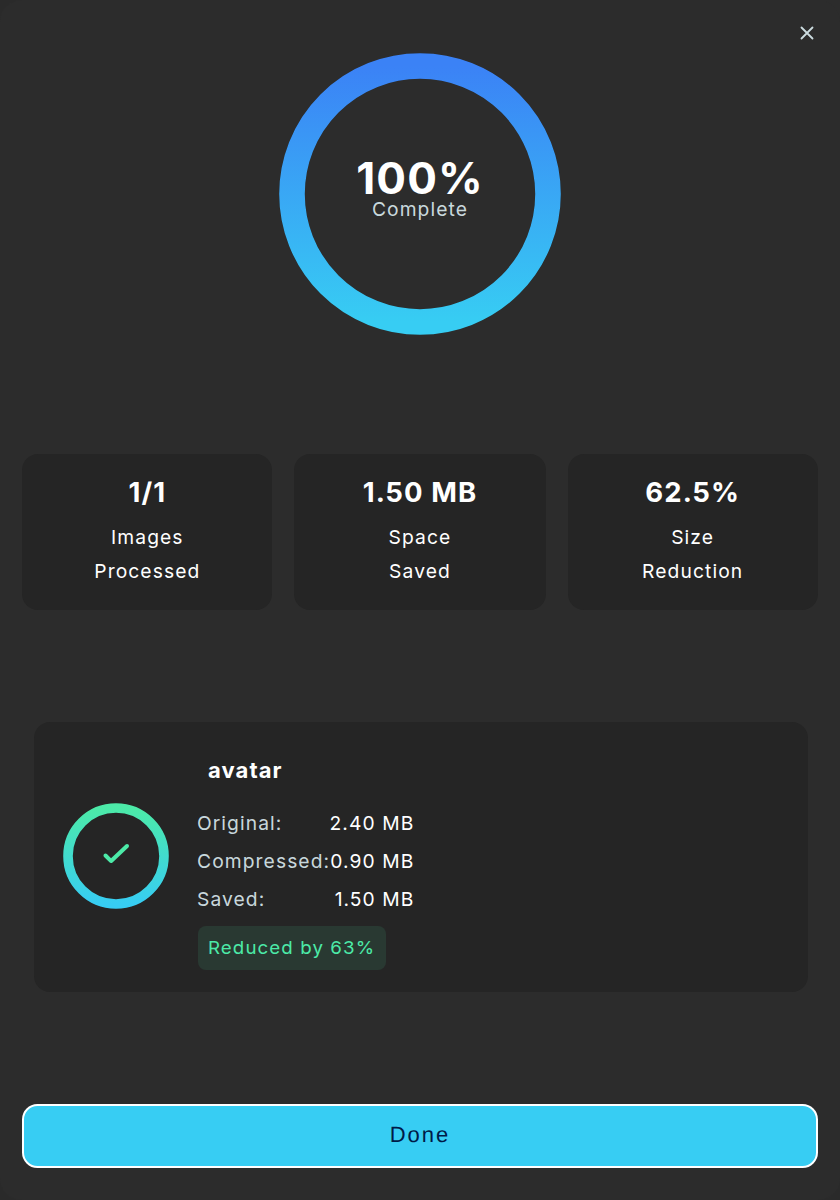
The progress window: totals on top, one card per image, then Done. The numbers are sample data. - Compress a whole image group On a group of images, the compress button in the group's toolbar opens a 'Compress to: N%' slider. The target is that share of 3 MB, so 50% asks for 1.5 MB and 100% for 3 MB; the help text under the slider describes it differently. It works on your whole selection, not only on that group, and always compresses each image on its own.
Tips
- Duplicate the page first when the images matter.
- Use Compress Source Image when many layers share one image, so you shrink it once.
- The ⚡ next to an image preview in the Selection view marks a cached preview, not a compressed image.
Result
Your images are smaller, and the progress window tells you how much space you saved.
If something goes wrong
- 'Skipped compression' on an image. It is already at or under the Max Size. Lower the size to compress it further.
- A photo does not get much smaller. Contently scales the pixels and writes the result back as a PNG, so a photo that started as a JPEG may stay large. Lower the Max Size to shrink it more.
- 'No images found to compress'. Nothing in the selection (or on the page) has an image fill. Select layers that show images.
- 'Failed to process image: …'. That image could not be re-exported; the message gives the reason. Try it alone, or at a smaller size.
- I want the original back. The plugin has no undo for compression. Use Figma's own undo straight away, or duplicate the page before you start.
Common questions
Does compression lower the quality?
It scales the image down once, by the ratio of your target to its current size, and writes it back as a PNG. Fine detail goes with the pixels, and nothing checks afterwards that the file fits the target.
What do Refresh Caches and Reset Plugin Data do?
Both are in Menu → System Settings → Cache Maintenance. Refresh Caches clears the image preview and template caches and refreshes the remote template list; it touches no settings or templates. Reset Plugin Data does that and also removes the image and icon templates saved in the file; it keeps your API keys, preferences, license and Document Context. Reset Everything also removes your API keys and settings, after a confirmation.
Does it change the images in my other pages?
Only with Compress Source Image on: then every layer on the current page, and on pages named 'assets', that uses the same image gets the smaller one.