Text, Image & Icon Templates (Material Symbols)
Create reusable text and image templates, browse Google Material Symbols with outline and filled styles, and control template application sequences.
Goal
Build reusable content libraries for rapid design prototyping in Figma.
Before you start
- Contently plugin installed in Figma, FigJam, or Figma Slides.
Steps
-
Create a text or image template Select existing layers in Figma, click the + Template button, and choose 'Create Text Template' (or 'Create Image Template'). Name your template and save.
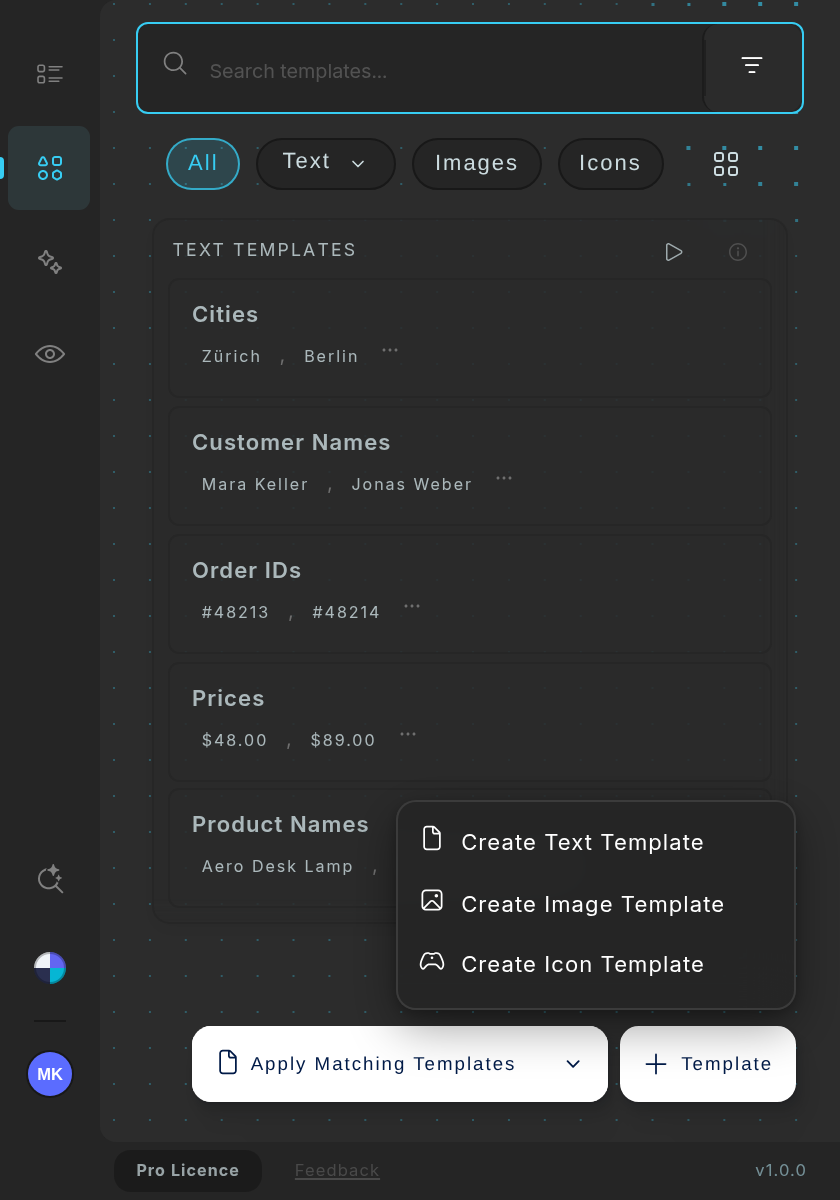
The + Template menu. -
Browse the Material Symbols library Open 'Material Symbols by Google' in the icon templates. Search by name (3 or more characters), narrow the results with the variant chips, and switch the Filled toggle.
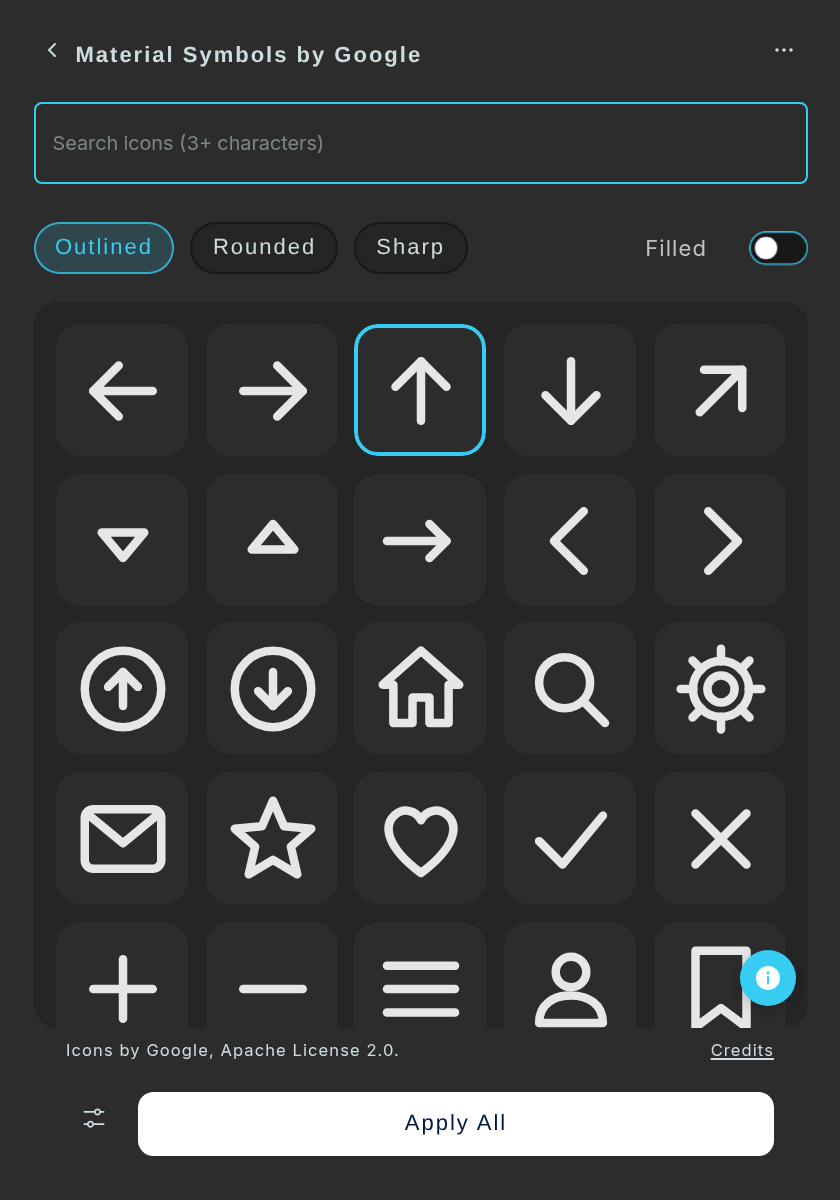
The library: search box, Outlined, Rounded and Sharp chips, the Filled switch and the icon grid (sample icons). 
Typing 'arrow' with Filled on narrows the grid to matching icons (sample icons). -
Configure Apply settings In the template detail view, click 'Toggle apply settings', then adjust the Apply sequence (Random, Original order, Ascending/Descending) or the Apply-to mode (Smart, Matching smart templates, Direct selection only, or Image fills only for image templates).
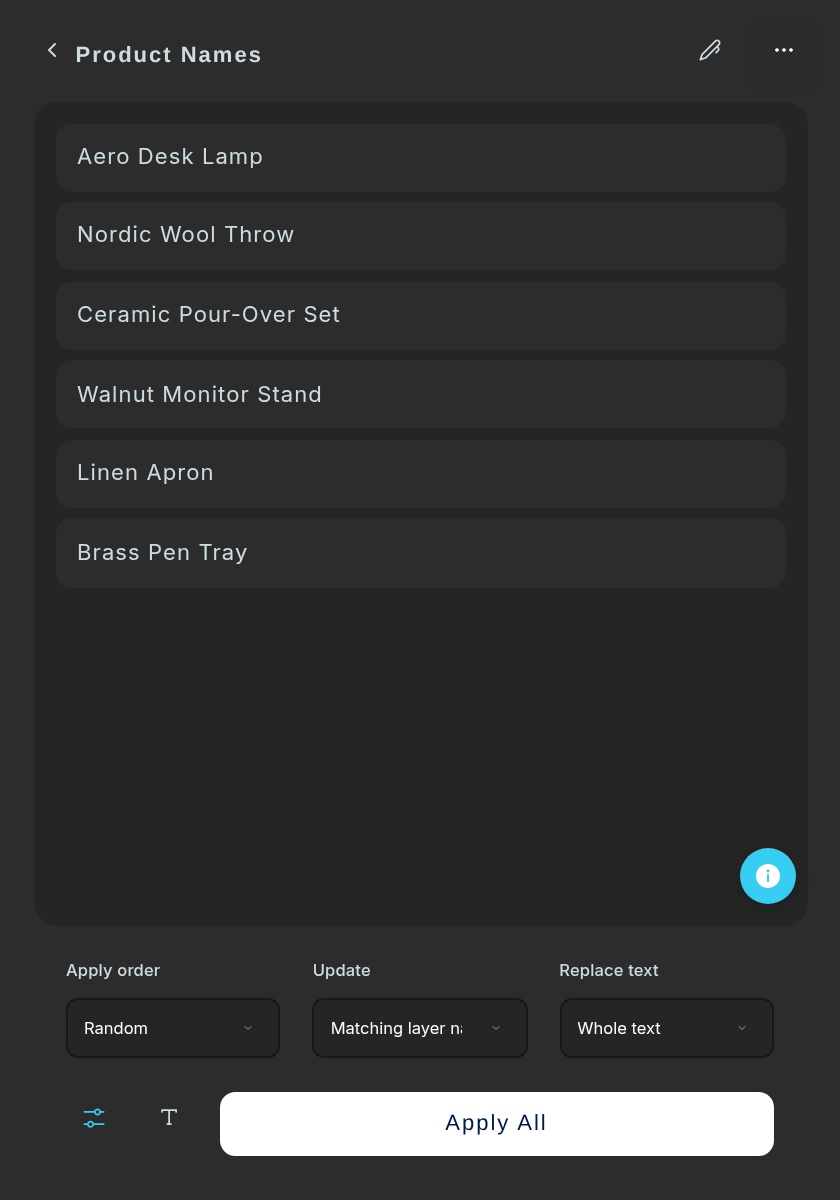
A template detail view with Apply settings open.
Tips
- Add bracket syntax to a layer that already matches an icon template, like '<template name> [#37cdf3]', to enforce a custom hex colour without modifying the source template. The layer needs a matching name or [icon].
- Use 'Image fills only' mode when you want to replace fills on complex shapes without touching text layers.
Result
Selected layers receive high-quality SVG vector icons or text items respecting your color styles and layout structure.
If something goes wrong
- An icon template applies in light mode colors when canvas is in dark mode. Add bracket syntax like [var=Theme/IconColor] to a layer that matches your icon template (or add [icon] to its name) so it picks up your colour variable.
Common questions
How do I create a text template?
Select text layers in your file that represent realistic content. Click the + Template button and choose 'Create Text Template'. Name it and save: the plugin stores all selected text values as template items. Tip: use the same name as your Figma layers to enable Smart Template auto-matching.
How do I use Image Templates?
Image Templates are curated sets of images. Create one from selected image layers or the Images panel. Select target layers and click Apply. Use 'Apply to → Smart' to auto-match by layer name, or 'Direct selection' for manual control.
How do Icon Templates work?
Icon Templates let you browse and apply icon sets to selected layers, including remote libraries like Material Symbols by Google. Search by name, narrow with the variant chips, toggle Filled, and click an icon to replace the selection, or use Apply All for Smart Template auto-replacement.
How do I use Material Symbols (Google)?
Material Symbols is a built-in remote library: no external Figma file needed. Open the icon templates, choose Material Symbols by Google, search by name (3 or more characters), and toggle Filled. Icons are applied as Figma components.
What does the Apply order setting do?
Controls how template items are assigned: Random (shuffled each time, ideal for mockups), Original (preserves the exact list order), or Ascending/Descending (alphabetical or numerical sorting).
What are the text Update modes?
Matching layer names first tries Smart Template name-matching before applying to other selections. Entire selection applies directly across all selected layers. Replace text options include Whole text, Only numbers (e.g. Order #100 -> Order #873), or Only text (keeps numbers intact).
What do the image Apply to modes do?
Smart matches by layer name first, then falls back to image fills. Matching smart templates only replaces layers with matching names. Direct selection only applies to whatever is selected. Image fills only replaces fills in shapes and frames, ignoring layer names.