Icon Templates: Drop Icons into Layers by Layer Name
Name a layer after an icon set (Phosphor, Heroicons, Flag Icons, Fluent) and Contently fills it with an icon; pick one by number or keyword and tint it from the name.
Goal
Fill icon layers from an icon set by naming them, choose a specific icon, and colour it without opening a panel.
Before you start
- A frame with layers that should hold icons.
- The Contently plugin open.
Steps
-
Open the icon templates Click the Images, Icons & Templates button in the sidebar (the grid icon) and choose the Icons chip. The list shows the icon sets, for example Flag Icons, Fluent Emoji by Microsoft, Fluent Icons by Microsoft, Hero Patterns, Heroicons and iconoir.com.
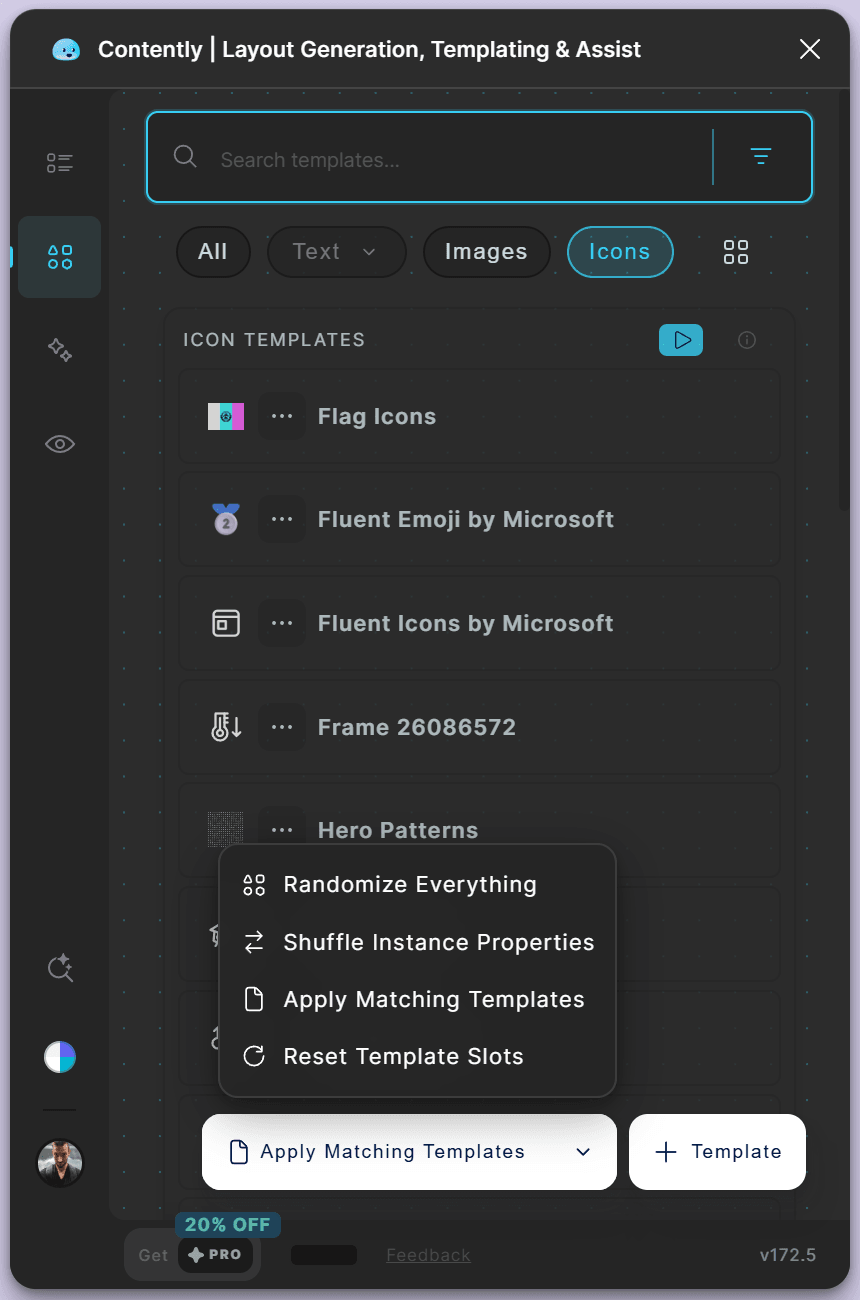
The Icons chip lists every icon set, local or remote. - Name the layers after a set Rename a layer to the set's name in lowercase with hyphens, such as phosphor-icons or open-doodles. Start it with icon:: to be explicit (icon::phosphor-icons).
- Apply Select the frame and click Apply Matching Templates. Every named layer gets a random icon from its set.
- Pick a specific icon Add a colon and a number to always get the same icon: the picks :1, :39 and :90 each give a fixed icon of the set. Or add a keyword after the name and a space, for example phosphor-icons virus or phosphor-icons volleyball, to pick the icon with that name. When you apply from a template's own detail view, a search can also follow a second double colon, as in icon::phosphor-icons::star.
- Colour the icon from the layer name Add a bracket block: [#37cdf3] tints the icon with a colour, [style=Linear] applies a paint style, and [var=Collection 1/brand-0] binds a colour variable. Spell styles and variables exactly as they appear in Figma. Multi-colour icons, such as Fluent Emoji, keep their own colours.
- Try it on an example card Click the button on the Icon Templates header (Place an example on the canvas) to add an example card, select it and press the button, which turns solid with a circular-arrow icon (Run Apply All demo on this card).
Tips
- Combine a pick and a tint in one name: phosphor-icons:39 [#37cdf3].
Result
Each named layer shows an icon from its set, pinned or searched as its name says, in the colour or style the name asks for.
If something goes wrong
- A layer stays empty. Check that the layer is visible and not a text layer, and that its name contains the set's name (phosphor-icons) or starts with icon::.
- The keyword picks the wrong icon. Use a simpler keyword from the icon's own name, or pin the icon with its number.
Common questions
Can I make my own icon set?
Yes. Create an icon template from the + Template menu (see Content & Icon Templates); layers named after it behave the same way.