Text Templates: Fill Text Layers by Layer Name, Local or Remote
Name a text layer after a text template (AlbumTitles, ArtistNames or a remote set) and Apply Matching Templates fills it; add modifiers and inline variables for more control.
Goal
Fill text layers from a template of values, local or remote, using only layer names and inline variables.
Before you start
- A frame with text layers.
- At least one text template (create one from + Template, or use a remote set).
Steps
-
Open the text templates Click the Images, Icons & Templates button in the sidebar (the grid icon) and choose the Text chip. Each card shows a template and its first values, for example AlbumTitles (Journey Through Sound, Echoes of Eternity) or ArtistNames (Echo Smith, Mystic Harmony).
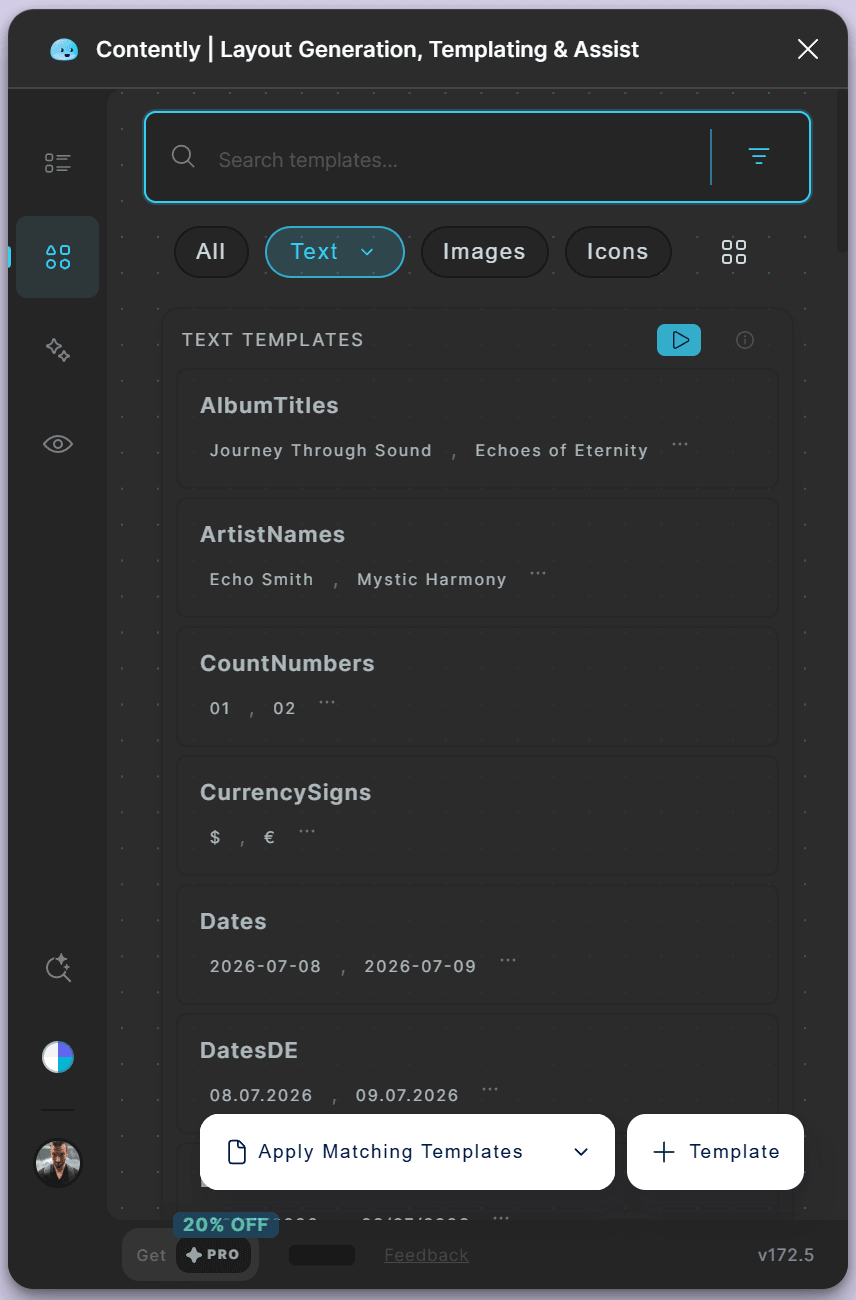
Each text template lists its first values; the layer name must match the template name. - Name the layers after a template Rename a text layer to the template's name: AlbumTitles, ArtistNames, CurrencySigns. A remote set is named by its template id, written remote:: followed by the set, for example remote::text-ui-headlines.
- Add modifiers Append modifiers to the name: :upper, :lower or :title change the case, and :1 picks the first value of the template. For example remote::text-ui-headlines:upper gives a headline in capitals. The full list is in the modifiers guide.
- Use inline variables in running text Write a template's name in curly brackets inside a text layer: {ArtistNames} scored {AlbumTitles}. Modifiers work inside the brackets: {remote::text-ui-headlines:upper}.
-
Apply Select the frame and click Apply Matching Templates (its label changes to the last action you ran). The arrow next to it also offers Randomize Everything, Shuffle Instance Properties and Reset Template Slots.
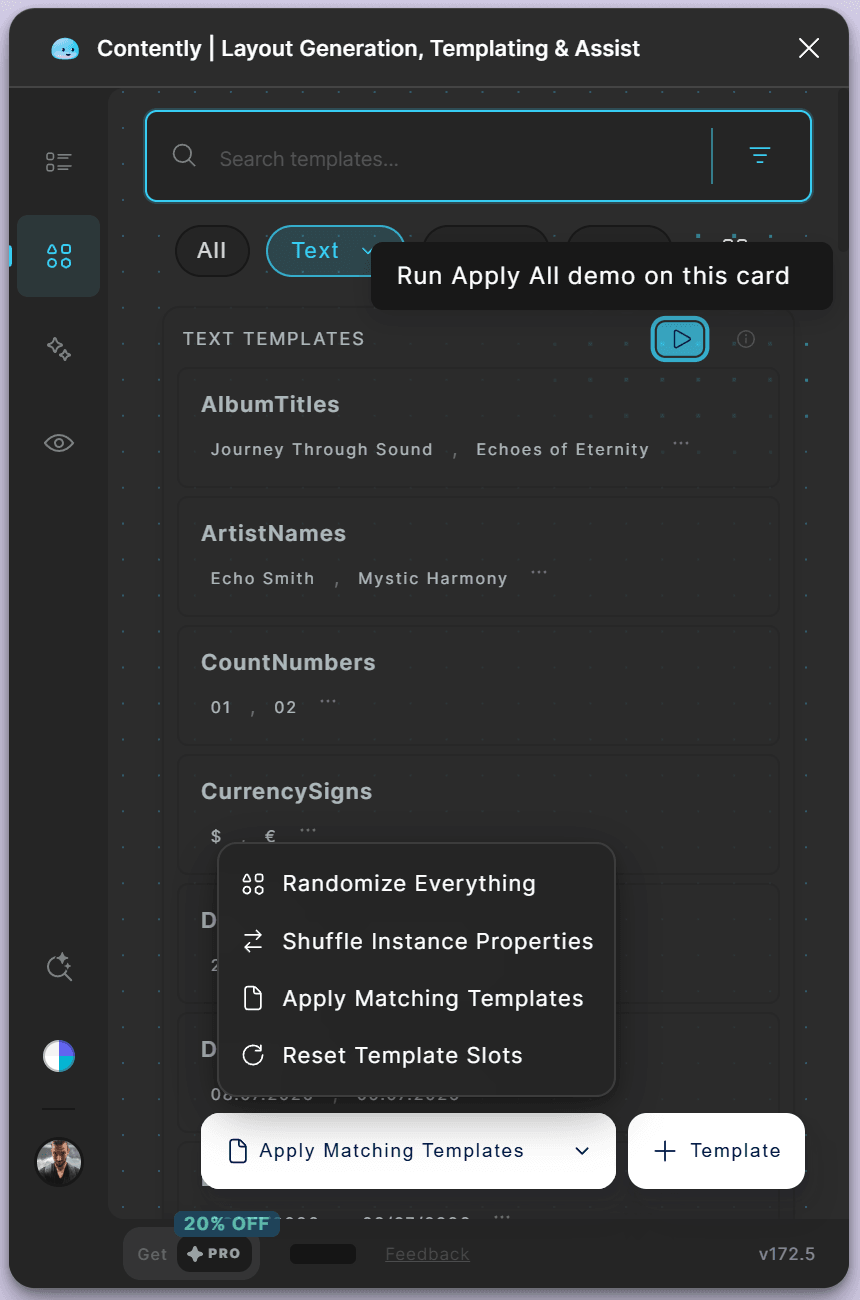
The arrow beside Apply Matching Templates opens the other apply actions. - Try it on an example card Click the button on the Text Templates header (Place an example on the canvas) to add an example card. Select it and the button turns solid with a circular-arrow icon (Run Apply All demo on this card); press it to watch the card fill.
Tips
- Name matching is on the template's name as listed, so keep the layer name and the template name identical.
Result
Each text layer shows a value from its template, with the case and picks its name asks for, and running text merges its variables.
If something goes wrong
- A text layer stays as it was. Check that its name contains the template name exactly as listed (AlbumTitles, not Album Titles) and that the layer is inside the selection you apply to.
- A {variable} stays as typed. The word in the brackets must be an existing template name. Check the spelling in the Text list.
Common questions
Where do I find the exact modifier list?
In the Layer Name Modifiers, Placeholders & Image Utilities guide.
What is the difference between local and remote text templates?
A local template is one you created with + Template; a remote template is a ready-made set that Contently offers from its catalogue.