Template Actions: Copy a Name, Rename Layers, Insert Placeholders, Drag Items
A template's ⋯ menu names layers after it, copies its name and inserts its placeholder; its items can be dragged straight onto the canvas.
Goal
Connect layers and templates by name without typing, and drop template items where you want them.
Before you start
- A template, opened from the Images, Icons & Templates view.
Steps
- Open a template Click the Images, Icons & Templates button in the sidebar and click a template, for example Product Names. Its detail view lists the items.
-
Open Template actions Click the ⋯ button (Template actions) at the top right. The menu offers Apply All, Edit template, Copy the name, Rename selection to the name and, for text templates, Insert the placeholder. Edit template is disabled for remote templates, which are read-only.
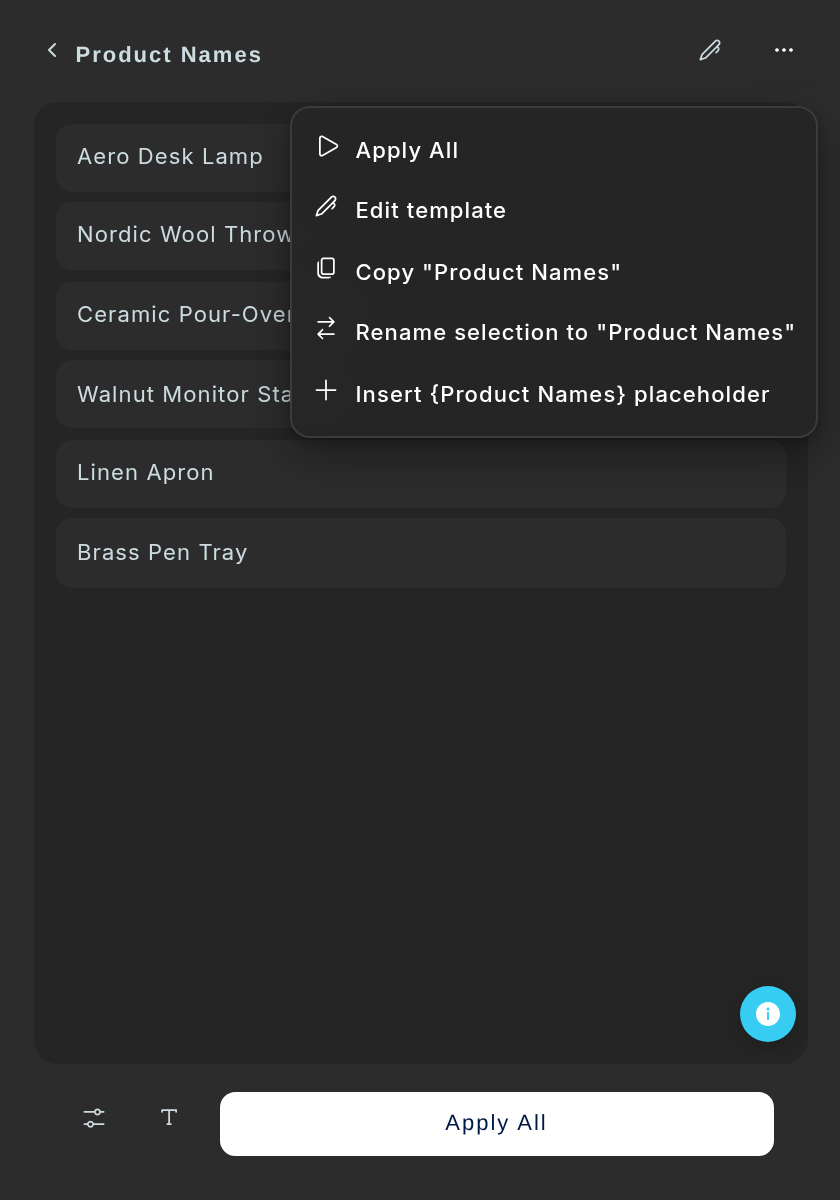
The Template actions menu of the text template Product Names. - Rename layers after the template Select layers in Figma and choose Rename selection to "Name". Each layer takes the template's name and keeps any modifier you gave it, such as :upper or a [#hex] block. The message says 'Renamed N layers to "Name"'. It needs at least one unlocked layer.
- Insert a placeholder Choose Insert {Name} placeholder (text templates only). With a text layer selected it appends {Name} to its text. With no text layer selected it creates a text layer called 'Inline Placeholder Guide (Name)' with seven example lines using the placeholder and its modifiers; Apply All then fills it.
- Drag an item onto the canvas Text rows, image thumbnails and icons in the detail view can be dragged. Dropped with nothing selected, a text item becomes a new text layer and an image becomes a rectangle with the image as its fill. With any layer selected, a text item is applied to the selection through the template, whichever way you drop it, using the template's Update and Replace text settings. An image replaces the fill of the one selected layer, or of the layer under the cursor when none or several are selected; that layer must already hold an image fill or be a rectangle, ellipse, polygon, star or vector (a frame is not replaced).
Tips
- Rename first, then Apply Matching Templates: the layers are matched by their new names.
- A long template name is shortened to 36 characters in the menu; the layer gets the full name.
Result
Layers carry the template's name, placeholders sit in your text, and items land exactly where you drop them.
If something goes wrong
- 'Select at least one layer to rename'. Select layers in Figma first.
- 'Selected layers cannot be renamed'. Contently could not rename those layers. Select other layers and try again.
- Insert placeholder is missing. It is offered for text templates only.
- 'Unable to insert template item'. Something failed while creating the layer. Try again, or click the item to apply it to your selection.
Common questions
What does Copy "Name" copy?
The template's name, so you can paste it into a layer name or a placeholder.
Can I edit a remote template?
No. Remote templates are read-only; install a copy to edit it.