UX Feedback Reports: Read the Score, Work Through the Tasks, Render to Figma
Understand the Overall Score, the lens tabs with their tickable tasks, the history of earlier reviews and the Render to Figma options.
Goal
Turn an AI design review into a short list of changes, keep track of it, and put the report next to your design.
Before you start
- A finished UX Feedback review. See the AI Assistant guide for how to start one.
Steps
-
Read the Overall Score When a review finishes, the first screen shows the Overall Score as a ring and a percentage, a short verdict with a summary, and the buttons Render to Figma, Close and Insights. Contently works the score out itself from the section scores: UX & Psychology counts 40%, Visual Design 35%, Brand Communication 15% and Accessibility 10%. A lens you switched off drops out and the others are scaled up, so a review without Accessibility is not capped at 90. Personas & Needs and Creative Ideas have no score.
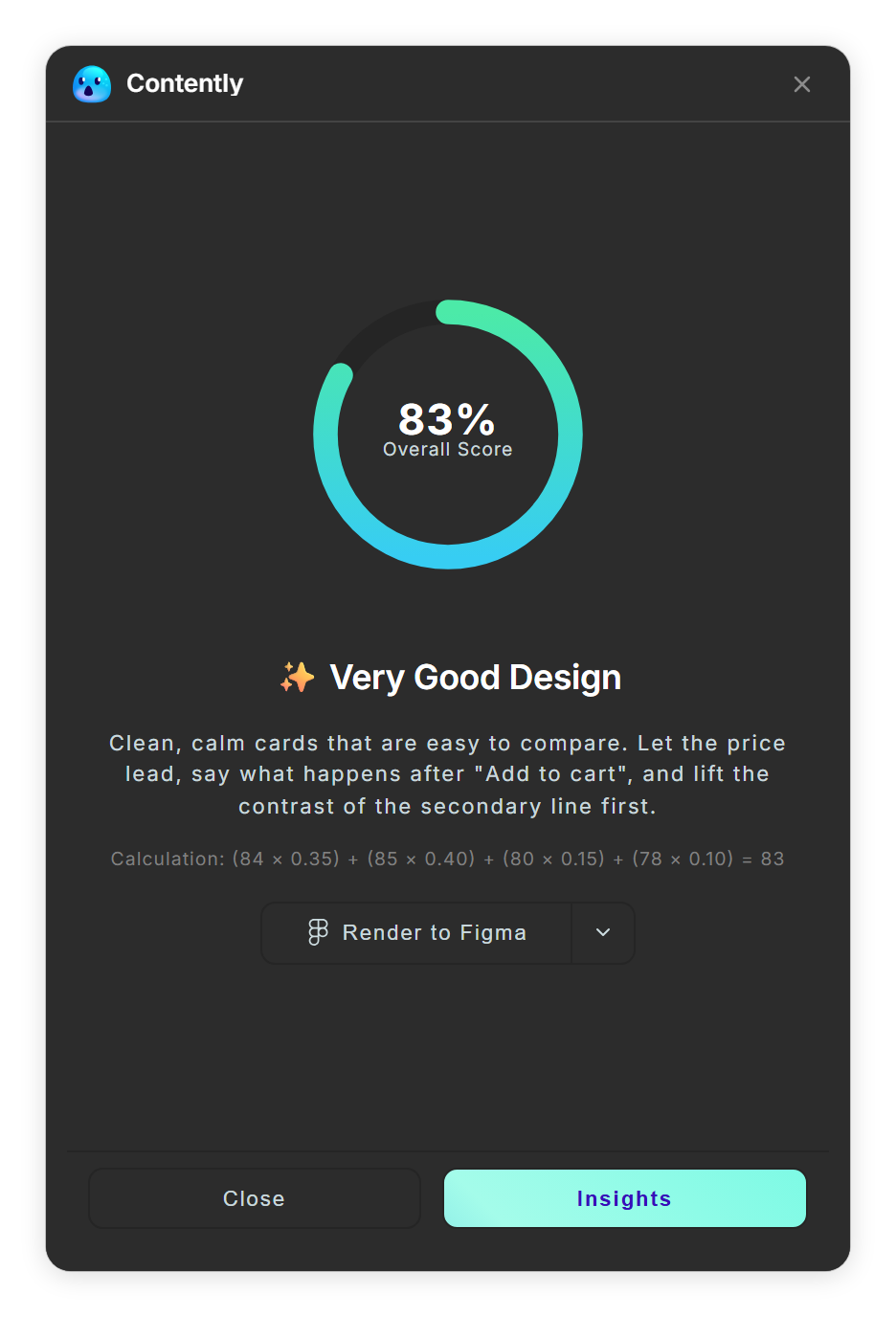
The first screen of a review: the Overall Score, a summary, Render to Figma, Close and Insights. -
Open Insights and read one lens at a time Insights opens one tab per lens. A scored lens shows its score out of 100, a Summary, a High Priority Fix and a list of Actionable Tasks. Each task names the layer, the change and the reason. Tick a task when you have done it: the ticks are saved with the review and are back when you reopen it. Use Back to return to the first screen.
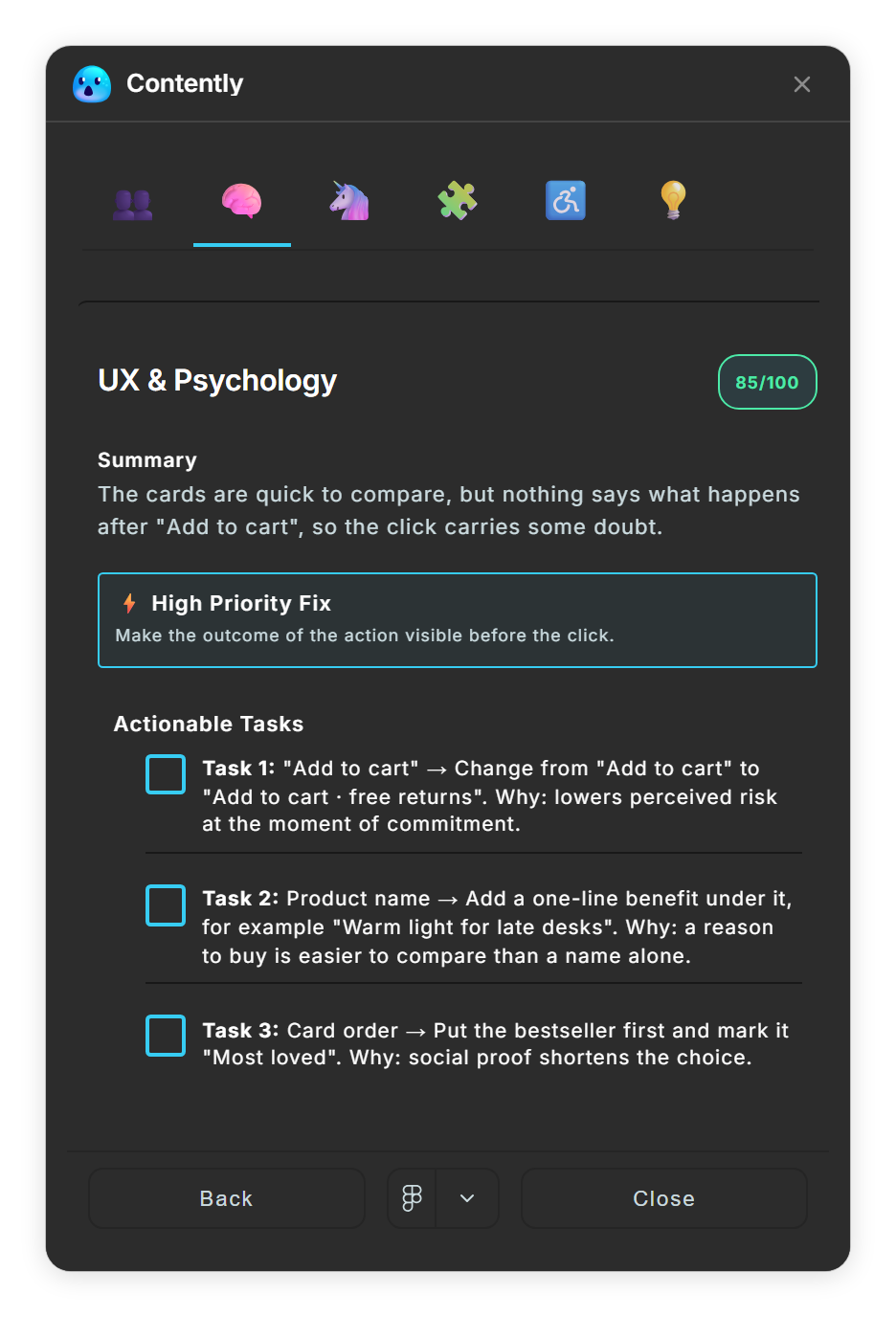
One tab per lens: score, summary, High Priority Fix and Actionable Tasks. -
Use Personas & Needs Personas & Needs states the job to be done, two or three user personas with a photo, and three to five key needs. It builds on your Document Context or on what the design itself shows, so add a line about your audience in AI Settings → Context for sharper results.
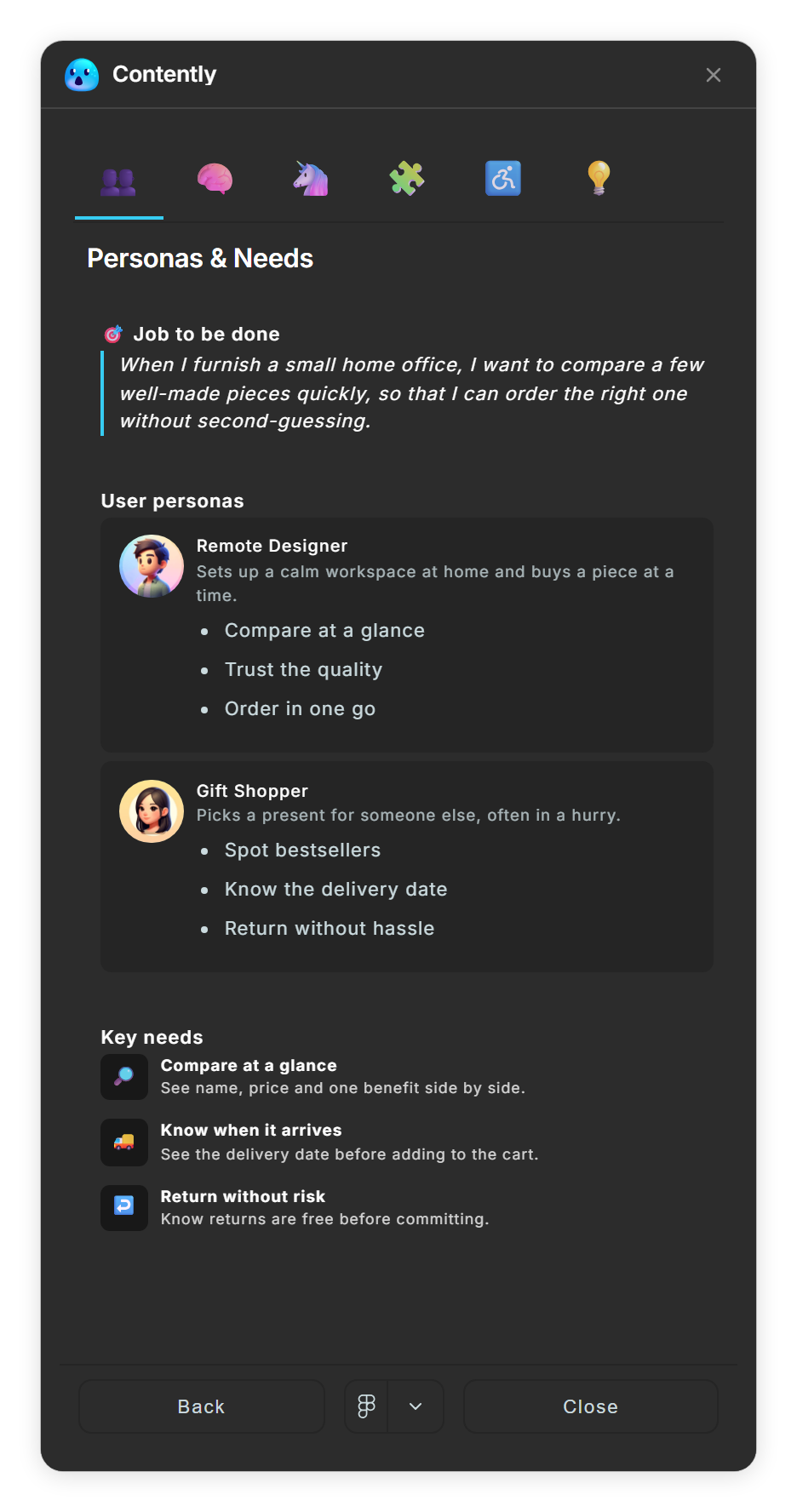
Personas & Needs: the job to be done and the user personas. -
Look at Creative Ideas Ideas & Inspiration has no score. It lists tasks for alternative directions and quick experiments, which you tick like any other task.
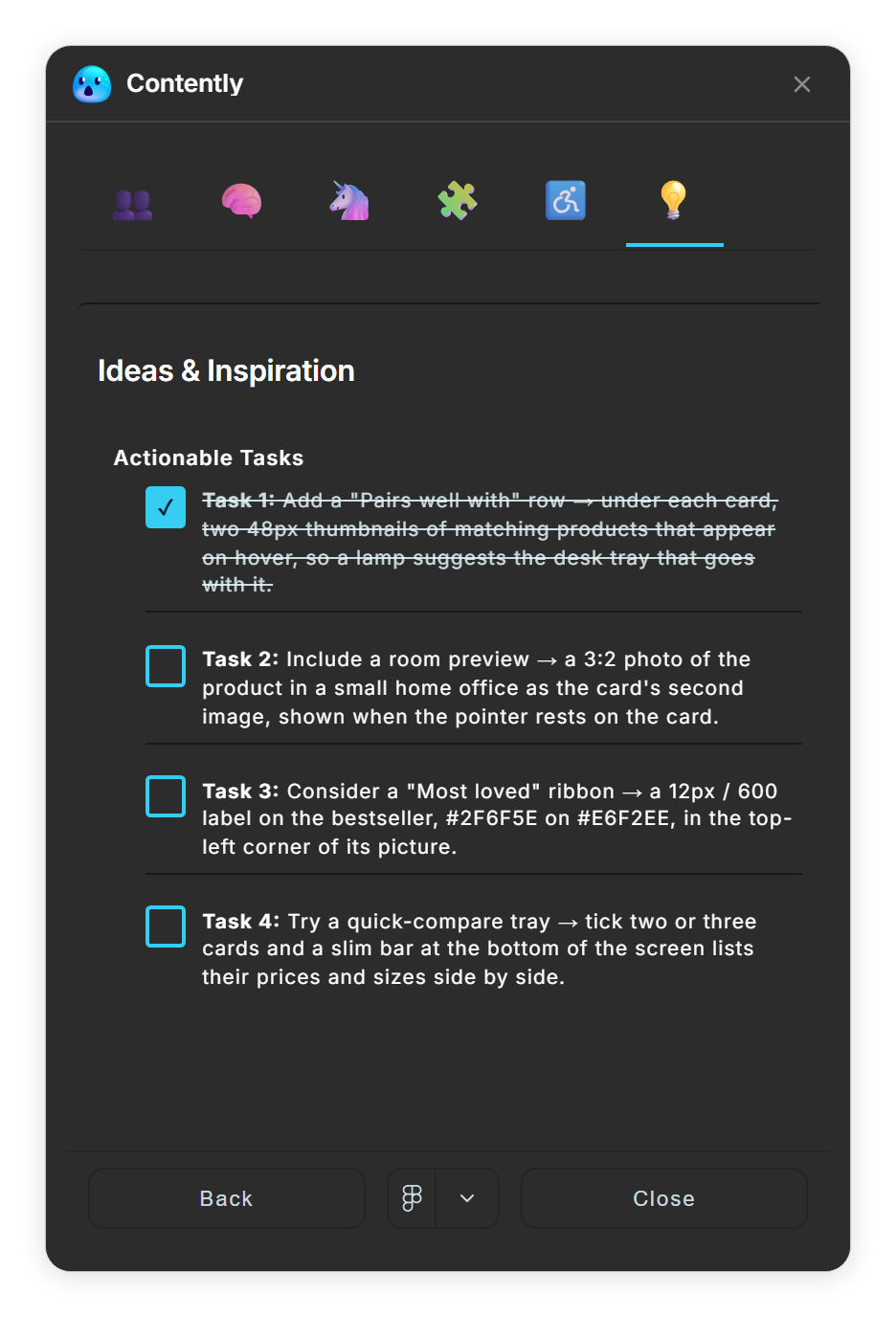
Ideas & Inspiration has tasks but no score; tick them off as you go. -
Render the report to Figma Render to Figma draws the report as a frame in your file, with a preview of the reviewed design on top and the Overall Score calculation. The arrow next to the button opens the render options: which sections to include, a masonry grid, and two, three or four columns. The options are not remembered between sessions.
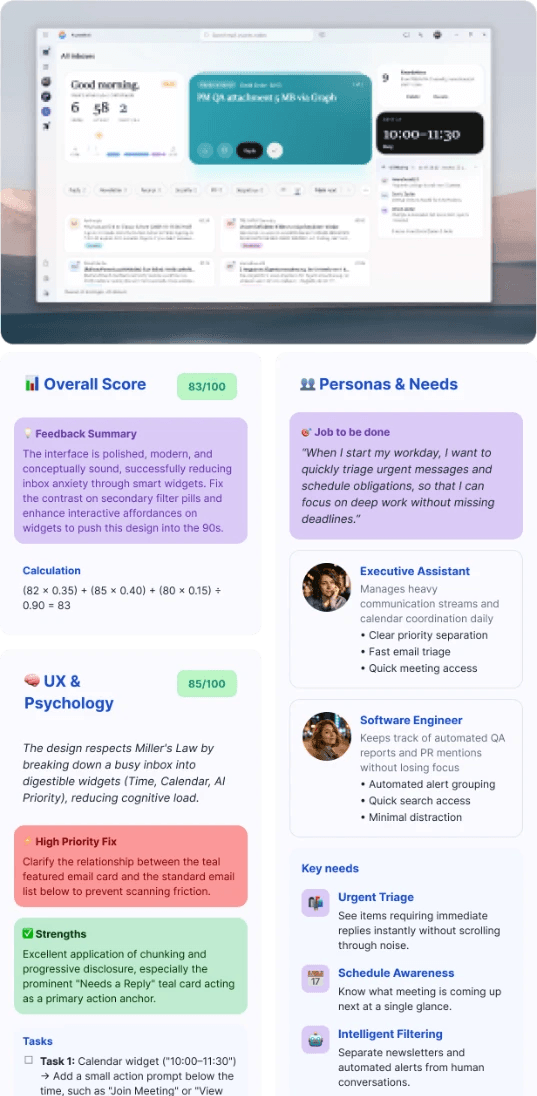
The top of the report rendered to Figma, with the preview of the reviewed design above the score and the first lens cards. - Return to earlier reviews In UX Feedback, earlier reviews are listed with a small score ring and their section scores. Open shows the report again, Pin keeps it in the list, and Remove deletes it. Contently keeps your five latest reviews that are not pinned, plus every pinned one, on your computer in Figma's plugin storage.
Tips
- Pin the review you are working from; the list only keeps five others.
- Run the review again after your changes and compare the Overall Scores.
- Treat scores as guidance: they come from an AI reading an image of your design, not from a test of real users.
Result
You have a scored review, a ticked-off list of changes, and the option of a rendered report in your file.
If something goes wrong
-
The Overall Score changed after I switched a lens off.
The score is recalculated from the lenses that were on. Turn the lens back on in AI Settings → Vision and run the review again to compare like with like.
-
An earlier review is gone from the list.
The list keeps the five latest reviews that are not pinned. Pin a review to keep it.
-
The Insights tabs show fewer lenses than I expected.
Only the lenses switched on in AI Settings → Vision are part of a review.
Common questions
Who calculates the Overall Score?
Contently does, from the section scores the AI returns: UX & Psychology 40%, Visual Design 35%, Brand Communication 15%, Accessibility 10%, scaled to the lenses that were on. The rendered report shows the calculation.
Do Personas & Needs and Creative Ideas change the score?
No. They have no score and are not part of the Overall Score.
Where are my earlier reviews stored?
On your computer, in Figma's plugin storage. Contently keeps your five latest unpinned reviews and all pinned ones.