UX Writing: Rewrite Your Text Layers with AI
Select text layers, say what you want, and Contently rewrites them in place; or leave the prompt empty and let it improve the copy. Tune controls how bold it gets.
Goal
Improve, shorten or re-tone interface copy across many layers in one go, and take it back when you do not like it.
Before you start
- Text layers selected in Figma.
- An AI provider set up in AI Settings (an API key, or a local model).
Steps
- Select the text layers Select the frame or the layers whose text you want to change. Until something is selected, the prompt box asks you to select text elements in Figma first.
- Open UX Writing Click the sparkle button (AI Text, Image & Copilot) in the sidebar. On the Refine tab, UX Writing is the default mode. The box above the prompt shows what it will work on, for example 'Product Names +2'.
-
Say what you want, or leave it empty Type a request such as 'Make these product names warmer, keep each under 24 characters', or leave the box empty to let AI analyze and improve the content. Press Enter to send and Shift + Enter for a new line. Earlier prompts are listed above the box: click one to use it again, pin it to keep it, or remove it.
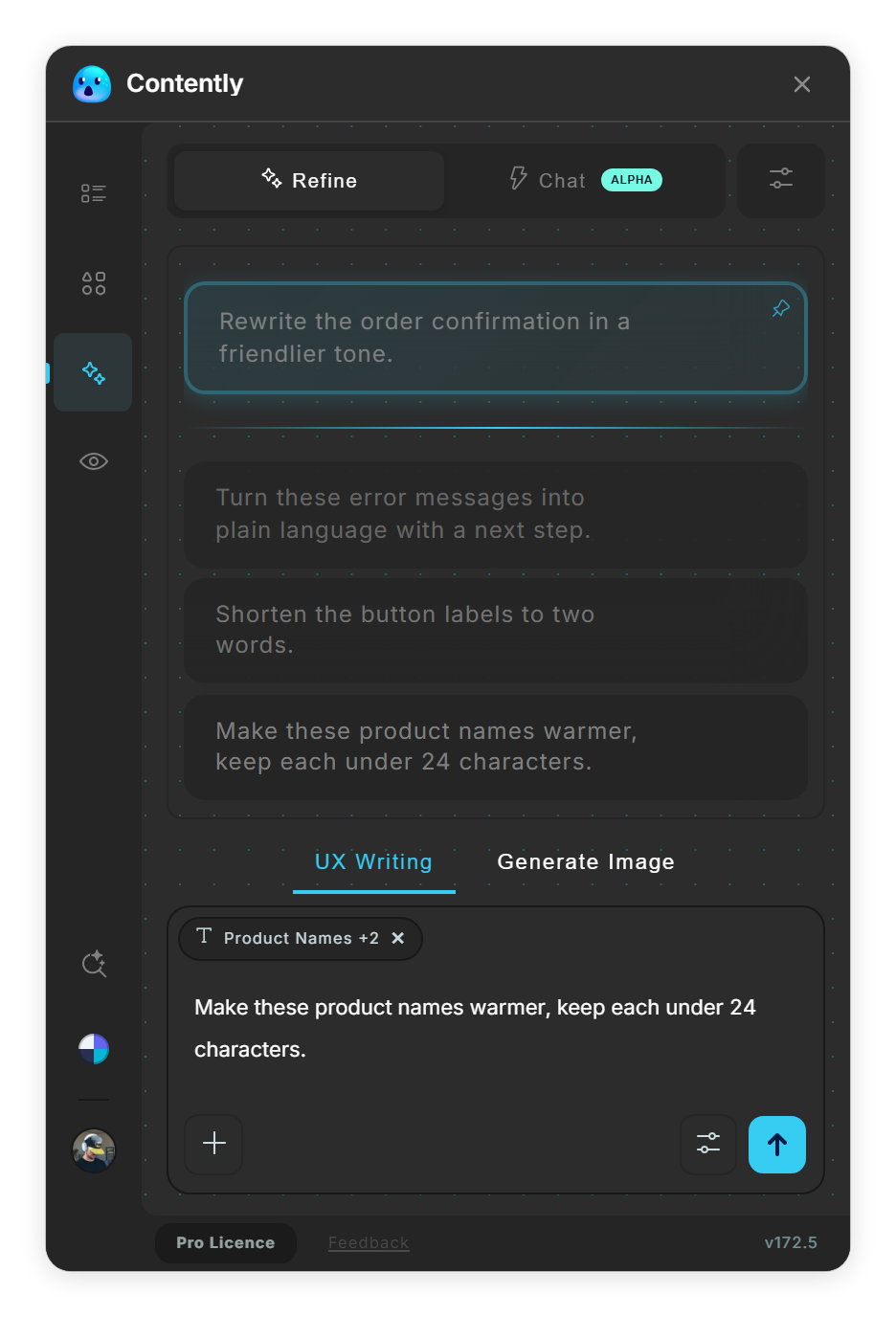
UX Writing: the selection chip, earlier prompts and the prompt box. -
Check the result The selected text layers are overwritten with the new text and a message says 'Content updated successfully ✨'. Layers whose text did not change are left alone. If the answer is identical you see 'AI returned the same content. Try a more specific prompt, like mentioning a tone, length or what to change.' (with 'for all N elements' when several layers were sent). 'AI returned no changes. Try rewording your prompt.' means the answer held nothing usable.
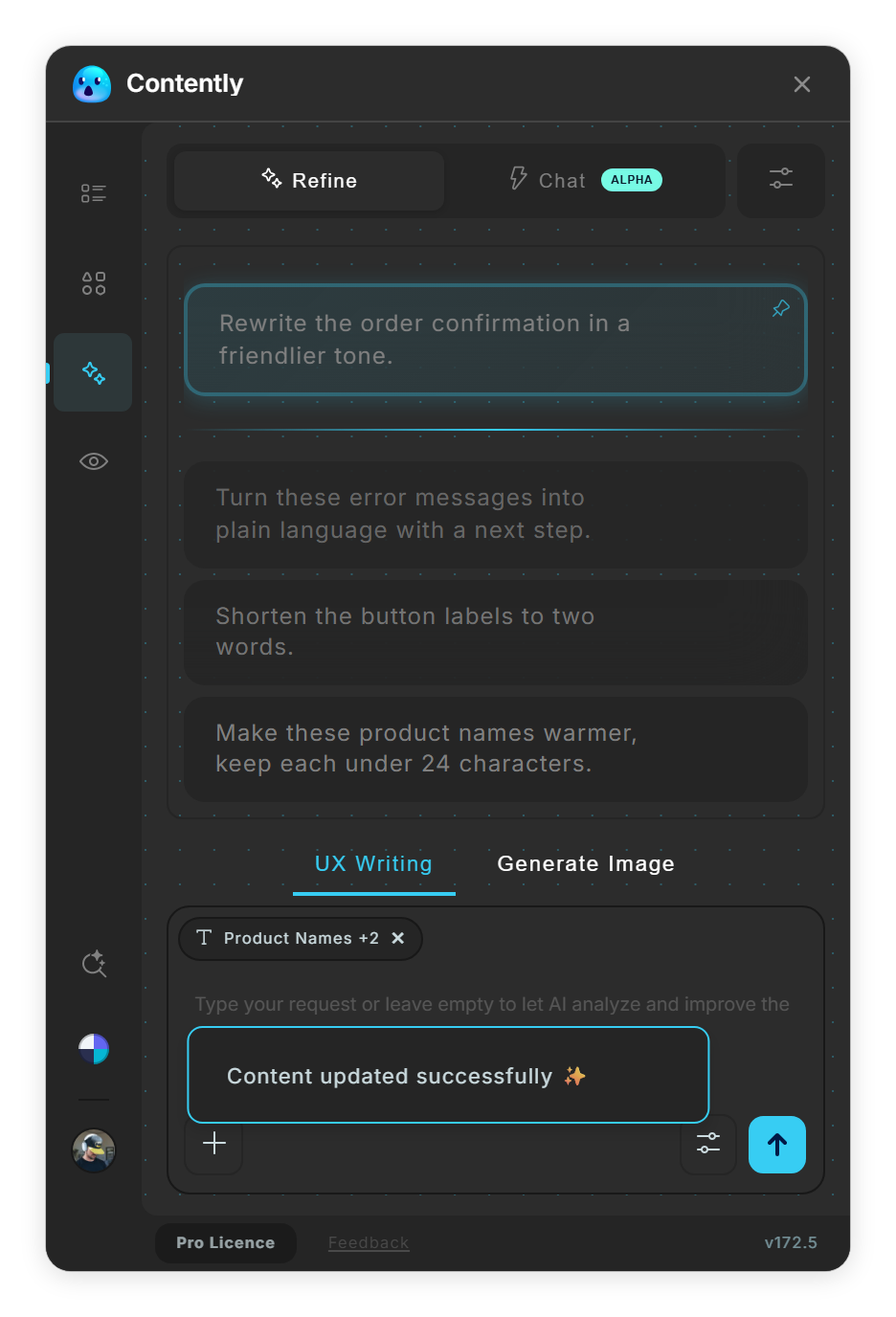
A finished run: Content updated successfully. 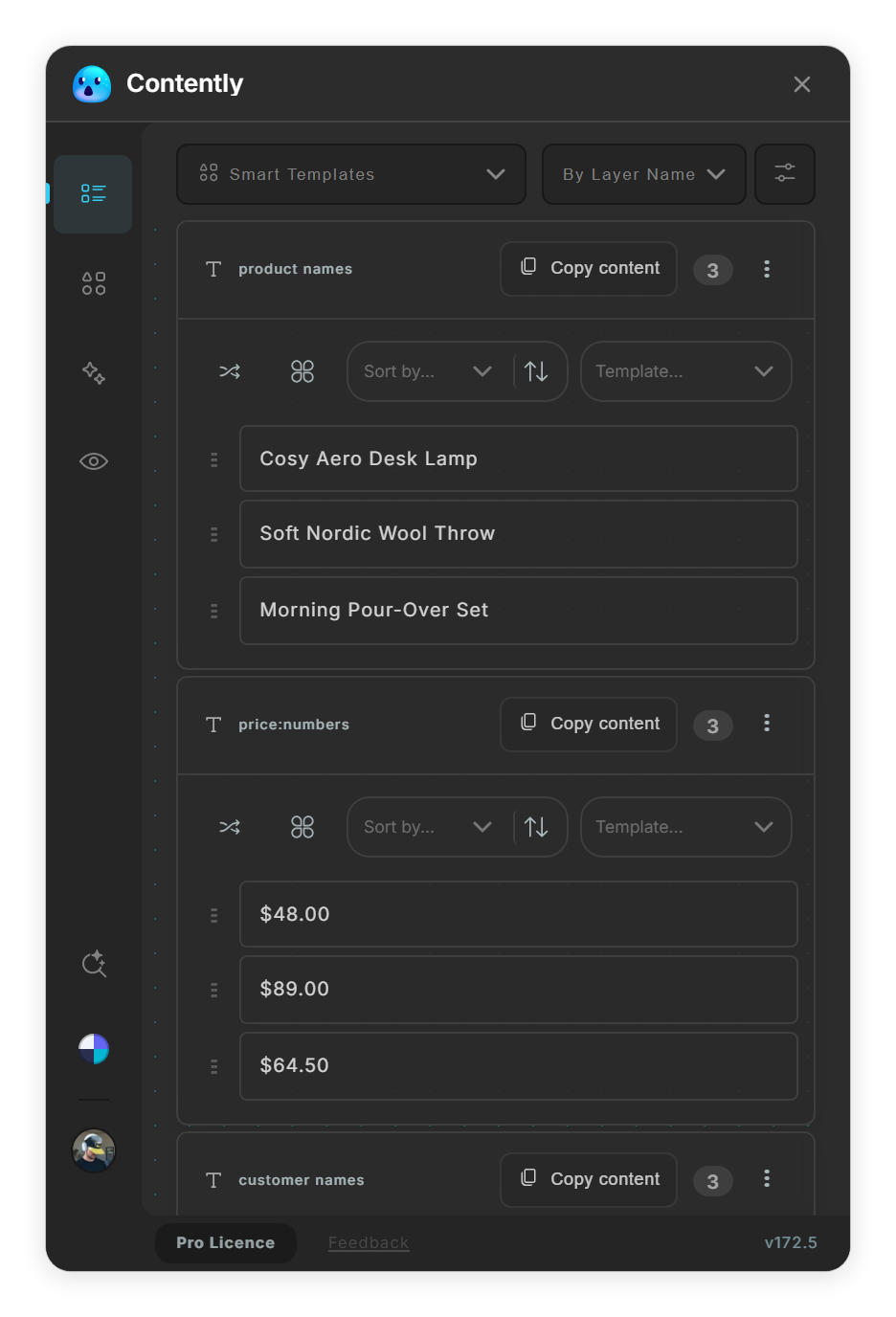
The three product names, rewritten warmer and under 24 characters. -
Work on one group only To change only one group of rows, click the ⁝ button on a text group's header in the Selection view and choose ✨ AI Transform. It opens UX Writing with just that group's rows, and the same group menu has Restore Original to go back to the text you started with.
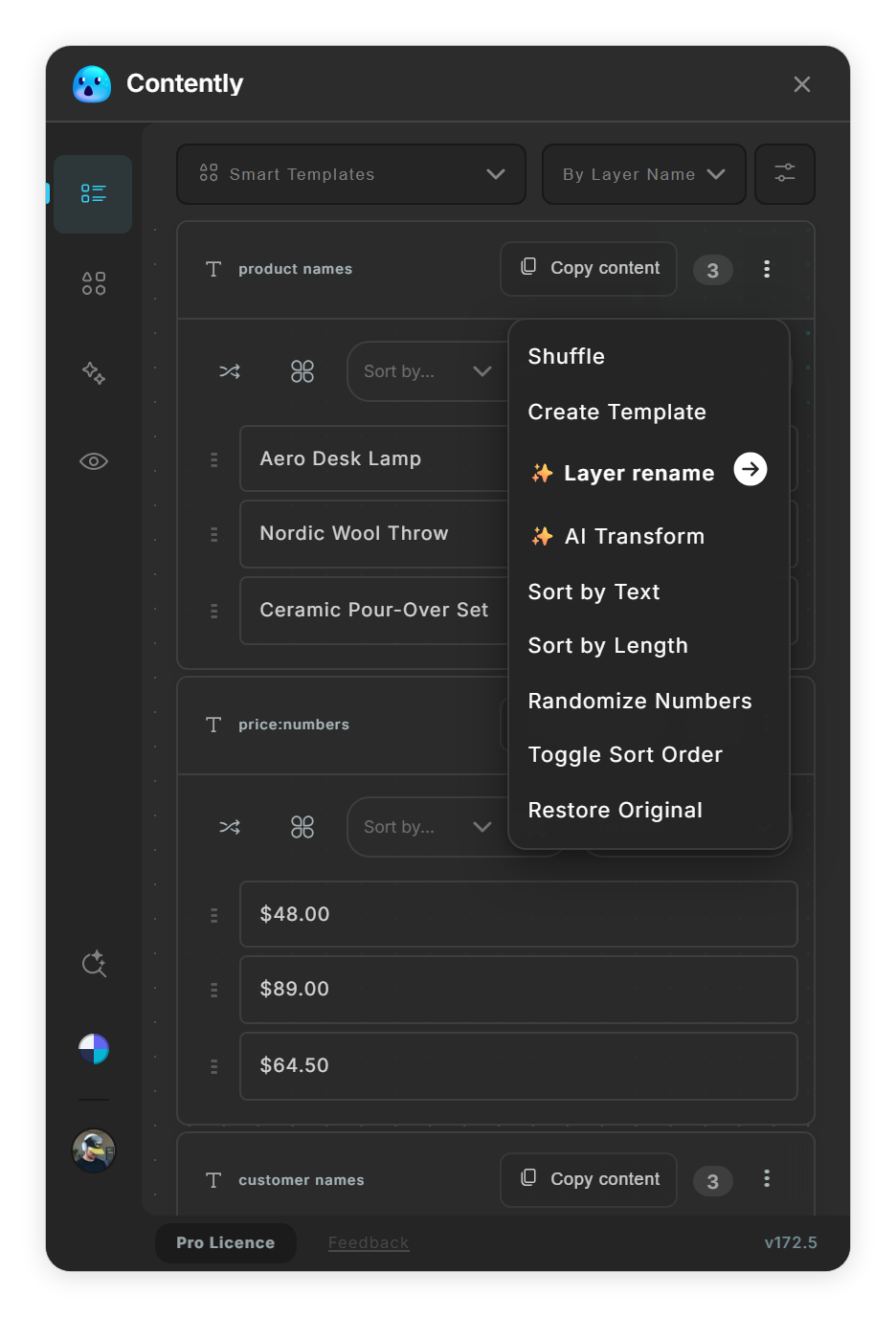
✨ AI Transform in a text group's menu, and Restore Original. -
Set how bold the AI is The options button in the prompt box opens Quick AI settings: the Model, and Tune, a slider from Precise to Creative that sets how varied the answer is. The three presets (Precise, Balanced, Creative) are in AI Settings → Tune, where they also change the length limit of the answer.
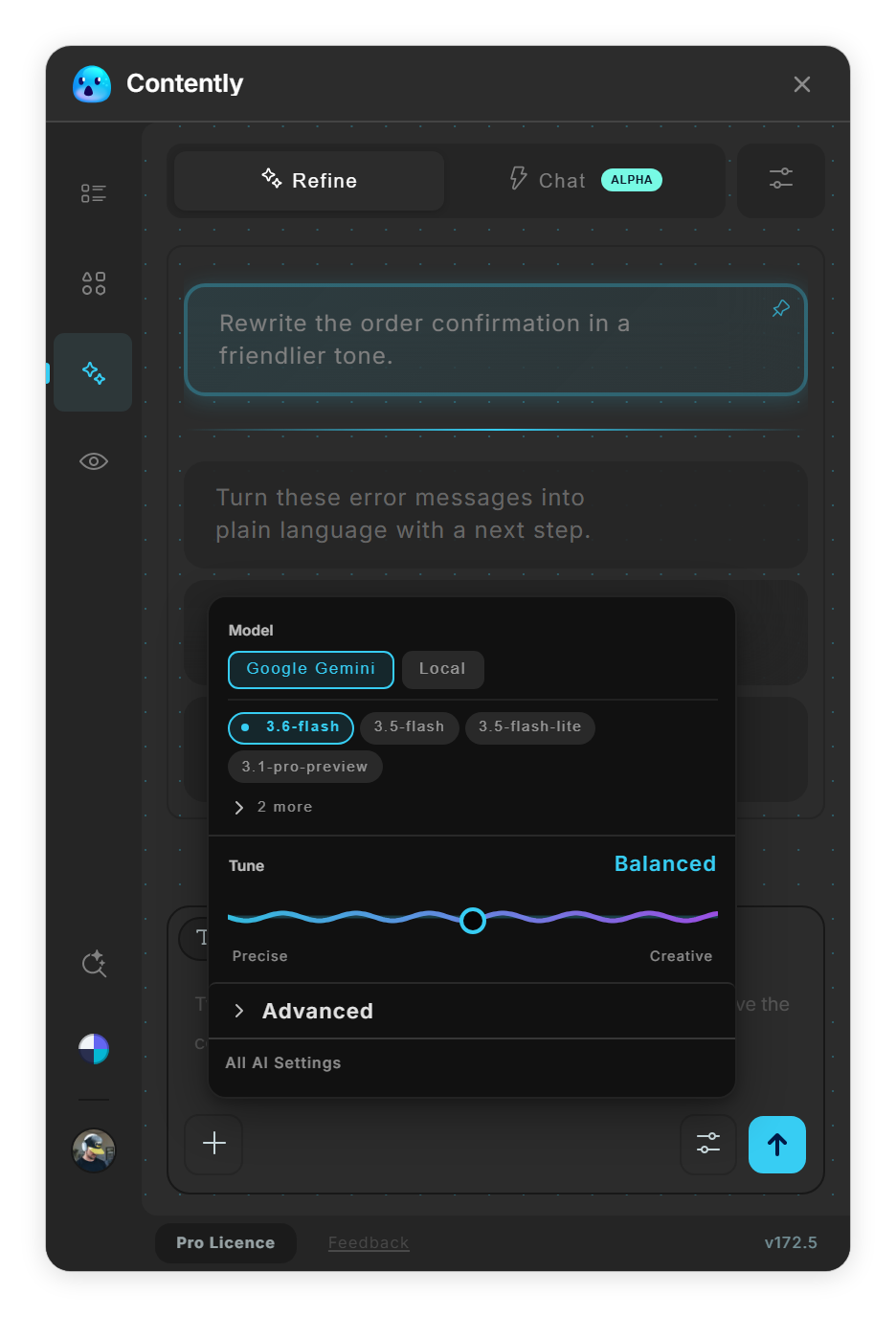
The options button in the prompt box opens Quick AI settings: Model and Tune.
Tips
- A concrete rule works better than an adjective: 'under 24 characters' beats 'shorter'.
- Add tone of voice and audience to Document Context (AI Settings → Context) so you do not repeat them in every prompt.
- The Tune slider in Quick AI settings changes how varied the answer is. The UX Feedback review ignores Tune.
Result
Your text layers carry the new copy, and the prompts you liked are kept for next time.
If something goes wrong
-
The send button is disabled and the box asks me to select text elements first.
Select at least one text layer, or a frame that holds text layers, in Figma.
-
'AI returned the same content' or 'AI returned no changes'.
The model sent back the same text, or nothing usable. Say what to change: a tone, a length or a rule such as 'under 24 characters'.
-
The spinner stops, but nothing changes.
The request failed, usually because of the provider or its key. Open AI Settings → API Key and run Test & Detect Capabilities.
-
A message says today's free AI uses are used up.
The free plan has 12 AI actions a day, shared by every AI feature. A run counts as one, however many layers it changes.
Common questions
Can I attach an image as a reference?
Yes, with the + button (Screenshot selection or Upload image), but only when your provider can read images, and only Google Gemini sends it along; OpenAI, Groq and local models ignore it.
How many prompts are remembered?
Up to 10, pinned ones included. The prompt history is shared by the modes of the AI view.
Does it keep my formatting?
The model is asked to keep the original style and tone. Inline formatting such as bold may appear in the new text.