Choose what your index sheet lists
Pick pages, sections and frames, set how deep indexly looks, index a single section, add previews and leave layers out.
Goal
Get an index sheet that lists exactly the parts of your file people need, with a picture where it helps.
Before you start
- indexly installed in Figma.
- A Figma file with pages, sections or frames.
Steps
- Choose where indexly looks Under Include, the Pages switch sets the scope. On, indexly goes through every page of the file and lists each page with what is on it. Off, it lists only the page you are on. Sections and Frames add those layers. All three are on when you start.
- Know what a switch leaves out indexly only looks inside what it lists. Turn Sections off and the frames inside your sections are left out too. Turn Frames off and only pages and sections remain. Empty Elements adds pages, sections and frames with nothing in them; it is off by default.
- Set the depth Max Depth runs from 1 Level to 5 Levels; 2 Levels is the default. Each level is one step down the layer tree, and with Pages on the pages are the first level. So a frame inside a section on a page needs 3 Levels.
-
Index a single section Select a section on the canvas, or any layer inside it. indexly turns on Render only selected sections and shows Selected: with the section's name. Pages is switched off and greyed out while it is on. The sheet then lists that section's frames, but not the frames nested inside them, and is placed to the left of the section.
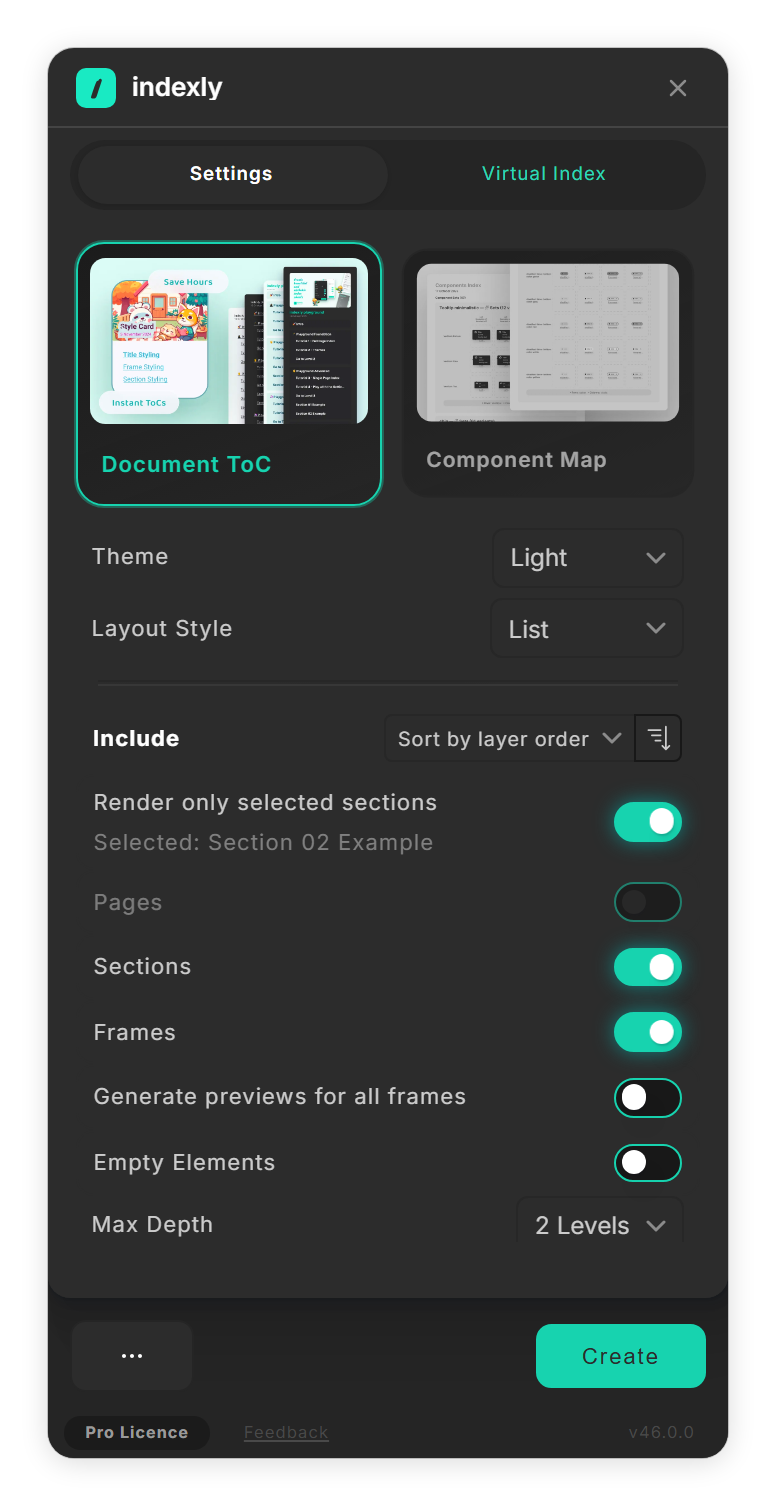
A section selected on the canvas (step 4). -
Add previews Name a layer cover and put it directly inside a page, section or frame: indexly shows it as that entry's picture. While Frames is on you also see Generate previews for all frames. Turn it on and every section and frame without a cover shows a picture of itself. It can make large files slower.
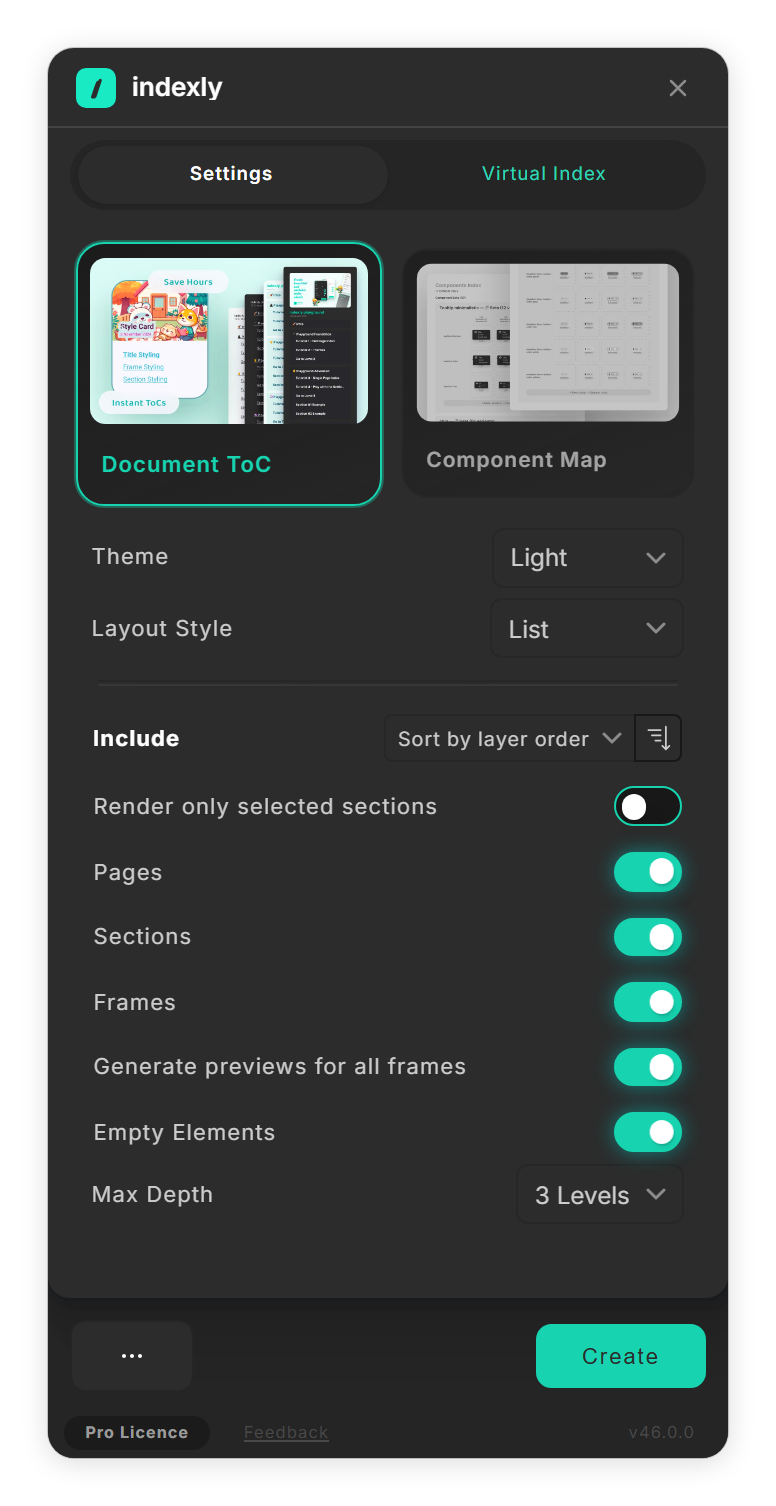
Previews for every frame, three levels deep (step 5). - Leave layers out indexly skips any page, section or frame whose name starts with -- or is exactly ignore, together with everything inside it. Layers named cover are used as pictures and never listed. Names that contain index sheet are skipped as well, so a sheet never lists itself.
- Create the sheet Click Create. The sheet keeps these choices: select it later and the switches show what it was made with.
Tips
- Without opening the plugin window: run Generate ToC Index Sheet from indexly in Figma's plugin menu for a sheet of every page with the default settings. Select a section and run Generate ToC Section Index Sheet for that section alone; with no section selected you see 'Select a section to create a Section ToC index sheet'.
Result
An index sheet that lists the pages, sections and frames you chose, to the depth you set, with pictures where you added them.
If something goes wrong
-
The Create button is greyed out.
Render only selected sections is on, but no section is selected. Select a section or a layer inside one, or turn the switch off.
-
Frames inside a section are missing.
Turn Sections on. With Pages on, set Max Depth to 3 Levels or more.
-
'Selected section was not found. Rendering the current page instead.'
The section the sheet was made for no longer exists, so indexly listed the current page. Select another section and create the sheet again.
-
A layer is not on the sheet.
Check its name: a leading --, the names ignore and cover, and names containing index sheet are skipped. A layer with nothing inside needs Empty Elements.
-
An entry has no picture.
The cover layer must be visible and sit directly inside the entry. Layers wider or taller than 8,000 px get no picture.
Common questions
Does the Pages switch add page names or whole pages?
Both. On, indexly goes through every page and lists each one with its sections and frames. Off, it stays on the current page.
Can I keep a frame out without renaming it?
Yes. Hide it on the Virtual Index tab and click Create there: the sheet leaves it out and your layer keeps its name.