Change the look: theme, list or bento grid, copied style
Pick a theme, lay the index out as a list or a bento grid, and carry a sheet you styled by hand over to new sheets.
Goal
Make your index sheets look the way your file does, and keep that look on every new sheet.
Before you start
- indexly installed in Figma.
- For Copy Style: an Index Sheet in your file.
Steps
- Pick a theme In Theme, choose Light, Dark, Plain Dark, Plain Light or uxactly. The theme sets the sheet's colors and type.
- Choose a layout Layout Style offers List, the default, and Bento Grid. In Bento Grid every top-level entry becomes a card in a grid, and the entries inside it are listed on the card.
-
Shape the grid With Bento Grid you get Columns and Masonry. Columns is Auto or 2 to 5; Auto picks up to 5 columns from the number of cards. Masonry makes cards with more entries taller and drops each card into the shortest column, instead of lining them up in even rows.
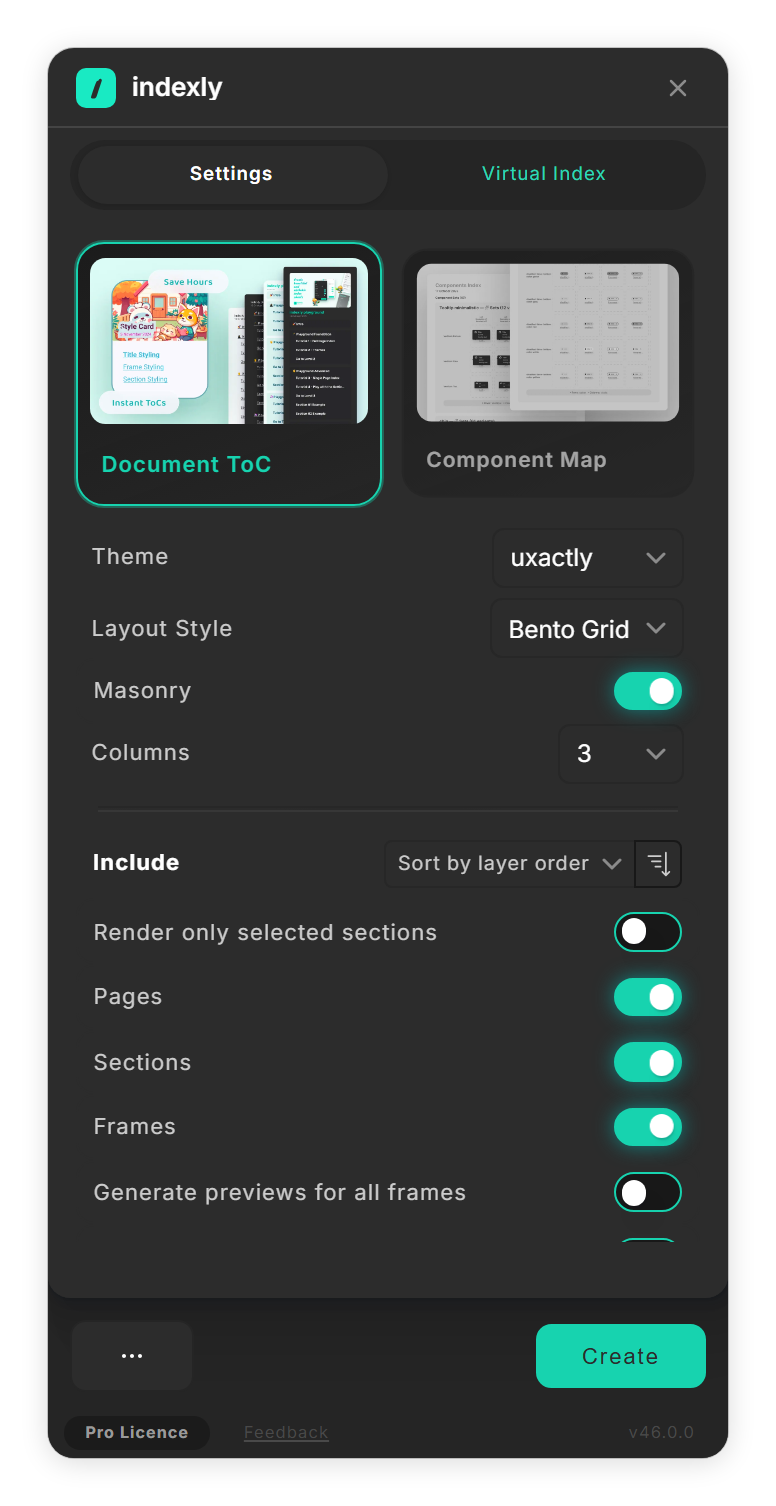
Bento Grid with its Columns and Masonry options (step 3). -
Copy a sheet's look Style an Index Sheet by hand, then select it. Under ✨ Mimic Style, click Copy Style. indexly says 'Styles locked - can be applied to other index sheets', the button turns into Unload Style, and Theme shows Custom (Copied Style).
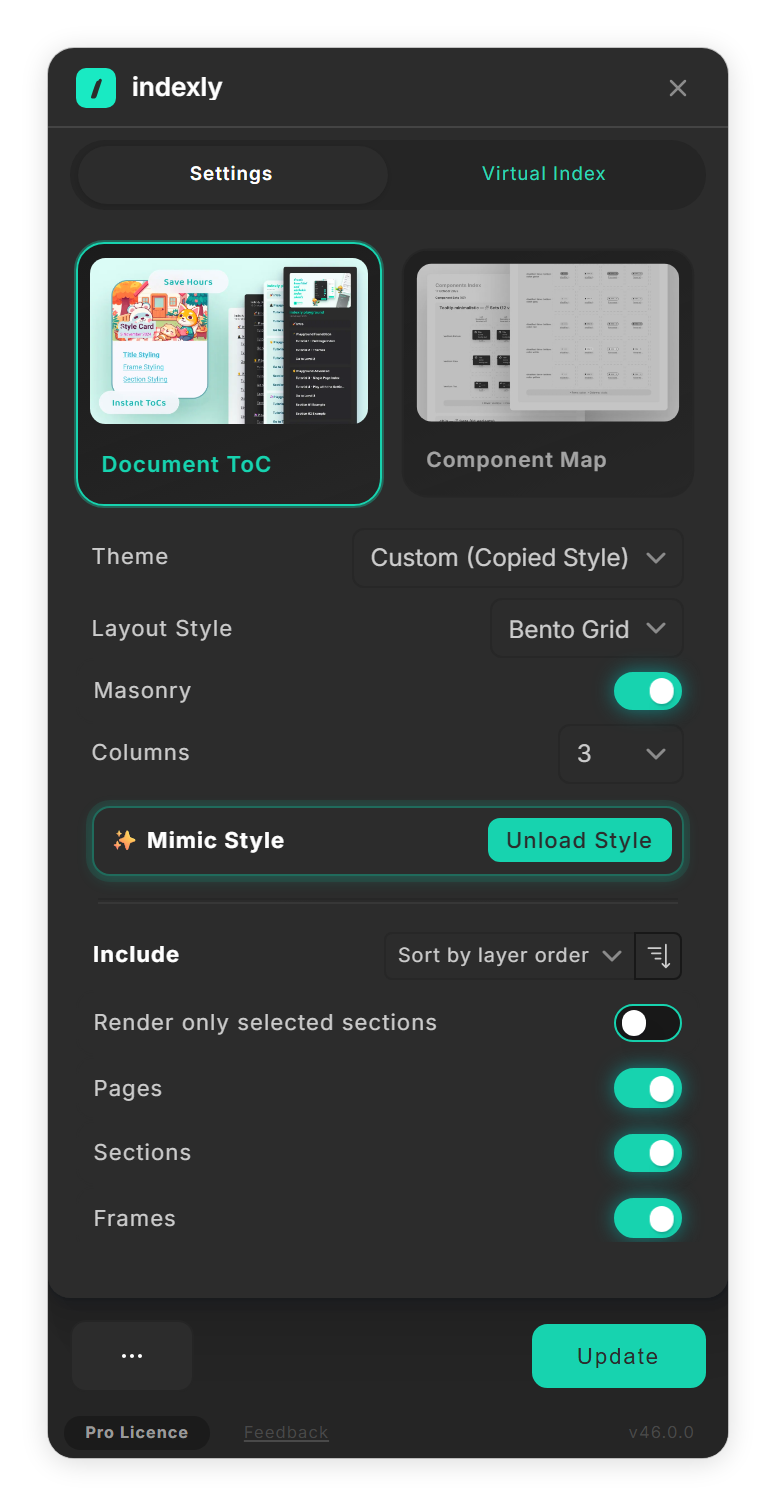
A copied look: Unload Style and the Custom theme (step 4). - Use the copied look Create or update a sheet. indexly applies the copied fills, strokes, effects and other styling, and says 'Applied locked styles to index sheet'. The copy stays active, even after you close indexly, until you click Unload Style; then you see 'Style lock cleared'.
Tips
- An index sheet is an ordinary Figma frame, so you can restyle it freely. Copy Style then carries your changes over to the next sheets.
Result
Your index sheets use the theme and layout you picked, or the look you copied from a sheet you styled yourself.
If something goes wrong
-
'Select an Index Sheet to copy styles'
Copy Style needs the sheet itself selected, not a layer inside it. Select the frame named Index Sheet in the Layers panel and click Copy Style again.
-
Copy Style is not shown.
It appears under ✨ Mimic Style while an Index Sheet, or a layer in one, is selected, and while a copied look is active. Component maps do not offer it.
-
A new layout did not change an existing sheet.
Update brings the entries up to date but does not rebuild the layout. Deselect the sheet, click Create for a new one in the new layout and delete the old one.
Common questions
Does the theme change my file?
No. It only styles the index sheet indexly creates.
How do I stop using a copied look?
Click Unload Style under ✨ Mimic Style. New sheets use the theme you pick again.