Reorder and hide entries with the Virtual Index
See your index as a tree before you create it, drag entries into your own order and hide the ones that should not appear.
Goal
Create an index sheet in exactly the order you want, without the entries you do not need.
Before you start
- indexly installed in Figma.
- A Figma file with pages, sections or frames.
Steps
- Set the options first On the Settings tab, choose the Include switches and Max Depth: the Virtual Index uses them. Then choose Virtual Index (custom order) in the sort menu. If you skip this, your first move switches the sort menu, which scans the file again and undoes that move.
-
Open the Virtual Index tab Click Virtual Index at the top of indexly. It scans your file ('Analyzing document structure…') and shows your pages, sections and frames as a tree, with a preview where an entry has one.
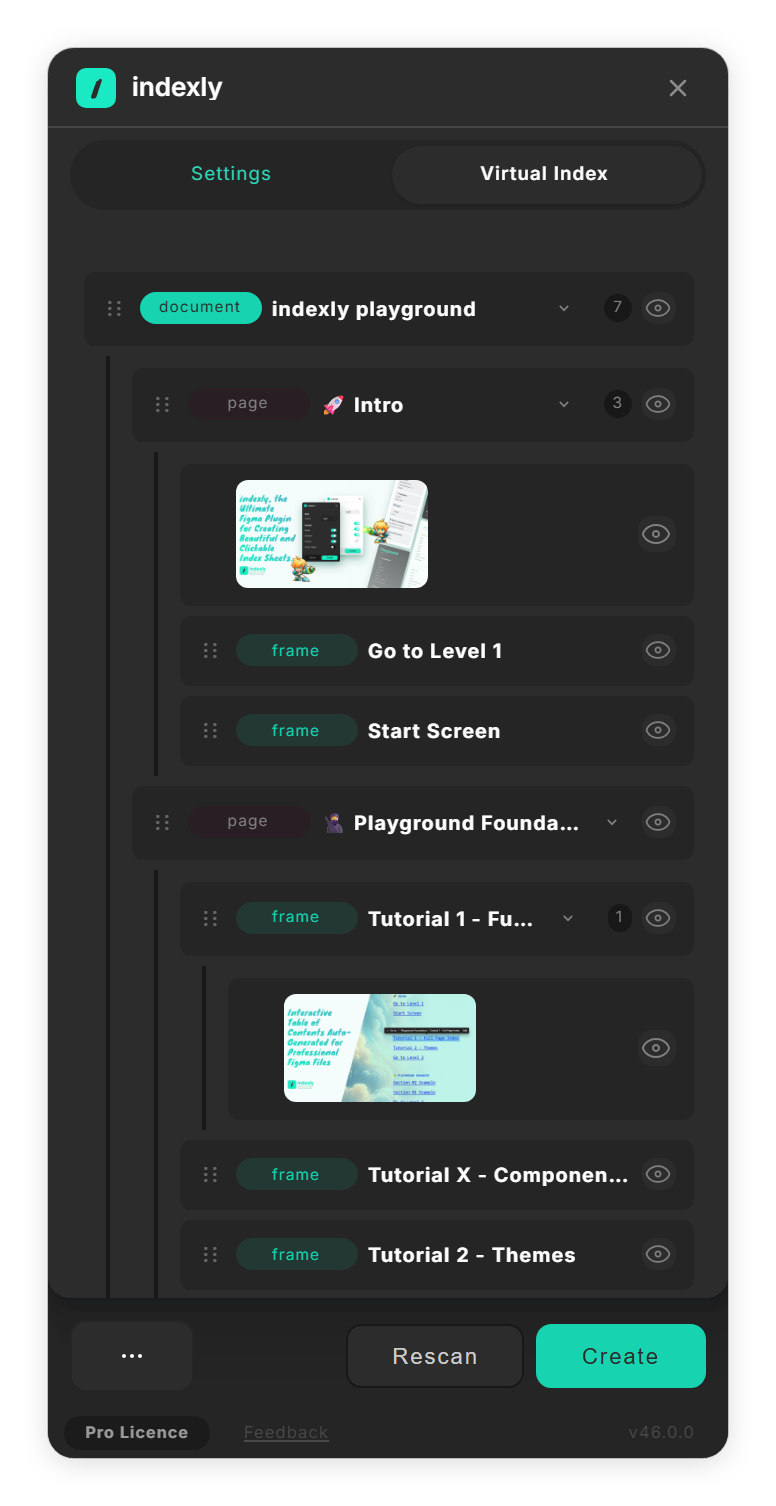
The file as a tree, with cover pictures (step 2). - Drag entries into order Drag an entry by its handle and drop it above or below another entry. Entries move only within the same level; otherwise you see 'Items can only be reordered within the same level'. Click an entry that has children to fold or unfold it.
-
Hide what should not appear Click the eye button on an entry (Hide element from index) to leave it off the sheet, with everything inside it. Previews have their own eye button (Hide preview from index). Click it again to bring the entry back.
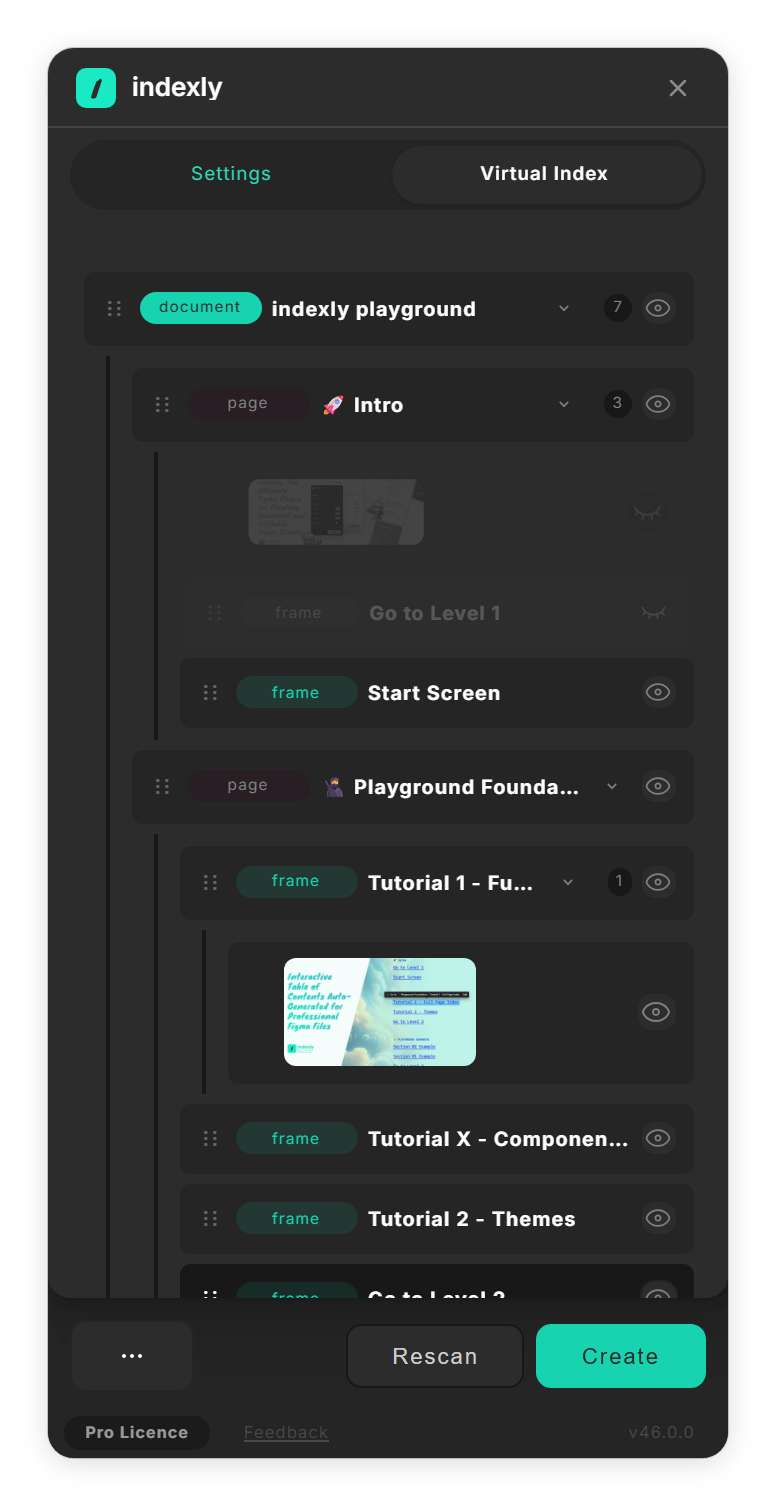
Hidden entries are dimmed and left off the sheet (step 4). - Create the sheet Click Create in the footer. indexly builds the sheet in your order and leaves the hidden entries out. Rescan reads the file again and starts over from its own order.
Tips
- Hiding an entry is the way to keep a layer off the sheet without renaming it.
Result
An index sheet in your own order, without the entries you hid.
If something goes wrong
-
My order is gone.
Rescan, or changing a setting on the Settings tab, scans the file again and starts from the file's order. Set the options first, then reorder.
-
Create replaced the sheet I had selected.
With an Index Sheet selected, Create on the Virtual Index tab rebuilds that sheet from the tree. Deselect it to make a new sheet.
-
Create on the Settings tab ignores my order.
Only Create on the Virtual Index tab uses the tree. Create on Settings scans the file again.
Common questions
Does the Virtual Index change my file?
No. Moving and hiding entries only changes the index sheet; your layers stay where they are.