Make PowerMail easier to use by touch
Choose Touch density for roomier rows and controls, or let Smart follow your device. See what changes in the inbox and Planner.
Goal
Give your fingers more room without changing how you organize your mail.
Before you start
- PowerMail installed. You can try Touch sizing with a mouse too; you don't need a touchscreen to choose it.
Steps
-
Choose Touch density Open Settings > System & security. Under Appearance, find Density and choose Touch - bigger rows and buttons. The line below the setting reads Right now: touch sizing. The change takes effect straight away, without restarting PowerMail.
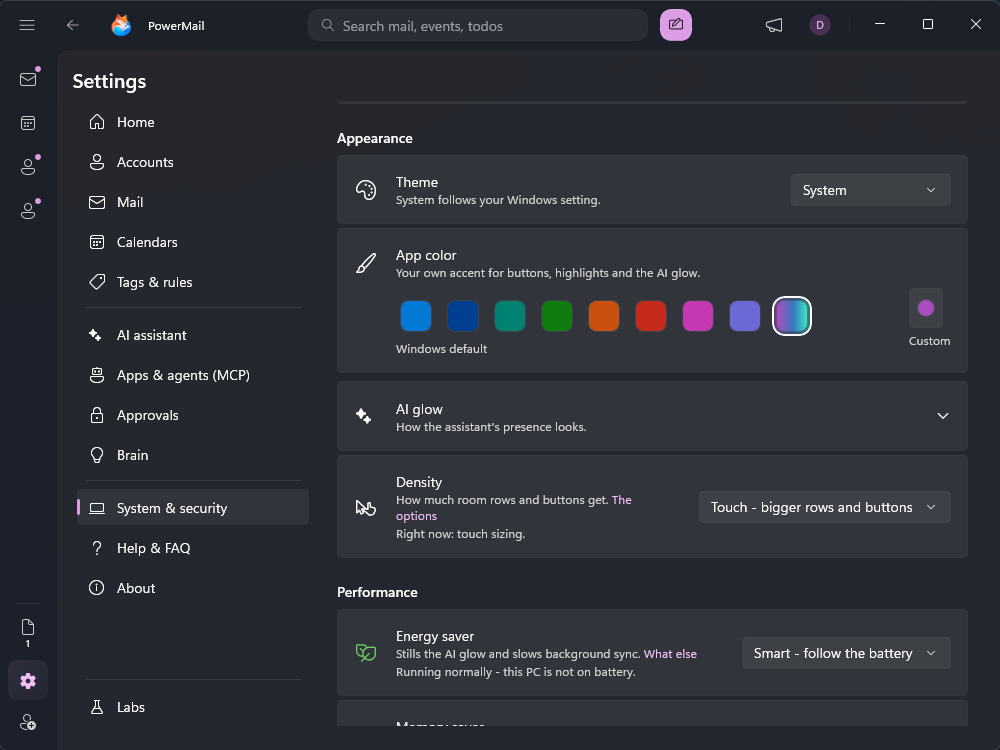
Choose Touch under Appearance > Density. The status line confirms the sizing in use. -
Give the inbox more room Mail rows gain padding, and folder rows and toolbars get taller. Buttons, tag chips, menus, drop-down lists and form fields get larger tap targets. You'll fit fewer messages on screen, but have more space between controls. These two captures show the same inbox at the same window size.
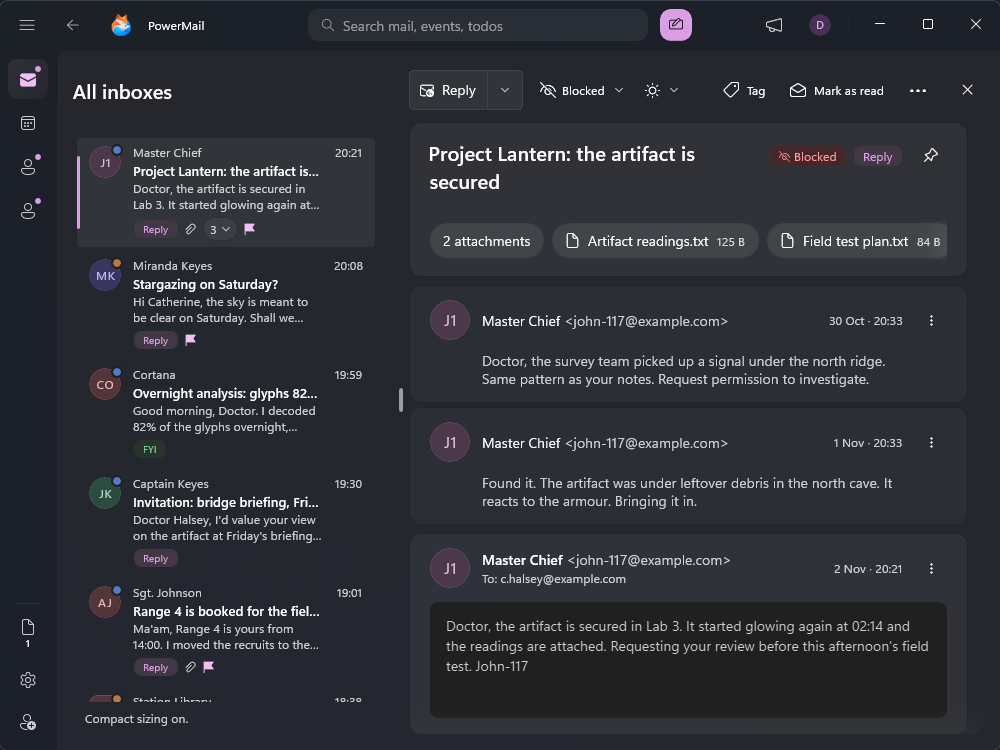
Compact: more messages fit in the same window. Halo demo data. 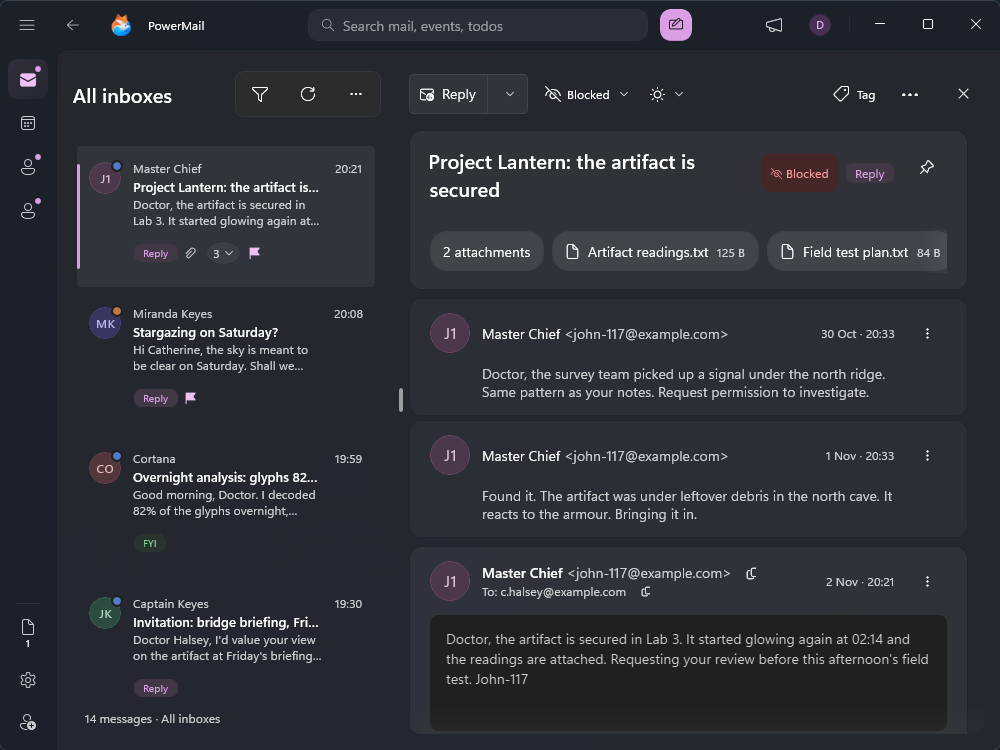
Touch: roomier rows and larger tap targets, at the same window size. - Find actions without hovering Action groups that normally appear when you hover stay visible in Touch sizing. You can tap them directly, and the buttons in those groups have more space between them. The title bar stays compact; Touch is a change to control spacing, not a zoom setting for the whole app.
- Open a day in the Planner In Month view, tap anywhere in a day's cell to open that day. The small event chips still show what's planned, but their individual drag and press-and-hold actions move to the full-size blocks in Day view. There, open or move a block, or press and hold for its menu.
- Switch back, or let Smart choose Return to Density and choose Compact - smallest rows and buttons to fit more on screen. Smart - match the device uses Touch sizing when Windows reports tablet posture and Compact otherwise, following changes such as docking or detaching a convertible's keyboard. The Right now line tells you which sizing is in use.
Result
Your rows and controls have the spacing you chose. You can switch between Compact, Touch and Smart whenever you need to.
If something goes wrong
-
Smart stays compact on my touchscreen.
Smart follows tablet posture, not just the presence of a touchscreen or the last thing you tapped. If Windows doesn't report the posture change, choose Touch directly. Check the Right now line under Density to see what PowerMail is using.
-
I can see fewer messages than before.
Touch gives each row and its controls more room. Choose Compact if you prefer more mail on screen, or make the window taller.
Common questions
Does Touch make the text larger?
Density changes spacing and tap targets. It doesn't scale the text or zoom the message body.
Does Compact turn off touch gestures?
No. Density chooses the size and spacing of controls; it doesn't turn your touchscreen on or off. You can still use touch in Compact, or a mouse and keyboard in Touch.