Add bookmarks for all pages or frames at once
Fill your list in one go: a bookmark for every page in the file, or for every frame on a page.
Goal
Build a table of contents for a file without adding bookmarks one by one.
Before you start
- Bookmarkly open in the file.
- For frames: the page with the frames open, and the frames selected if you want only some of them.
Steps
-
Open Manage bookmarks Click Open Menu (•••) at the bottom of Bookmarkly and choose Manage bookmarks.
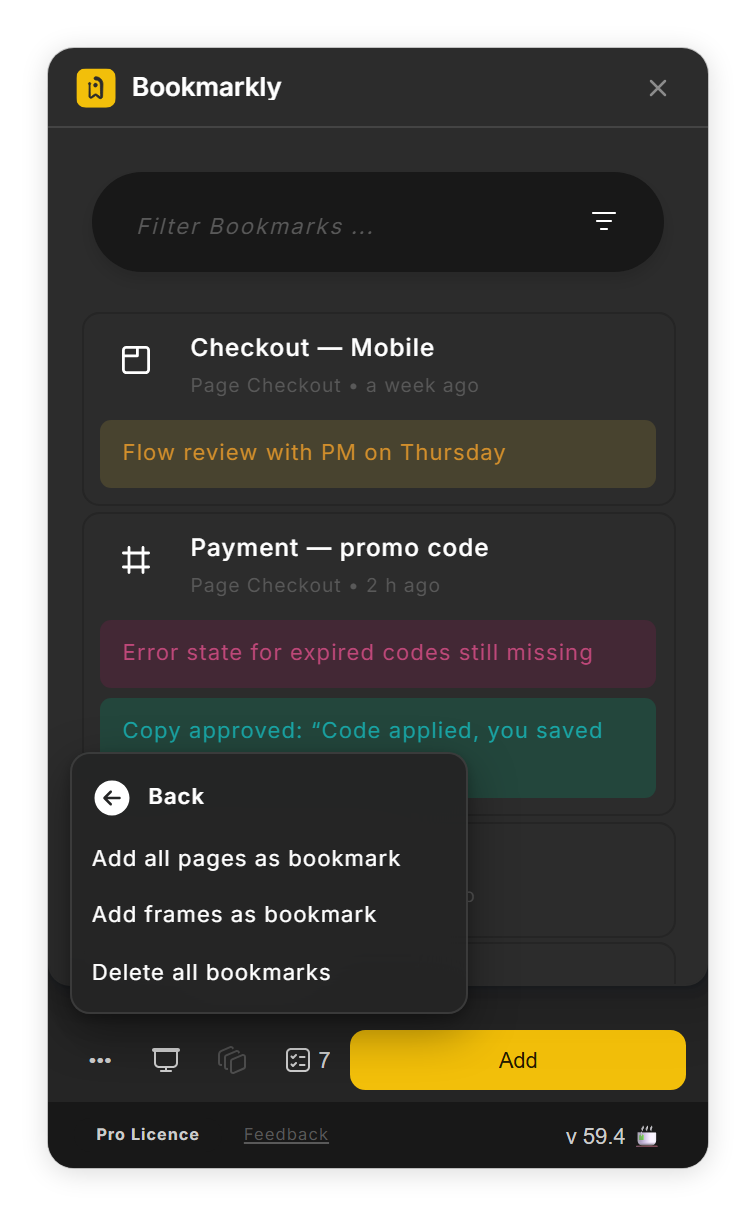
Manage bookmarks in the ••• menu (step 1). - Add every page Choose Add all pages as bookmark. Bookmarkly adds one bookmark per page, named after the page, and skips divider pages whose name is only dashes (- or ═). Figma shows the progress at the bottom of the canvas.
-
Or add frames Select the frames you want and choose Add frames as bookmark: each selected layer gets its own bookmark. With nothing selected, Bookmarkly adds every top-level frame and section on the current page. Figma confirms with 'Added N elements as bookmarks'.
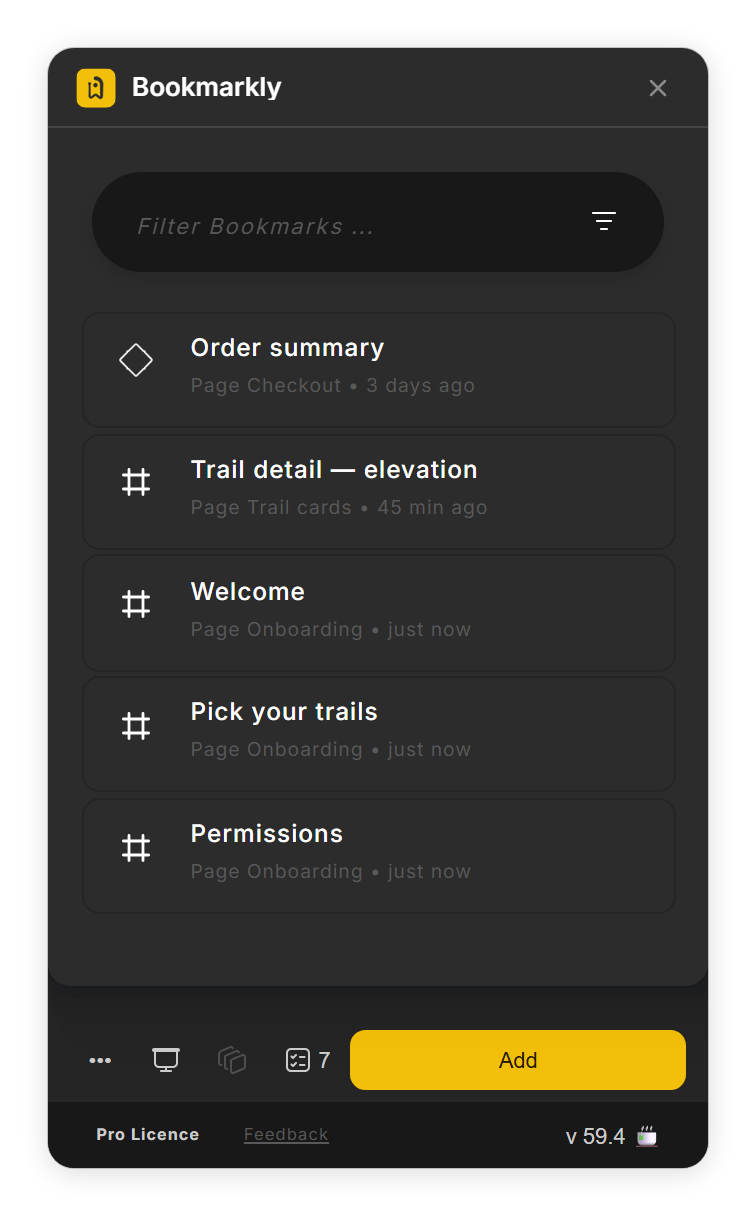
Every top-level frame of the page, added at the end of the list (step 3). - Jump around The new bookmarks appear at the end of the list. Click a frame bookmark to zoom to that frame with some room around it; click a page bookmark to open that page.
Tips
- Right-click anywhere in the Bookmarkly window to open the same menu as Open Menu (•••).
- A page bookmark opens the page at 50% zoom. To make it open a particular spot, go there and choose Update in the bookmark's ••• menu.
Result
Your list holds a bookmark for each page or frame, ready to annotate, reorder or present.
If something goes wrong
-
Older bookmarks disappeared after a bulk add.
A list keeps at most 140 bookmarks. When an add goes past that, the oldest bookmarks are dropped. Delete bookmarks you no longer need before adding many at once.
-
Add frames as bookmark added layers I did not want.
With a selection, every selected layer is added, frame or not. Select only the frames, or clear the selection to add all top-level frames and sections on the page.
-
A page is missing from the list.
Pages named only with dashes (- or ═) are treated as dividers and skipped. Go to that page and click Add to bookmark it by hand.
Common questions
What are the new bookmarks called?
Page bookmarks take the page name, frame bookmarks the frame's layer name.
Can I run it again after adding pages?
Yes, but Bookmarkly adds a fresh bookmark for every page each time, so you get doubles. Delete the old ones first if you only want one per page.