Sort, group, search and reorder your bookmarks
Group bookmarks by page or day, sort them, search names and notes, drag them into your own order and keep each one up to date.
Goal
Keep a long bookmark list easy to scan and in the order you need.
Before you start
- A few bookmarks in the Bookmarkly list.
Steps
- Show the search bar Press Ctrl+F (Cmd+F on a Mac), or move the pointer to the top edge of the Bookmarkly window. To keep the bar in view all the time, open Open Menu (•••) → UI Settings and switch on Search input.
-
Search Type in the 'Filter Bookmarks ...' field. The list keeps the bookmarks whose name or notes contain your text; 'No bookmarks found.' means nothing matches.
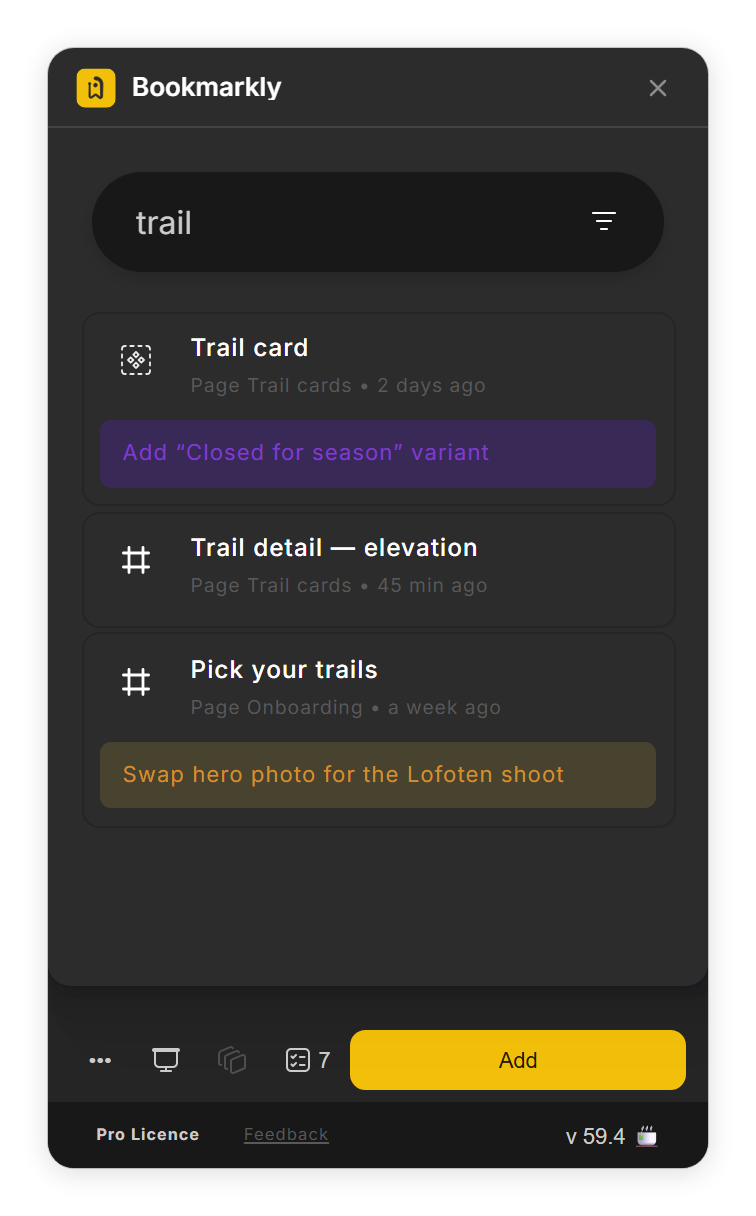
Search by name or note text (step 2). -
Group and sort Click the filter button next to the search field. Group by puts the list under headings by Page or Timestamp (the day a bookmark was saved); click a heading to jump to its first bookmark. Sort by orders the list by custom, timestamp, page name, position or zoom level, and the arrow button next to it flips the order for timestamp, page name and zoom level.
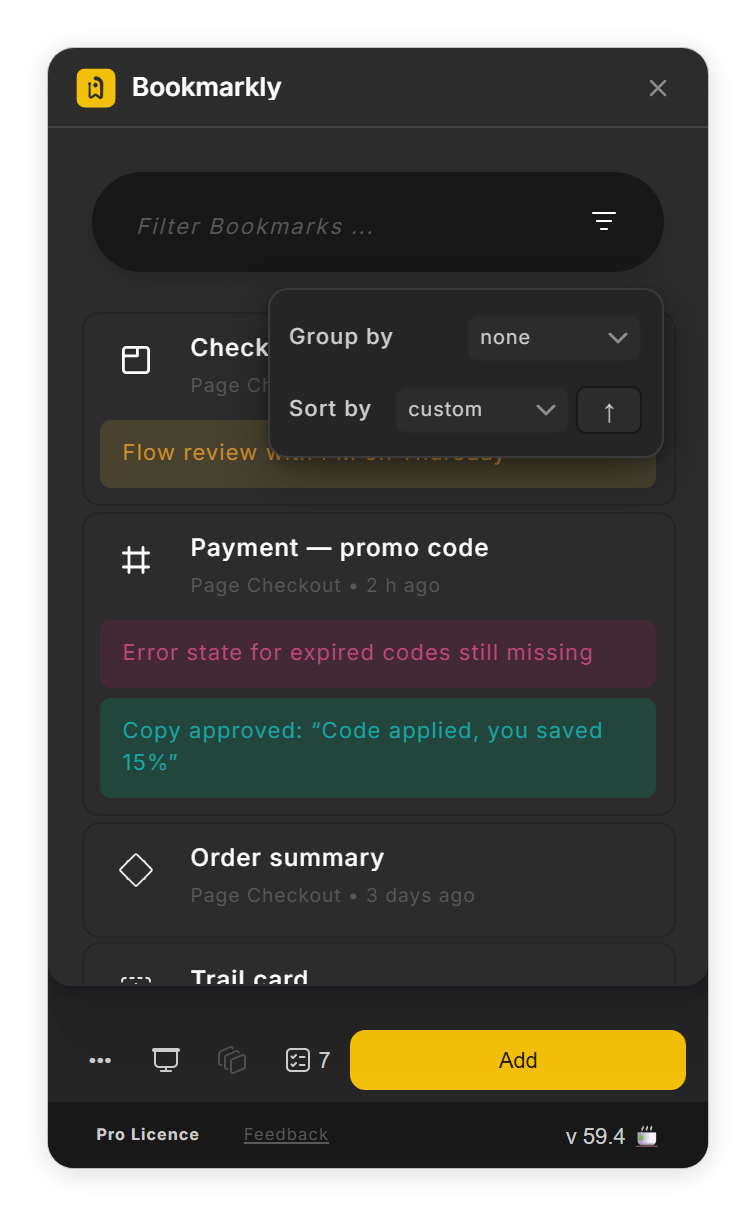
Group by and Sort by (step 3). - Drag into your own order With Sort by set to custom, drag a bookmark up or down and drop it where it belongs. In any other sort, Bookmarkly answers 'Dragging is only enabled in 'Custom' sort mode.'
-
Move a bookmark to where you are Go to the new spot on the bookmark's page, hover over the bookmark, click its ••• button and choose Update. The bookmark keeps its name and notes and now opens this view. Select the bookmarked layer first if it should keep pointing at it.
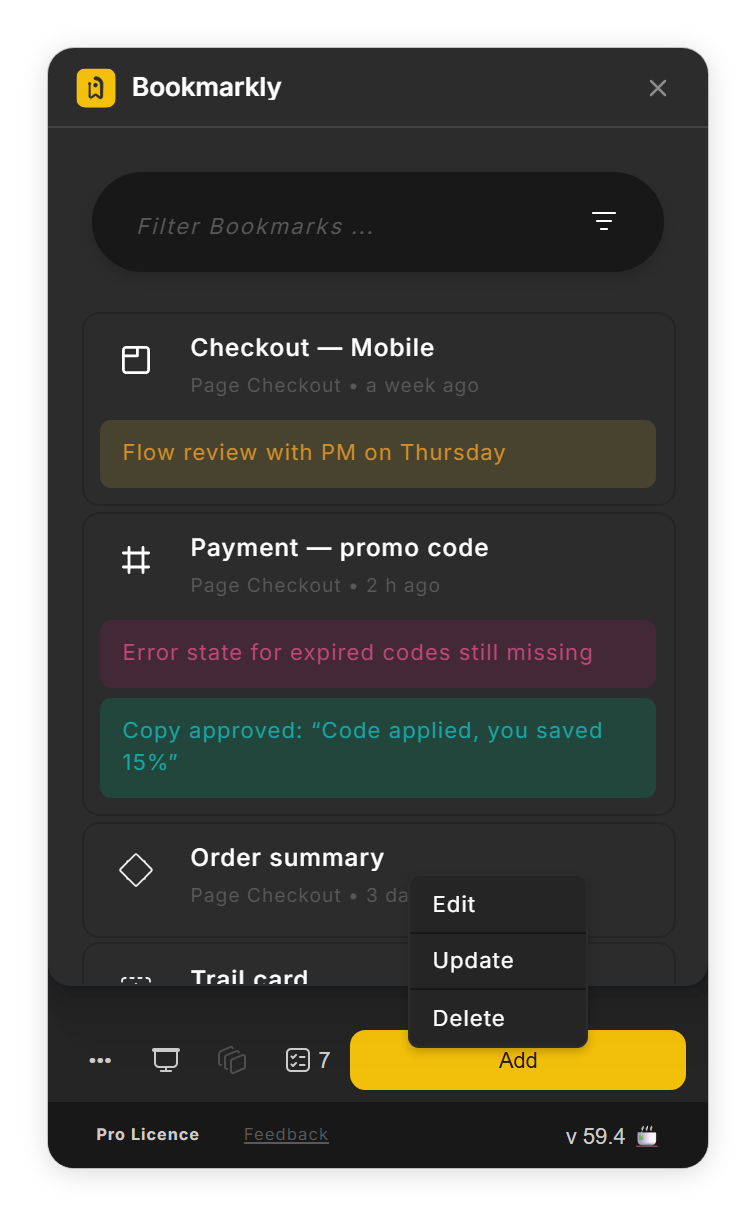
Update in a bookmark’s ••• menu (step 5). - Delete a bookmark Hover over it and click ✕, or choose Delete in its ••• menu. Click Undo ↩ in the 'Bookmark deleted' message to bring it back.
Tips
- Bookmarkly remembers your Group by and Sort by choices the next time you open it.
- Right-click anywhere in the Bookmarkly window to open the same menu as Open Menu (•••).
Result
Your list is grouped, sorted and in the order you want, and every bookmark opens the right spot.
If something goes wrong
-
I cannot drag a bookmark.
Set Sort by to custom first. Dragging works in that sort only.
-
Update did not move the bookmark to another page.
Update saves the view on the page the bookmark already belongs to. To mark a spot on another page, go there and click Add for a new bookmark.
-
The list stays empty after choosing Sort by position.
Bookmarks made with Add frames as bookmark have no saved view position, and in this version position sorting stops on them. Choose another Sort by option, or use Update on those bookmarks to give them a position.
-
Undo ↩ is gone.
The message closes after a few seconds; keep the pointer on it to hold it open. A deleted bookmark can only be brought back while Bookmarkly stays open.
-
The list looks out of date.
Choose Open Menu (•••) → Refresh List to reload it.
Common questions
What does Sort by position do?
It lists bookmarks that point at a whole page first, then the others from left to right and top to bottom on the canvas.
Does Update rename the bookmark?
No. Update keeps the name and notes and saves the current view position and zoom level. To rename, choose Edit in the same menu.