

Sticky notes widget for Figma & FigJam Notes that stay on the canvas.

Put feedback right beside the design it is about. Everyone who opens the file sees the same note and edits it in place, without running a plugin.

Tags
9 types · 10 colours
Lives
In the file, for everyone
Price
Free
Info

Use Fjord blue on all CTAs

Henrik Dahl · 1d agoEdit
Read more →
Good

Pay button contrast passes AA

Maja Berg · 2d agoEdit
Read more →
Note

Ship the shorter headline

Reads in one glance. Option A wins.

Dave aka Raiken · just nowEdit
Read more →

Figma plugin / Start here

Get going with Notely Sticky Widget

Quickstart
Made for
Design reviews, handoff notes and decisions that belong next to a frame.
First step
Add Notely Sticky Widget from the widgets menu in any Figma or FigJam file you can edit.
Your options
Free. No account and no licence.

Made by David ZerbeRAIKEN / uxactly GmbH

Everyone sees the same note

Everyone sees the same note

The note is part of the file. Edit it on the canvas and every viewer sees the change.

Say what kind of note it is

Say what kind of note it is

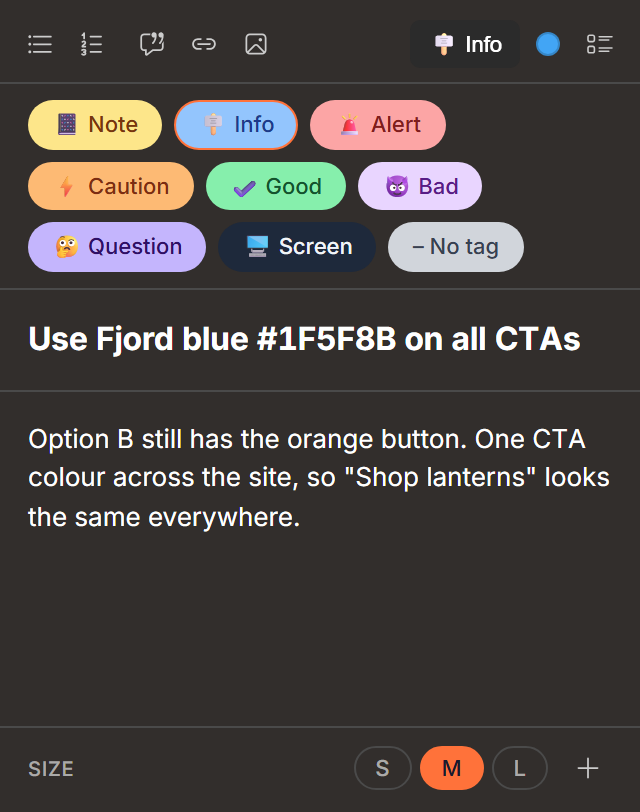
Question, Alert, Good and six more tags, in ten colours.

Images, quotes and links

Images, quotes and links

Up to six images, five quotes and five links in one note. Click an image to see it large.

Every note, one list

Every note, one list

Filter by tag, search by title, then jump to the note on any page.

Change many at once

Change many at once

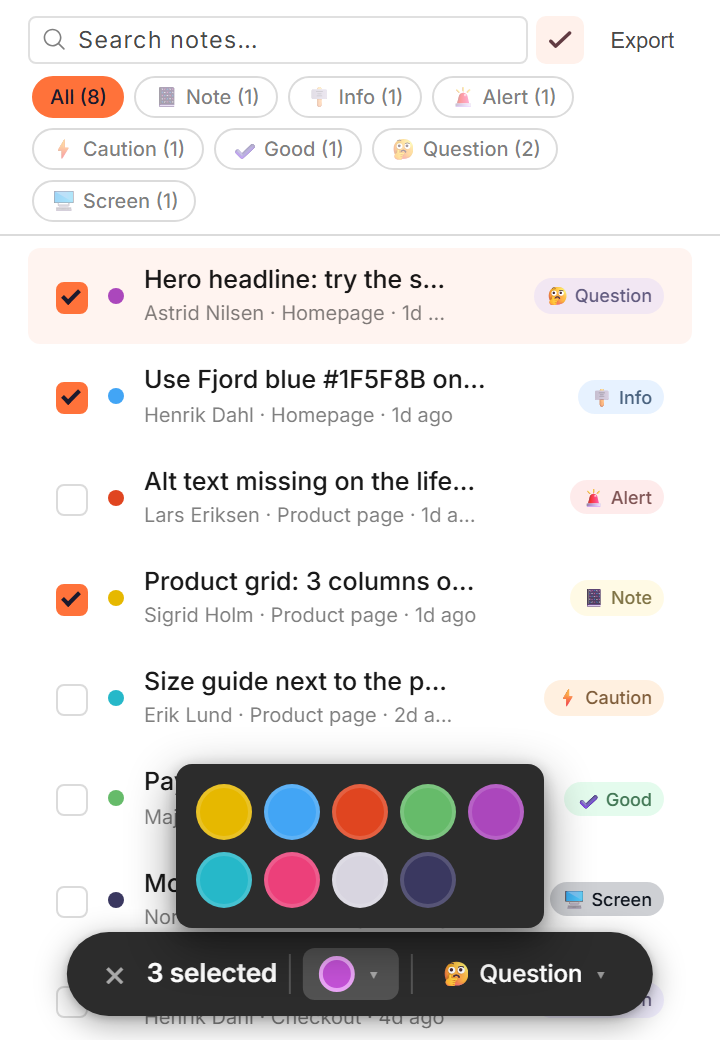
Select several notes and give them one colour or one tag.

Try it on this canvas.

Pick a colour, change the size, fold the note or click its title and type. The widget behaves the same way in Figma, for everyone in the file.

Question

Mascot: the bee or the axolotl?

Both test well. The bee still reads at 24 px.

Mascot board
Sigrid Holm · 5m agoEdit
Read more →
Good

Pay button contrast passes AA

Maja Berg · 2d agoEdit
Read more →
Note

Ship the shorter headline

Reads in one glance. Option A wins.

Dave aka Raiken · just nowEdit
Read more →

Edit right on the canvas.

Attach the screenshot, quote the decision and link the source. Up to six images, five quotes and five links per note.

All options
  • S, M and L, or click the edge arrows to step the width between 200 and 1600 px.
  • Colour, size and fold apply to every selected note at once.
  • Each note shows its author and when it last changed.
  • Hide the title or the body when a note should stay small.

Find every note again.

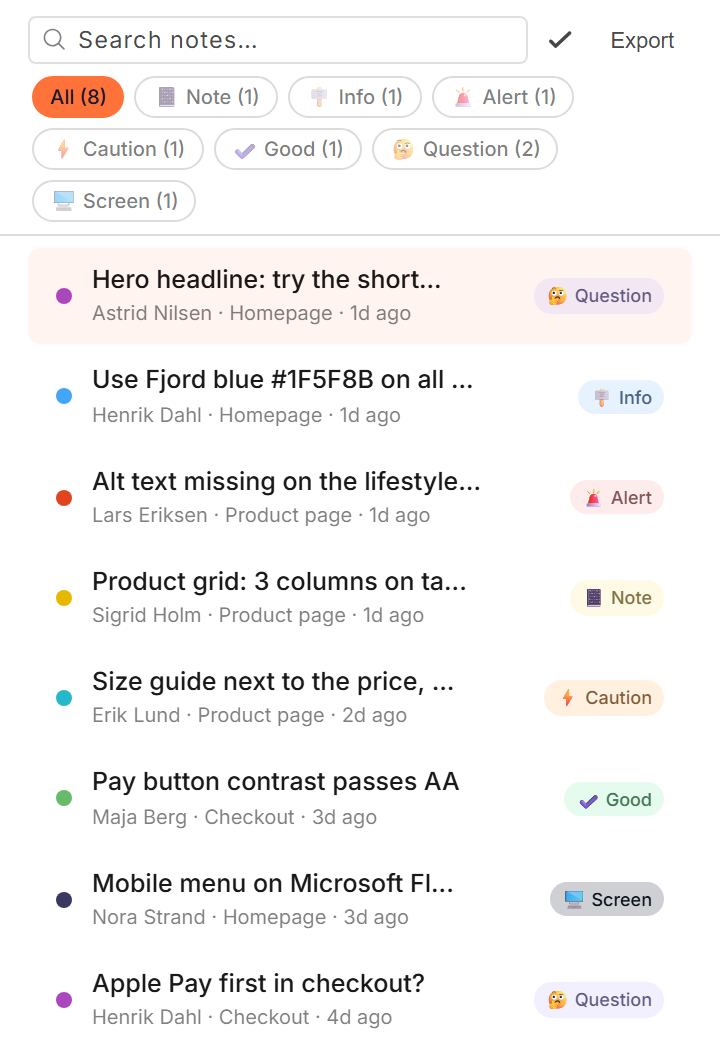
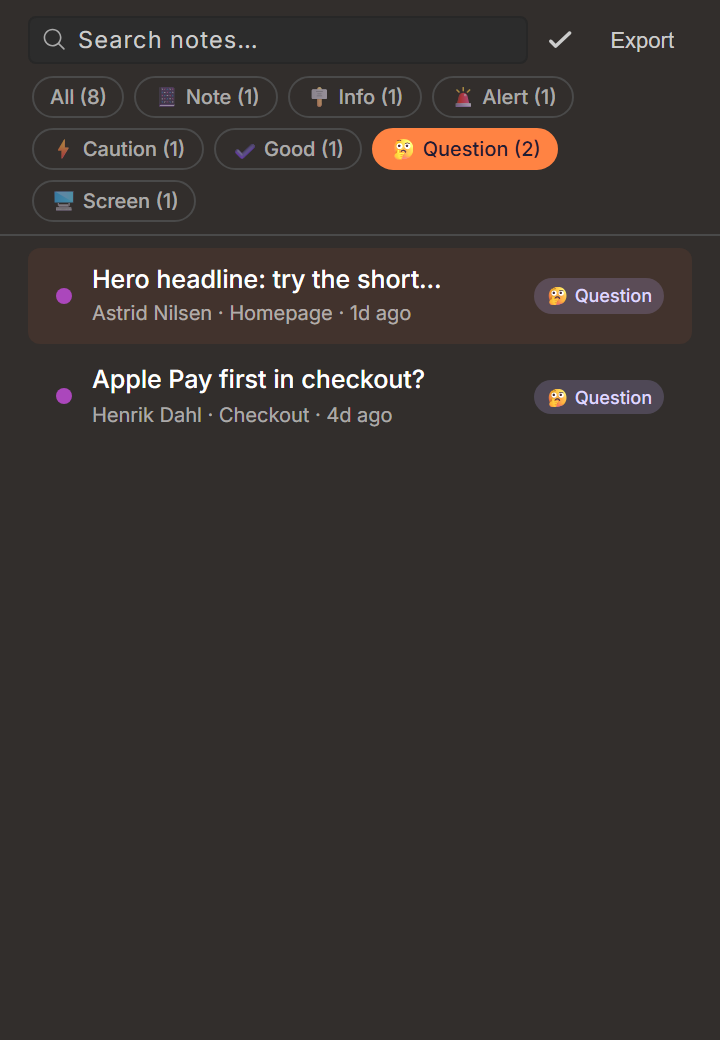
All Notes lists every note in the file with who wrote it, where and when. Filter a tag to see only the open questions.
All options
  • Notes from every page of the file, in one list.
  • Tag chips show how many notes each tag has.
  • Double-click a note in the list to edit it.
Notely Widget All Notes in light mode: a search field, tag chips with counts such as Question (2), and eight review notes with author, page and time, each with its tag.
All Notes over a sample design review.

More room when a note needs it.

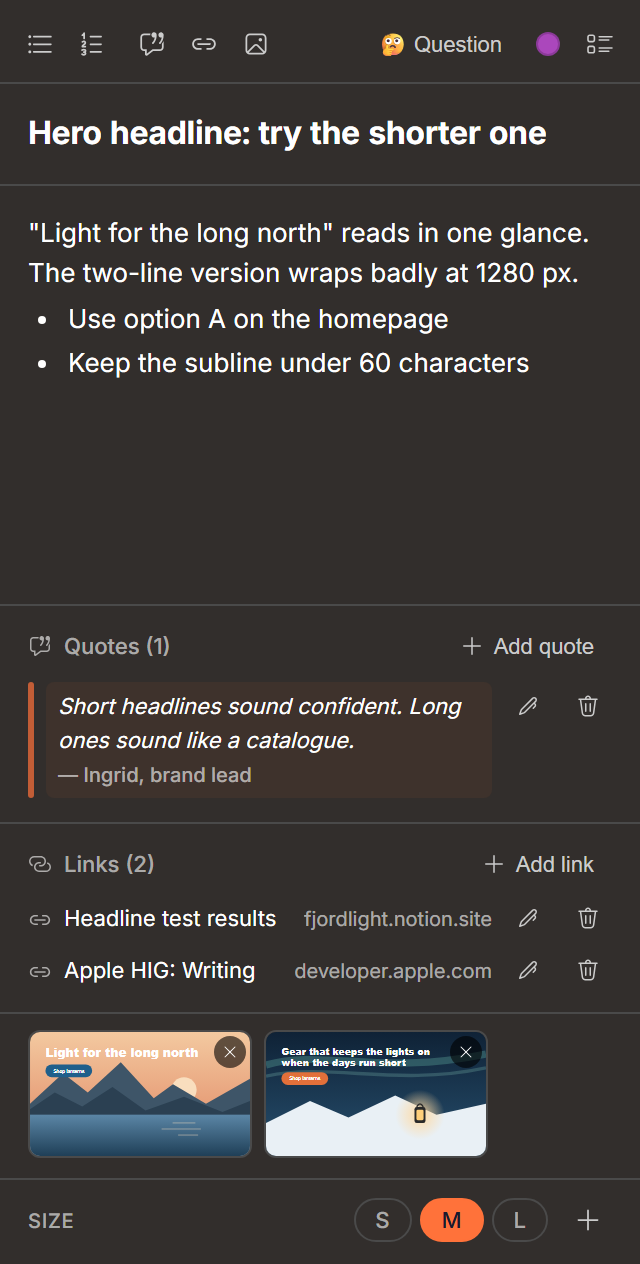
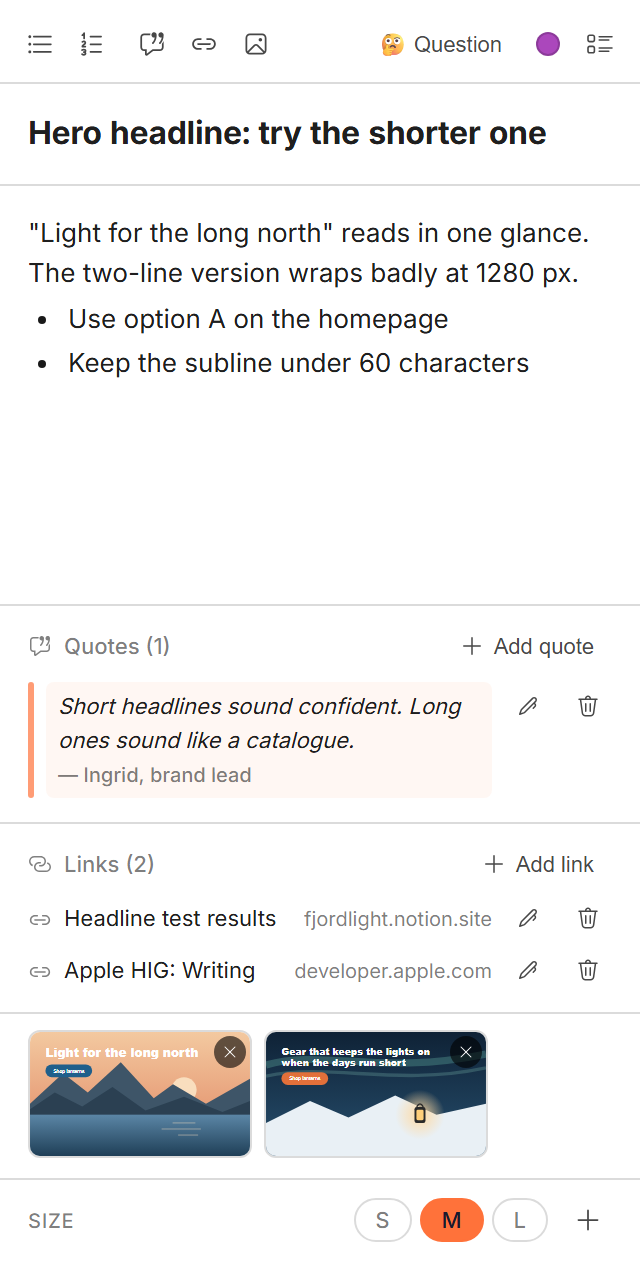
Write the note, add the screenshot and link the test results. The editor saves as you type.
All options
  • Saves as you type and follows the note you select.
  • Drop, paste or choose images.
  • Add the next note beside this one with +.
Notely Widget editor in light mode: a Question note with a two-line body and bullets, a quote from the brand lead, two links, two image thumbnails and the size buttons S, M and L.
A note with a quote, two links and two images.

From the community

"Hi thanks for such a nice widget."
Insuk Ko Avatar
Insuk Ko via Figma Community

Frequently asked questions

The details, when you need them.

Widget or plugin: which Notely do I need?
Take the widget when notes should simply live on the canvas for everyone, with nothing to open. Take the Notely plugin when you want AI help, Jira or text imports, Slides support and a Pro tier.
Is the widget free?
Yes. There is no Pro tier, no account and no licence.
Does it work in FigJam?
Yes. The widget works in Figma design files and in FigJam.
Can I add images?
Yes. Drop, paste or choose up to six images per note. They are scaled to fit 800 × 600 px and open large when you click them on the canvas.
How do I find a note again?
Open All Notes from the widget menu. Filter by tag or search by title, then click a note to jump to it, even on another page.
Does the widget send data anywhere?
It loads Figma profile photos for the author stamp and sends usage events to raiken.io, including your Figma user ID and name. Note content is not part of those events.

Quickstart: your first sticky note

Three steps, then a few details for bigger reviews.

1. Add the widget

Open the widgets menu in a Figma or FigJam file you can edit and insert Notely Sticky Widget, or open it from its Figma Community page.

2. Write on the canvas

Type the title and the note right on the card. Choose Edit in the widget menu to add lists, quotes, links and images.

3. Tag it and move on

Pick a tag such as Question or Good and a colour. The note stays beside the frame for everyone who opens the file.

Find every note later

All Notes lists every Notely note in the file with its author, page and time. Filter by tag, search by title and click to jump.

Widget or plugin

The widget keeps notes on the canvas and is free. The Notely plugin adds AI help, imports from Jira or text and works in Slides too.

More plugins

Browse all plugins